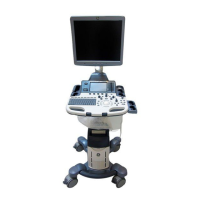
GE HEALTHCARERAFT LOGIQ™ S7 EXPERT/PRO
DIRECTION 5460683, REVISION 3 DRAFT (JUNE 25, 2014) SERVICE MANUAL
8-6 Section 8-3 - System Software - Installation/Upgrade Procedure
Section 8-3
System Software - Installation/Upgrade Procedure
8-3-1 Introduction
This section describes procedure to install/upgrade software to system.
8-3-2 Manpower
One person ~ 1 hour (depends on contents of System DVD, peripherals, etc.)
8-3-3 Tools
System DVD
8-3-4 Preparations
Before performing the Software Upgrade:
• make sure that all system functions are working correct
• check the current Application Software version and the installed Options
8-3-5 Preparation
8-3-5-1 General Notes on LOGIS S7 Expert/Pro Software Loading
When preparing to load software, you must perform the following steps:
• Back up the entire Patient Archive and Reports (you can import the database from previous version
into this version).
• Back up all presets, including Service.
• Record Connectivity settings (TCP/IP).
• Load Base System Software and install Application Software:
- Reload entire drive (all partitions), or
- Reload only C partition
The Hard Disk Drive (HDD) on LOGIQ S7 Expert/Pro is divided into five partitions.
NOTE: The HDD on LOGIQ S7 Expert/Pro has three visible partitions (two other partitions are hidden).
Before loading the Base System Software, you must perform the following steps:
• Contact the customer to allow enough lead time to back up the system.
• Be sure no images are in the clipboard or opened exams.
• Review troubleshooting section to collect information for future analysis if you are troubleshooting
loss of image or patient data.
• Disconnect the system from the network and remove all transducers from the system.
Table 8-2 Use of the Partitions
Drive Letter Label
C: SYSTEM
D: USER
E: ARCHIVE



 To Next Page
 Loading...