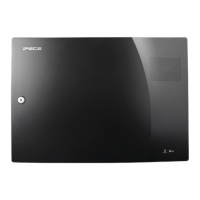
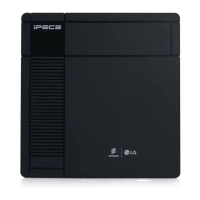
iPECS eMG80/100& eMG800 & UCP & vUCP
Administration and Programming Manual Issue 2.5
389
4.5.1.2.2 iPECS eMG/UCP Upgrade Process
iPECS Software Full Upgrade Sequence
The following shows the order in which the upgrade process proceeds and firmware files for iPECS and
modules. Note the xxxx in the ROM file names indicates the version number of the file.
MPB/UCP Upgrade Process
1) Upload MPB/UCP application image.
UCP application image
(Example, S-UCP-Rls1601-2.1.1-app.rom)
eMG 80/100/800 MPB application image
(Example, eMG80: S-eMG80MPB-Rls1512-2.1.1-App)
(Example, eMG100: S-eMG100MPB-Rls1512-2.1.1-App)
(Example, eMG800: S-eMG800MPB-Rls1512-2.1.1-App)
2) Restart MPB/UCP.
Note)
If the new system database is not compatible with the existing system database, it will be necessary to
initialize it.
This can be done manually using the Initialize Dip Switch located on the UCP/MPB module or via the
Initialization Web page.
Upgrade of the UCP/MPB includes HTML files; a separate upload of the HTML files is not required. HTML
files can be separately upgraded under the File System
Appliances Upgrade Process
1) Upload Appliance application image to MPB
LIP 8012/8024/8040E application image:
GS98Pxxxx.rom (xxxx indicates the version)
LIP 8002E application image:
GS99Pxxxx.rom (xxxx indicates the version)
2) Select target appliances & Upgrade application image and click [Upgrade].
3) Wait until the upgrade process completes.
4) Automatically restart when the upgrade completes successfully.
Upgrade of Voice Prompt for eMG
1) Access to VSF Prompt Upgrade page.
2) Select First/Second/Third for multiple language voice prompt.
3) Upload the proper prompt file.
??96Wxxxx.rom (?? Is nation, i.e. GS, DM, KR, etc. ; xxxx indicates the version)
Upgrade of Voice Prompt to VMIU for eMG
1) Access to MPB.
2) Select First/Second/Third for multiple languages of voice prompt.
3) Upload the proper prompt file to VMIU.
??96Wxxxx.rom (?? Is nation, i.e. GS, DM, KR, etc. ; xxxx indicates the version)



 To Next Page