iPECS eMG80/100& eMG800 & UCP & vUCP
Administration and Programming Manual Issue 2.5
390
4.5.1.3 Upgrade HTML Files
The “File View” Menu is used to upload a file and reload the system’s html files. Upload time of html will take 5
~ 10 minutes.
4.5.1.3.1 Appliances Upgrade (Device and iPECS Phone)
Upload appliance image, and click the [Upgrade process] button to select upgrade appliances. If appliances
are selected, click the [Upgrade] button. The page shown in Figure 4.5.1.2-1 will indicate that the Upload
command has been sent and the upgrade process is working.
This page will display the Upload status. When the appliance upgrade process is successful, the status is
updated to “Success.” If the upgrade process fails, the process is attempted an additional three (3) times
before being abandoned.
4.5.1.3.2 Direct Appliances Upgrade
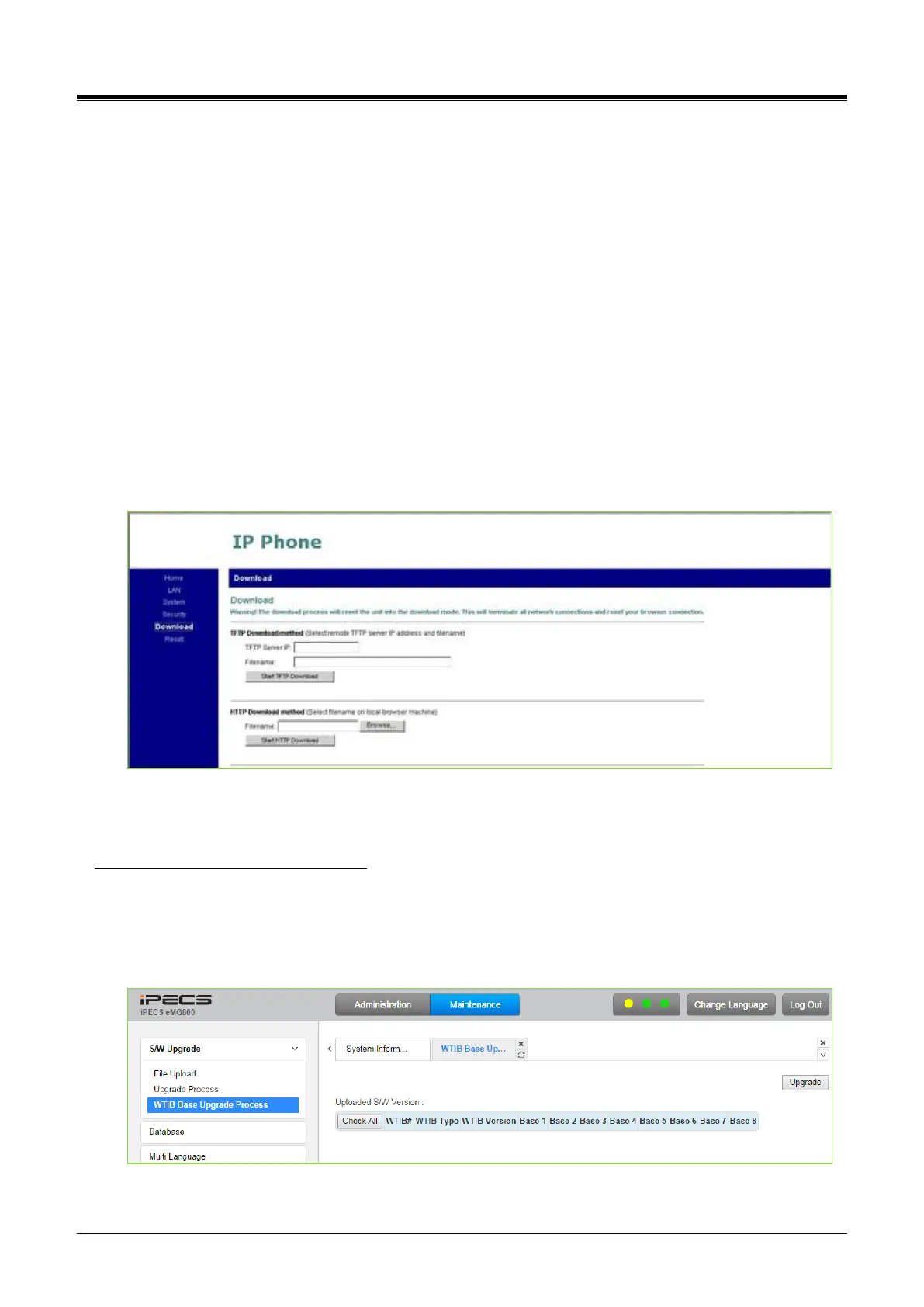
Should the above-managed upgrade process fail, appliances (Devices and iPECS Phones) can be upgraded
directly using the appliance IP address as the upgrade destination address. Note the later time may require
local access.
Figure 4.5.1.3.2-1 iPECS Phone Direct Connect Upgrade
4.5.1.4 WTIB Base upgrade Process for eMG800
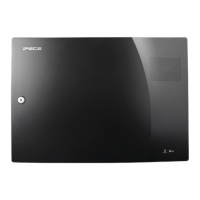
Upgrade WTIB base image of eMG800.
1) Upload WTIB base image to MPB.
2) Select target base& Upgrade.
3) Wait until the upgrade process completes.
4) Automatically restart when the upgrade completes successfully.
Figure 4.5.1.4WTIB Base Upgrade Process



 To Next Page