K117sm8eE
8-208
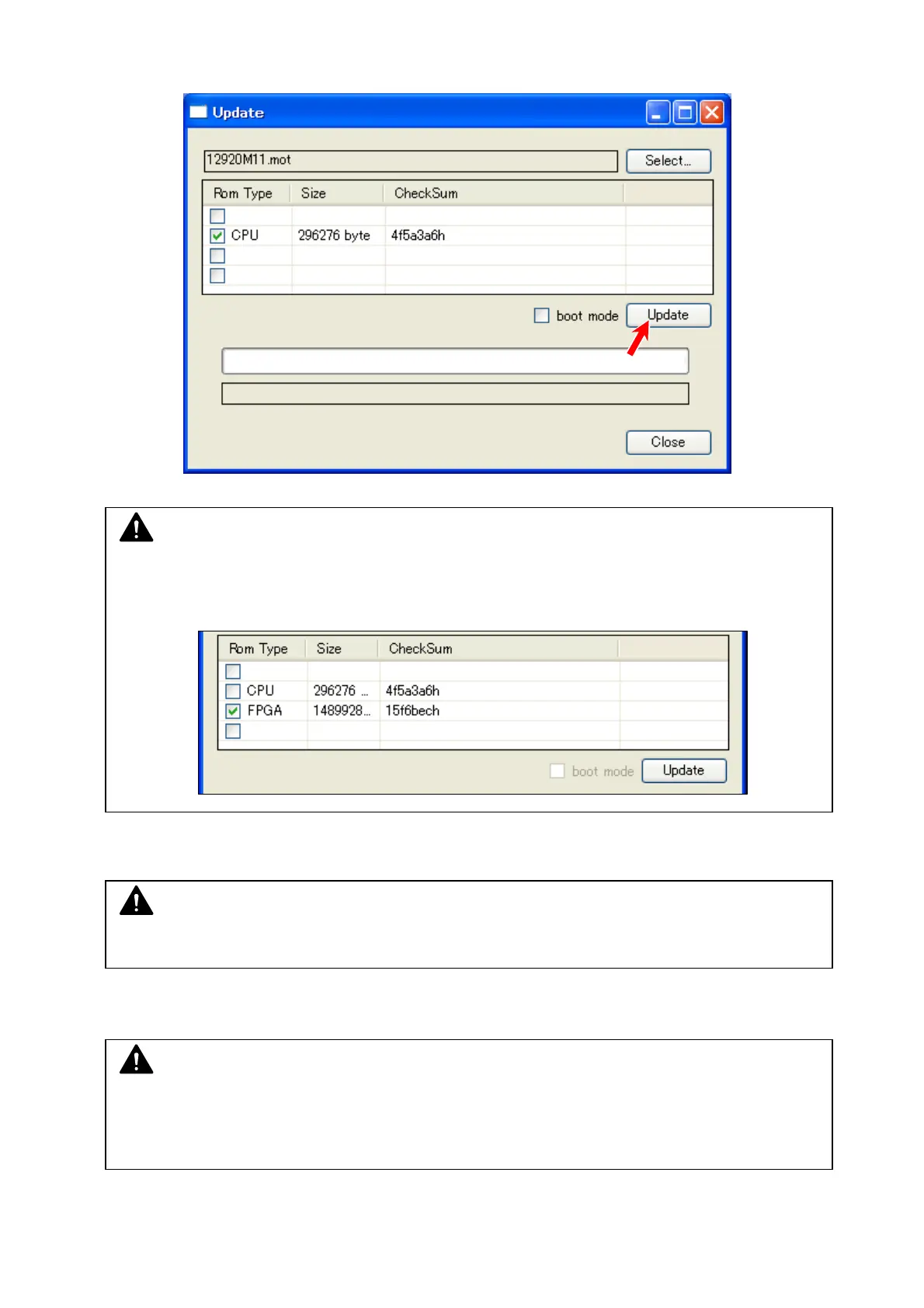
6. [Upload] button in the middle-right is now activated.
Click it to send the firmware file to the scanner’s Main Board.
7. When “done” is displayed, sending the firmware file to the scanner is completed
Click the X button at the top right corner to close “Update” sub window.
8. Turn off the scanner. Wait 3 seconds and then turn it on.
Now the selected shading data file is validated.
NOTE
You may add another firmware file (for example: added CPU, and then you add FPGA) in the
list, but you can send only one file that is having a check mark at a time. The following
example only FPGA will be sent to the Main Board.
NOTE
If you quickly turn off and on again, “The device can run faster...” balloon would pop up.
This is because the scanner firmware may be loaded to the scanner’s memory incorrectly.
Please wait 3 seconds before turning on again.
NOTE
At this time the firmware file has just been sent to the Main Board, but is not applied yet.


 To Next Page