112
11-8. BORDERS
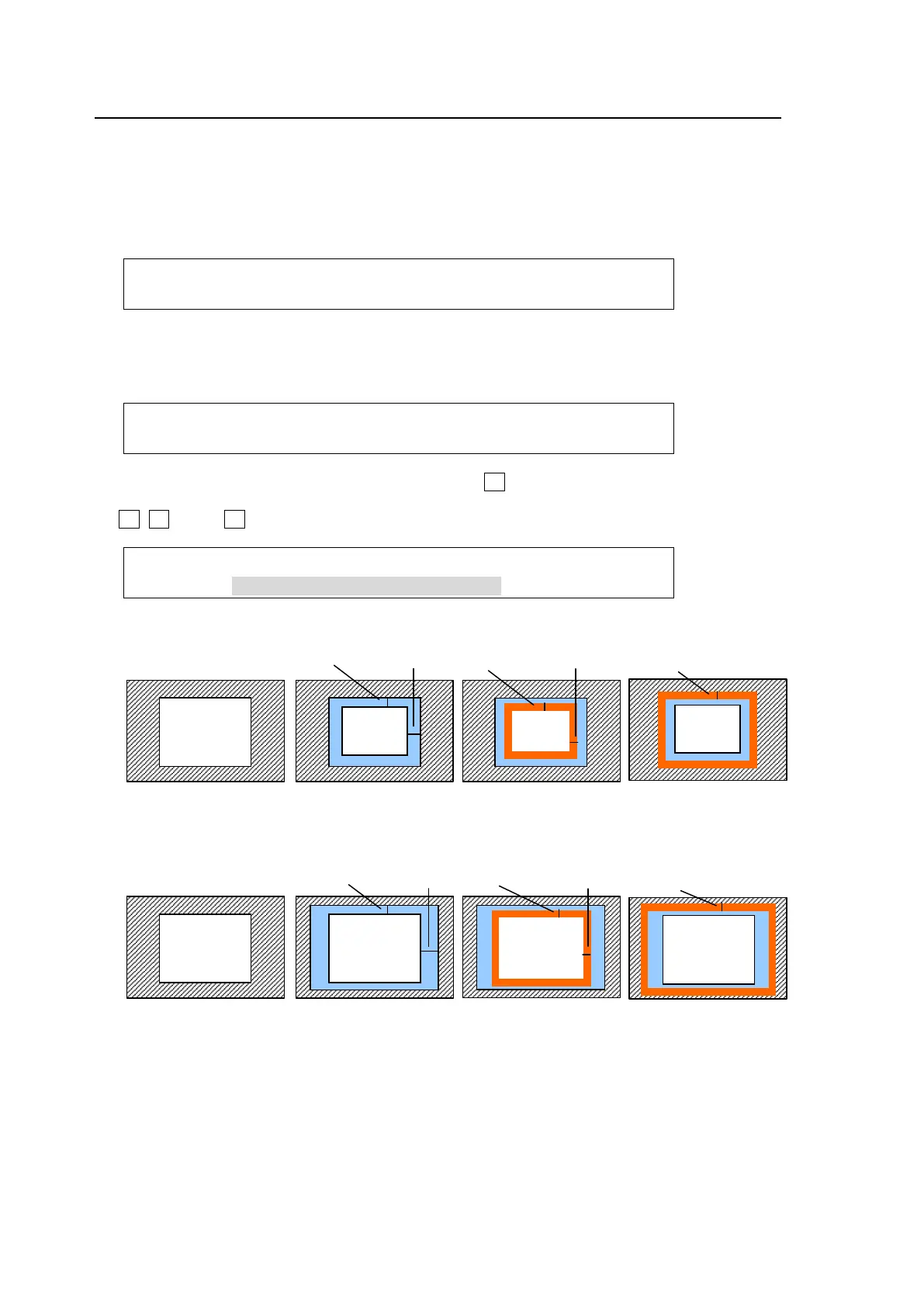
Borders can be added to key images. Inside border and outside borders can be adjusted
independently.
(1) Go to the [M/E1 KEY1 - BORDER] menu.
(2) To use the inside border, set the width at the INSIDE X and Y. To use the outside border, set
the width at the OUTSIDE X and Y.
ME1 KEY1: INSIDE : OUTSIDE : 1/3
BORDER :X=0 Y=0 :X=0 Y=0 :
(3) Press the page down button to go to PAGE2. In this menu, border softness can be adjusted.
INSIDE X and Y allow users to set the softness for the inner half of the set border. The
softness of the outer half of the border is set at OUTSIDE.
WIPE : INSIDE :OUTSIDE: : 2/3
BDR SOFT:X=0 Y=0 : =0 : :
(4) Press the page down button to go to PAGE3. Turn F4 to select a color for the border among
eight standard colors. If you wish to use a color other than those eight, adjust the color using
F1, F2 and/or F3. You can also use the joy stick to set the color.
ME1 KEY1: BORDER COLOR :RECALL : 3/3
BDR COL :S=66.3 L=5.4 H=3.5 : >BLUE :
Inside Border
Outside Border
W/ border
Inner half
softness
SOFT-Y
SOFT-X
W/ border
Outer half
softness
EDGE SOFT
Key image
W/o border
W/ border
Y X
W/o border
W/ border
Inner half
softness
SOFT-Y
SOFT-X
W/ border
Y X
W/ border
Outer half
softness
EDGE SOFT



 To Next Page