180
22. USER Button
User buttons can be assigned to specific menu pages and used as shortcuts or specific
functions buttons. Follow the procedure below to assign the desired menu page or function to
buttons.
22-1. USER Button Operation
The following 18 user buttons are available in the switcher.
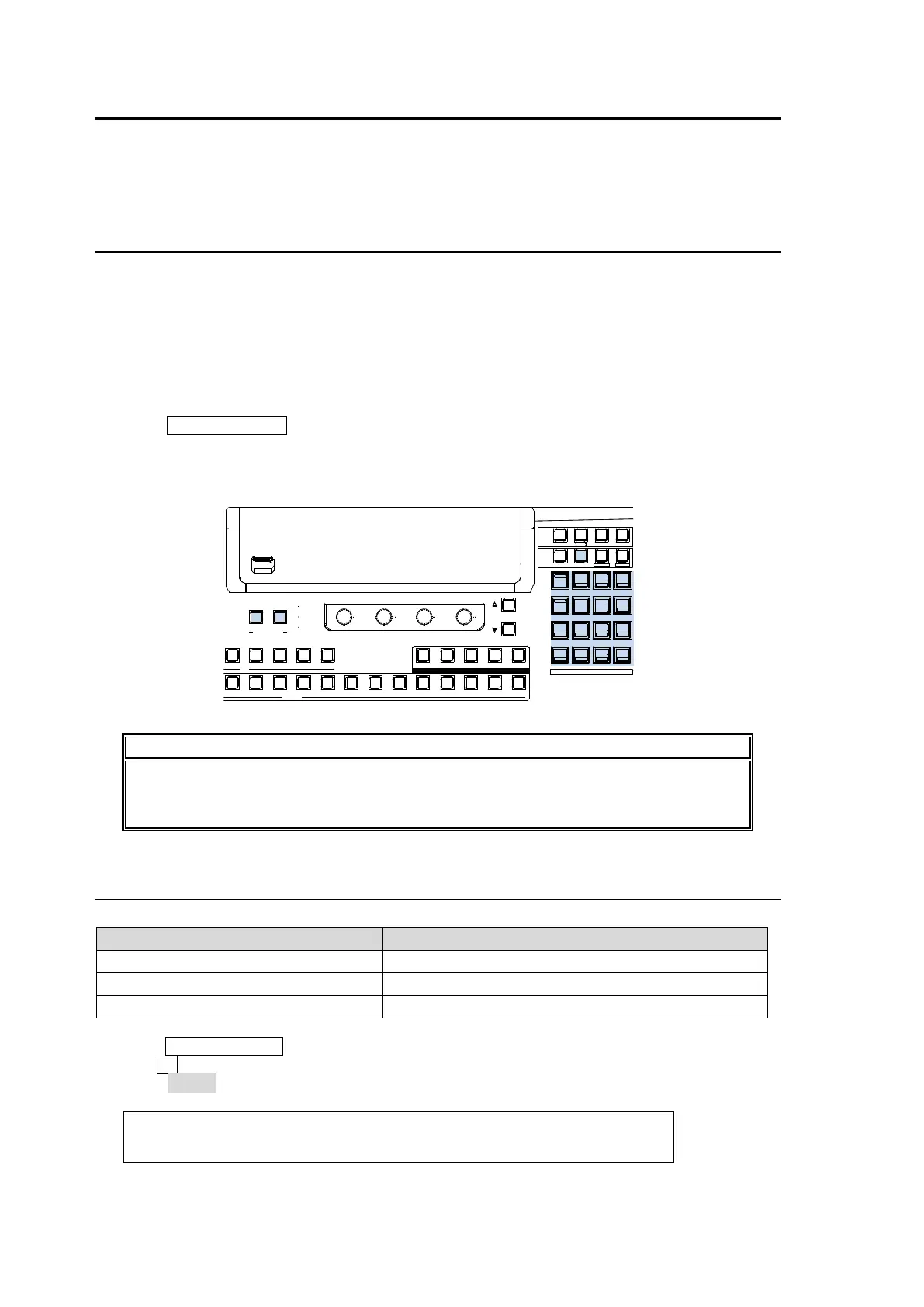
How to Use USER BUTTON 1 and USER BUTTON 2 (below the menu display)
Pressing a button lets you open the desired menu page or perform the desired function. In the
factory default setting, the button can be set to enable or disable GPI IN triggers.
How to Use 16 User buttons on the SELECT/KEYPAD block (in USER BUTTON mode)
(1) Press USER BUTTON in the CONTROL block above the numeric keypad to change the
Keypad to User Button mode.
(2) Press a user button on the Keypad to open a desired menu page or perform a desired
function.
As the factory default setting, no menu page or functions are assigned to user buttons
on the Keypad. Assign a desi
red menu page or a function following the procedure
below.
22-2. USER Button Settings
USER Button Default Assignments
Button Default Setting
USER BUTTON 1 (OU-1) GPI IN ENABLE
USER BUTTON 2 (OU-2) EDITOR ENABLE
USER BUTTON 3-18 NONE
(1) Press USER BUTTON in the CONTROL block to display the [USER BUTTON] menu.
(2) Turn F1 to select a USER button for use. The selected USER button blinks.
(3) Select MENU or the function type under TYPE.
PANEL :SELECT : TYPE : FUNC (F3) : 1/2
USER BTN: = 1 : =NONE : = (NOT ASSIGN)
USB MEMORY
ALARM
POWER1
POWER2
USER BUTTON
1 2
F1
F2 F3
F4
PAGE
PGM PREV CLEAN MV1
201918171615141312111098
KEY/AU X
AUX
87654
SELECT / KEYPAD
5
2
REC ALL
PA STE
4
1
6
3
DEC
SEQUENCEEVENTWIPE MACRO
CONTROL
MEMORY
MENU USER BUTTON COPY/ SWAP SEQ EDIT
987
ATT ACH
INC
MENU
CO PY
STILL MA T T
SW AP NEW
FILE
INS
KEY4KEY3KEY2KEY1
DETT ACH
ADDD ELCUTPL AY
+/-
CLEAR
WIPE
ST OP
0
CO PY
ST OR E
ENTER
OVWR
MV2



 To Next Page