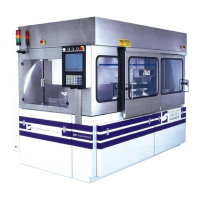
7AF Backup, Recovery and Temporary Security Measures
9/12/96 Ken Hill
Purpose
These procedures will outline how to backup files that may change on the 7AF, recover or regenerate the software and protect
recipes. These functions are taken care of by batch files stored in the c:\7AF\EXCECODE directory.
Installation
These utility batch files are included in all releases at or after version 2.06. Contact the factory if you have an earlier version.
Backup
This procedure backs up all files that may change onto a floppy disk. Leave the 7AF Software by pressing the “7AF” in the logo.
Type in 7AFBAK and then use the “Enter” key. The instructions will prompt you to put in a floppy disk and inform you when
finished. The batch file will restart the 7AF software at the end of the process.
Restore
This procedure should only be attempted by someone familiar with basic DOS file commands. Help is available from the factory for
people with these basic skills, but uncomfortable with the actual process. People without these basic skills should contact Strasbaugh
Field Service to do the following operation. The control computer must have DOS installed and if a new computer is installed, the
interface boards from the previous computer. Be sure all power saving or hard disk “spin down” features are disabled! This
procedure does not cover setting up these boards. Install the latest version of software per instructions supplied with the software.
Copy all files from the diskette generated in the “Backup” procedure above to the c:\7AF\EXECODE directory. Restart the 7AF
software by booting the computer.
Protecting Recipes
This procedure makes all recipe files “read only” so that they cannot be modified. See the procedure below, “Removing Protection
from Recipes” to modify recipes. Leave the 7AF Software by pressing the “7AF” in the logo. Type in Lock and then use the “Enter”
key. The batch file will write protect all recipes by setting their “read only” attribute. Type in RUN7AF and then use the “Enter” key
to restart the 7AF software at the end of the process.
Removing Protection from Recipes
This procedure removes the “read only” attribute so that they can be modified. See the procedure above, “Protecting Recipes” to
protect recipes after working on them. Leave the 7AF Software by pressing the “7AF” in the logo. Type in Unlock and then use the
“Enter” key. The batch file will allow all recipes to be modified. Type in RUN7AF and then use the “Enter” key to restart the 7AF
software at the end of the process. All recipes can now be modified.



 To Next Page