Configuration
6-32 Software Installation & Configuration
Note Network connections only support the LaserJet 2100/2200/2300 printer
Parallel connection supports LaserJet 2100/2200/2300 and LaserJet 6P printers.
Default printer selection for all devices is lj_lpt1.
LaserJet 5P printer driver is used for both printers.
IP assignments can be used to identify which printer is associated with each lj_00x icon. For
simplicity, the last digit of the Printer icon and the IP Address are the same.
• Type in the MAC Address of the printer being added as determined from its
configuration printout.
The procedure for determining the MAC Address for the Laserjet printer is as follows:
– Turn On the Printer, with all other printers turned Off
– Generate a JetDirect Configuration Page by simultaneously pressing and releasing
the Go and Job Cancel buttons.
– Read and Record the LAN Hardware Address from the JetDirect Configuration
Page. The Hardware Address = MAC Address.
• Click OK to add the printer to the List of network devices.
Caution Printers can only be added or removed via this window. Default printers are determined
via the Report and Recording Destination window.
Note If an Application Server is on the network and needs to connect to the Information Center
printers, the printers must be shared.
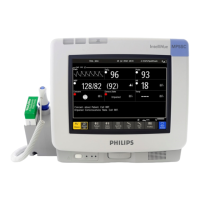
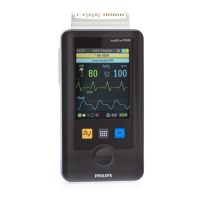
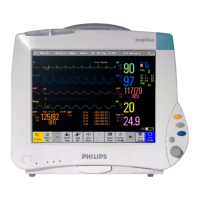
For systems with Mx/IntelliVue patient monitors:
• Verify that the IP Address Range for Mxs is sufficient.
• Click Monitor IP Address Range to display the IP Address Range for Mx window.
• Verify that the IP Address Range includes sufficient IP Addresses for all Mx/IntelliVue
patient monitors to be added to the network. Increase the range if it is not sufficient.
The acceptable range is 172.31.16.0 to 172.31.70.255.
Step 6. Click Next> to save changes and advance to the next page.
Table 6-2. IP Addresses for Printer Configurations
Printer Icon IP Address Printer Icon IP Address
lj_001 172.31.254.1 lj_005 172.31.254.5
lj_002 172.31.254.2 lj_006 172.31.254.6
lj_003 172.31.254.3 lj_007 172.31.254.7
lj_004 172.31.254.4 lj_008 172.31.254.8



 To Next Page
 Loading...