Display and Analyze your Image
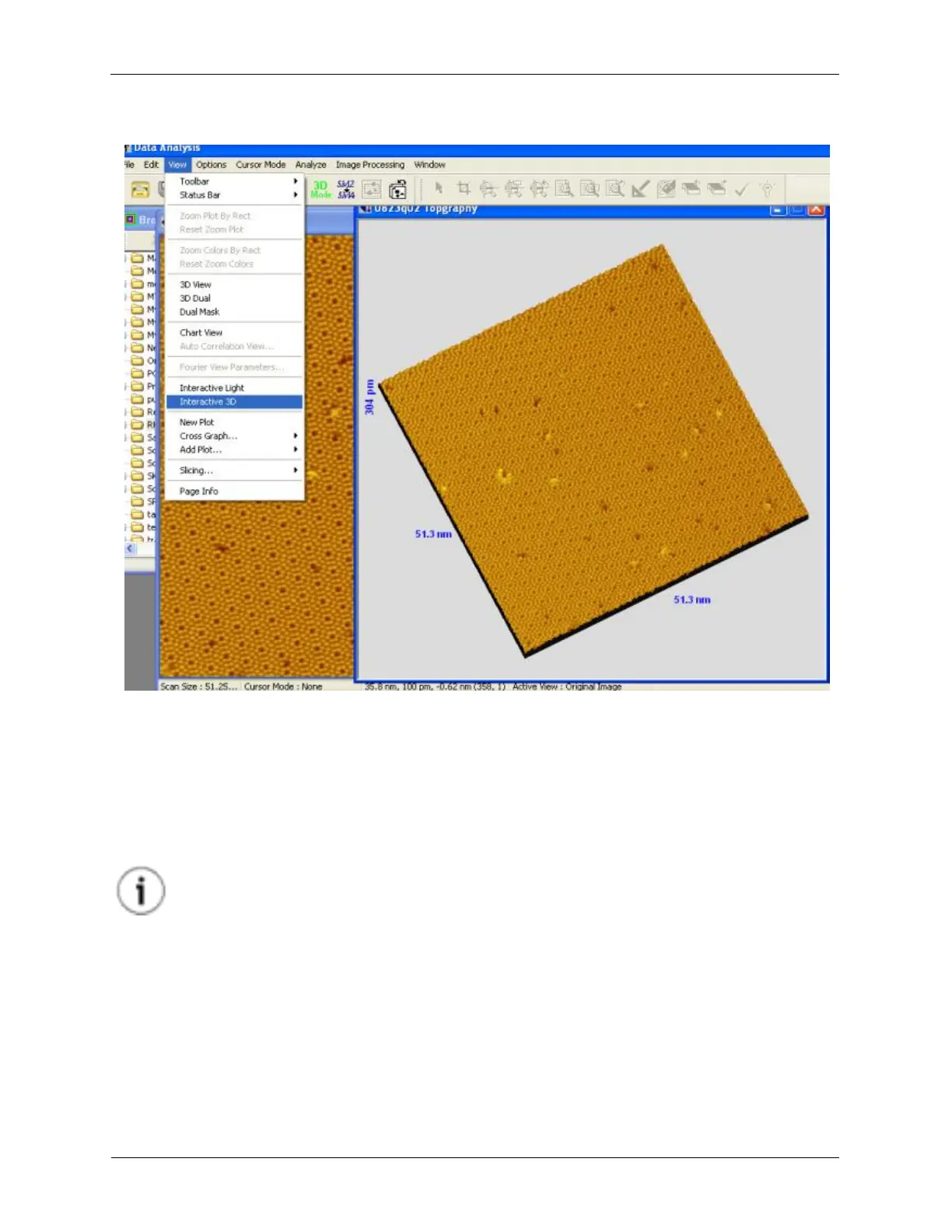
Figure 5.5. Interactive 3D
5.3.3 Export the SPM Image
The SPM images that are processed, displayed, and manipulated inside the Browser cannot be directly
used by word processing software or presentation software such as Microsoft Word and PowerPoint.
Once the user is satisfied with the displayed image on the screen in either 2D or 3D view, the image
inside the window can be exported into picture files from the File > Export menu. The user should
choose a picture format that can be opened with specific word processing or presentation software.
Tip
For a quicker export, right-click the image and select Copy to Clipboard from the context
menu or press <Ctrl>+C. The image can then be Pasted into another application by
pressing <Ctrl>+V while the other application is open!
5.4 Displaying Spectral Data on an Image
The locations at which the spectral data was acquired in the Image+Spectroscopy mode can be displayed
directly on an acquired image. Spectral data at a point or within a region can be displayed as well.



 To Next Page