STRASBAUGH CONFIDENTIAL INFORMATION
5
Saving Your Work
If you do not wish to make any changes to the access permissions for individual screen buttons, finish setting the
password ID’s and Names and push the “Quit” button. A final check will be made, the old file will be renamed to
UTIL7AF.BAK, and the new file will be generated as UTIL7AF.PAS. If there were no warnings in the upper
right corner of screen, the file can be downloaded to 7AFs with the GEM process program download capability.
Otherwise, the file can still be transferred to the machine via floppy disk. Place the file in the application code
default directory, C:\7AF\EXECODE. (If you have been setting the passwords on the 7AF instead of a
desktop computer, the file is already in the correct directory. You do not have to move it there.)
Setting Access for Individual Buttons
If you want control over which users may press which buttons, do not press the “Quit” button yet. In software
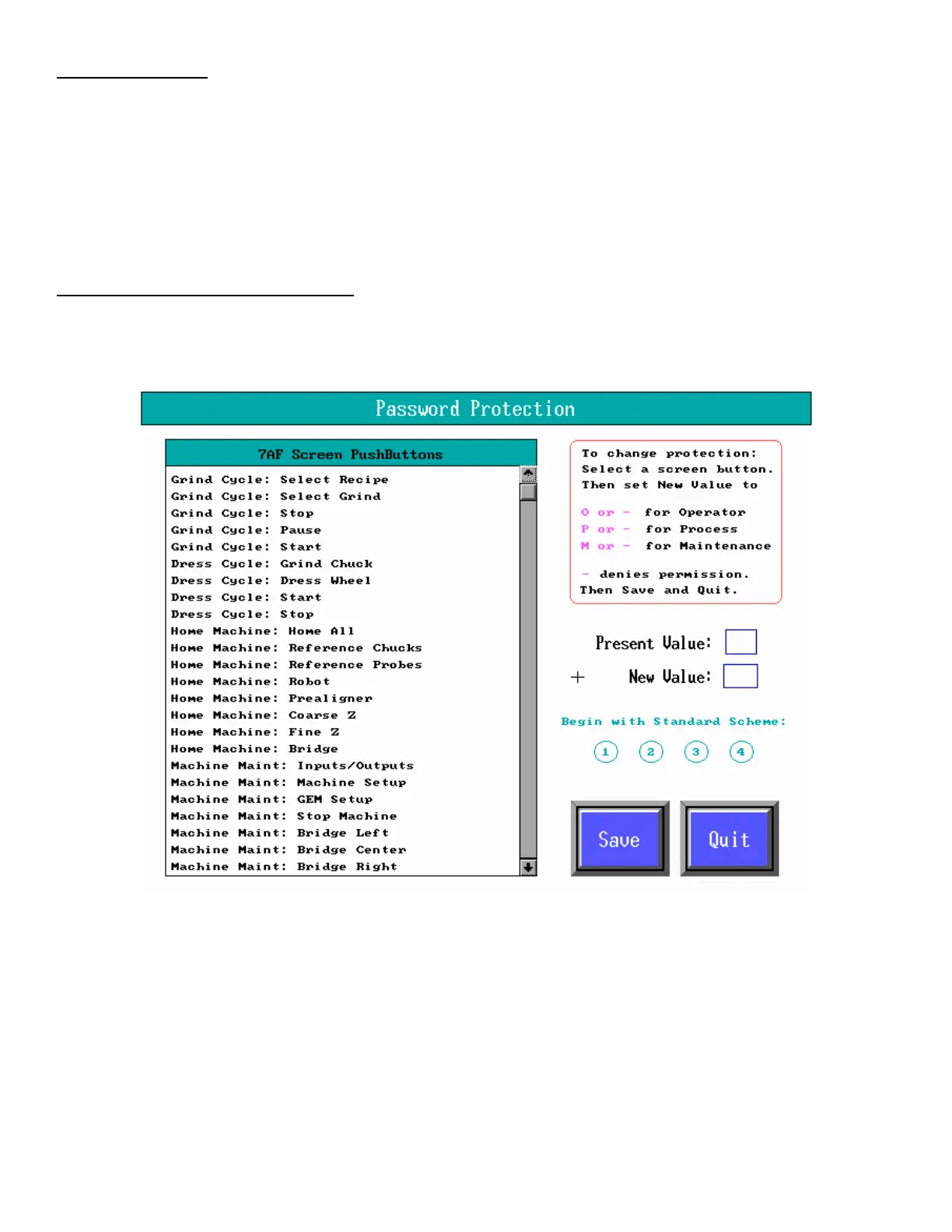
versions 5.03 and higher, press “Next” instead. This produces the following screen, Figure 4.
Figure 4
You may begin by selecting one of the four standard schemes. To do that, press one of the round buttons
labeled 1 through 4. A dialog box will appear describing that scheme and allowing you to select it (“Ok”) or
reject it (“Cancel”). You may press each of the four and press Cancel each time, in order to read all the
descriptions.
Next, you may select individual buttons appearing in the list box. When you press a button, the currently
assigned access will appear in the box labeled “Present Value”. You may click on the box labeled “New Value”
if you want to make a change to that button. Press backspace three times to clear the New Value box, and then
enter your choices. Allowed entries are O for operator, P for process, and M for maintenance, in that order.



 To Next Page