Networking Reference
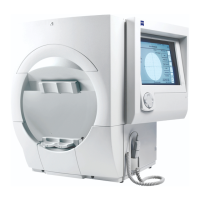
Humphrey Field Analyzer II-
i
series User Manual 2660021145640 A
I-8
4 Select the HFA SUBNET MASK.
5 Select the DEFAULT GATEWAY Address.
6 Select your WORKGROUP NAME (this can also be your Domain name). Note: In order to use a
Shared Folder, you must enter a Workgroup Name.
7 Select ENTER. Your Workgroup name, if any, will appear to the right of the Workgroup Name
button.
8 Select ALLOW REMOTE CONFIGURATION so that an X is displayed in the button if you want to
allow the
EasyConnect
RCT to configure the HFA II-
i
instrument.
9 Select HFA NAME to display a pop-up keyboard and enter (or change) the name (up to 24
characters) you want for this HFA II-
i
instrument. Press ENTER.
Note: It is strongly recommended to name your HFA II-
i
instrument for ease in identification when
using the
EasyConnect
RCT. Creating a name for an instrument can also allow you to know the
location of the instrument.
10Review the numeric and text entries you have just made. Re-enter any entries as necessary.
Once they are all correct, select SAVE. Your setup entries will be saved and you will be returned
to the Communications Setup screen.
Note: Whenever you change the HFA Network Setup scr
een entries, you must power down the HFA
II-i and then restart it. Failure to shut down and restart the HFA II-i after a manual change of the IP
address will result in a communications failure between the HFA II-i and the server.
File Server Access Protocol for FTP or Shared Folder
Note: It is strongly recommended that you use the
EasyConnect
RCT in Easy Mode instead of
manually configuring your network settings on your HFA II-
i
instruments (see “EasyConnect RCT
1.0,” on page G-1).
You will need to set up either an “FTP Folder” or a “Shar
ed Folder” on each of the following
Communications Setup screens:
• Archive/Retrieve Setup
•Data Export Setup
• EMR/PMS Export Setup (only for sites using EMR/PMS)
• Work List Setup (only for sites using EMR/PMS)
The information as to how to set up an “FTP Fol
der” or a “Shared Folder” will remain the same
regardless of which setup screen you are in. The procedures on how to complete an “FTP Folder”
setup or a “Shared Folder” setup are shown in the following sections.


 To Next Page
 Loading...