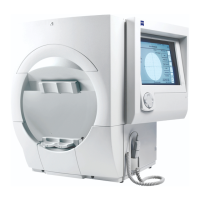
Humphrey Field Analyzer II-
i
series User Manual 2660021145640 A
General Operation
2-17
Setting Up Networking Communications
The ability to connect your HFA II-
i
into your office network is an option that is available through
Carl Zeiss Meditec, using the HFA-NET Pro software. Please refer to Chapter (14), "Networking," for
further information on available networking
features, as well as how to license the software.
The specific details are available, beginning with “Setting Up Your HFA Network,” on page I-4.
Setting the Save/Transmit Options
The Save/Transmit options specify what the HFA II-
i
will do with your data upon completion of a
patient’s visual field examination. The standard action would be to save the results to the hard disk
and a USB storage device, if one is inserted into a USB port at the time the test is completed. You
also have the option to link two HFA II-
i
instruments together via serial cable with the proper
settings. See “How to Transfer Tests from One HFA II-i to a Second HFA II-i via Serial Cable,” on
page 10-23 for transmitting configurations and limitations. If you have the HFA-NET Pro software
licensed on your HFA II-
i
, the Save/Transmit options include the ability to transmit a copy of the
exam results to your office network file server or to an EMR/PMS/DICOM system. If you have
purchased and licensed the DICOM Gateway 2.0 software on your HFA II-
i
, the Save/Transmit
options include the ability to transmit a report to a DICOM Archive. See Chapter (14), "Networking,"
for further networking details.
Use the following procedure to set the Save/Transmit Options for your HFA II-
i
perimeter:
1Start at the System Setup screen. Select SAVE/TRANSMIT OPTION
to open the Save/Transmit Option screen that is shown to the left.


 To Next Page
 Loading...