4.17. How to reset the console
The factory reset, returns the dot2 console to the state it was in, when it was first time powered.
This is useful for troubleshooting problems that might be caused by settings that were changed after first time
powered.
Or if you just want to delete everything stored on the console.
A factory reset will completely format and empty the dot2 hard disk.
Requirements:
An empty USB stick
A connected external monitor
A connected USB keyboard
1. Download the latest dot2*.imgz file and the MA StickMAker at www.ma-dot2.com.
2. Install the MA StickMAker by double click at the StickMaker-x.x.x.x.exe.
You will be guided through the installation process.
3. Insert an empty USB stick in your computer.
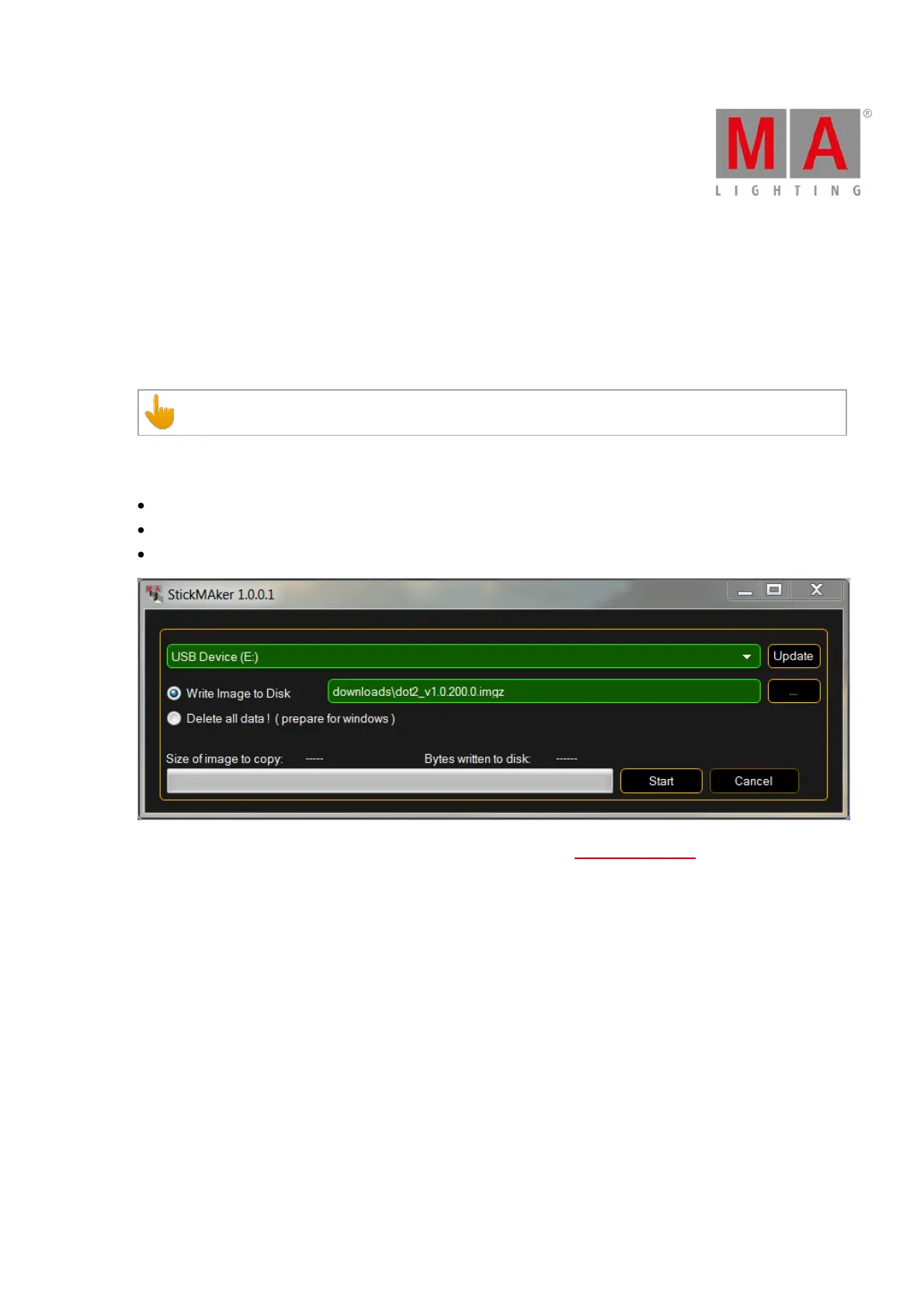
4. Open the MA StickMAker by double click at the desktop icon.
The MA StickMAker opens.
5. Select the USB drive, then click at the three dots and select the dot2*.imgz file. Click Start.
The stick will be formatted to a Linux stick and the image will be written to the stick.
6. Insert the formatted USB stick at the USB port at the back of the console.
7. Press the power button at the back of the console and press several times F10 on the keyboard until the
password request appears.
8. Press Enter, select your USB stick, and press Enter.
9. Select Factory Reset.
The console resets and reboots.
The factory reset is complete.



 To Next Page