6.83. Virtual Playbacks View
To go to the virtual playback view
at screen 1: Press and hold + Exec .
screen 2: Tap Virtual Playback on the view bar.
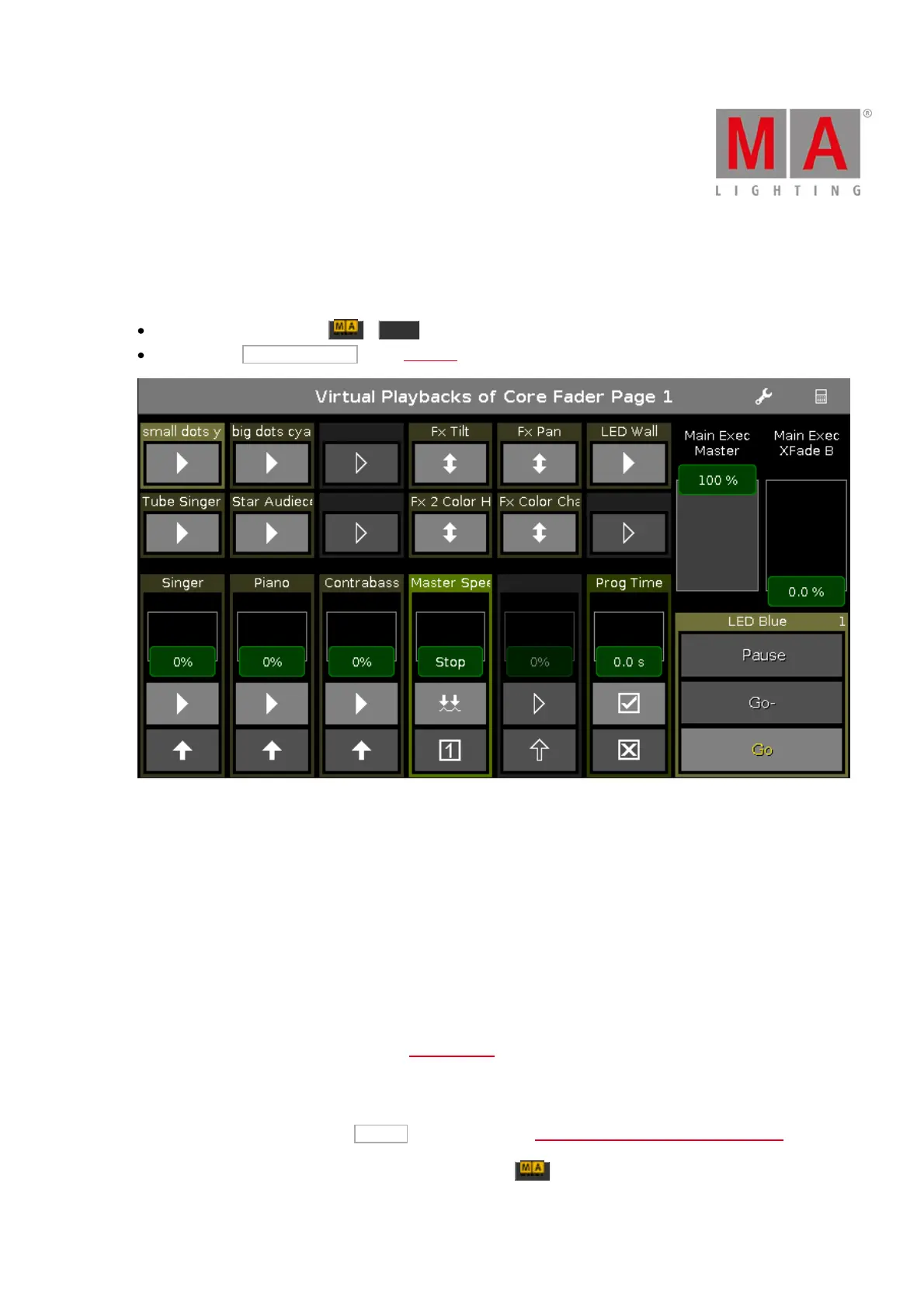
Figure 1: Virtual Playbacks View
This view gives you access to virtual executors and faders.
There are two ways to use the virtual playback.
1. Use the virtual playback as a backup to the hardware playback.
The virtual playback displays always the same as the hardware playback.
2. Use the virtual playback to have additional executors to your hardware.
If you have no hardware button wing, you can still use the button wing as virtual playback.
The icons on the virtual executor buttons displays by default the same as on the hardware executors.
If a function is assigned to an executor, the executor icon is displayed.
If you use the virtual playback view on an external screens with the arrangement split vertically or 1 + 2 vertical,
the cue names will be displayed.
To arrange an external screen, tap More... in the view bar. The Select View for External Screen Window opens.
The executor name is displayed now by default. If you press , the executor numbers will be displayed.



 To Next Page