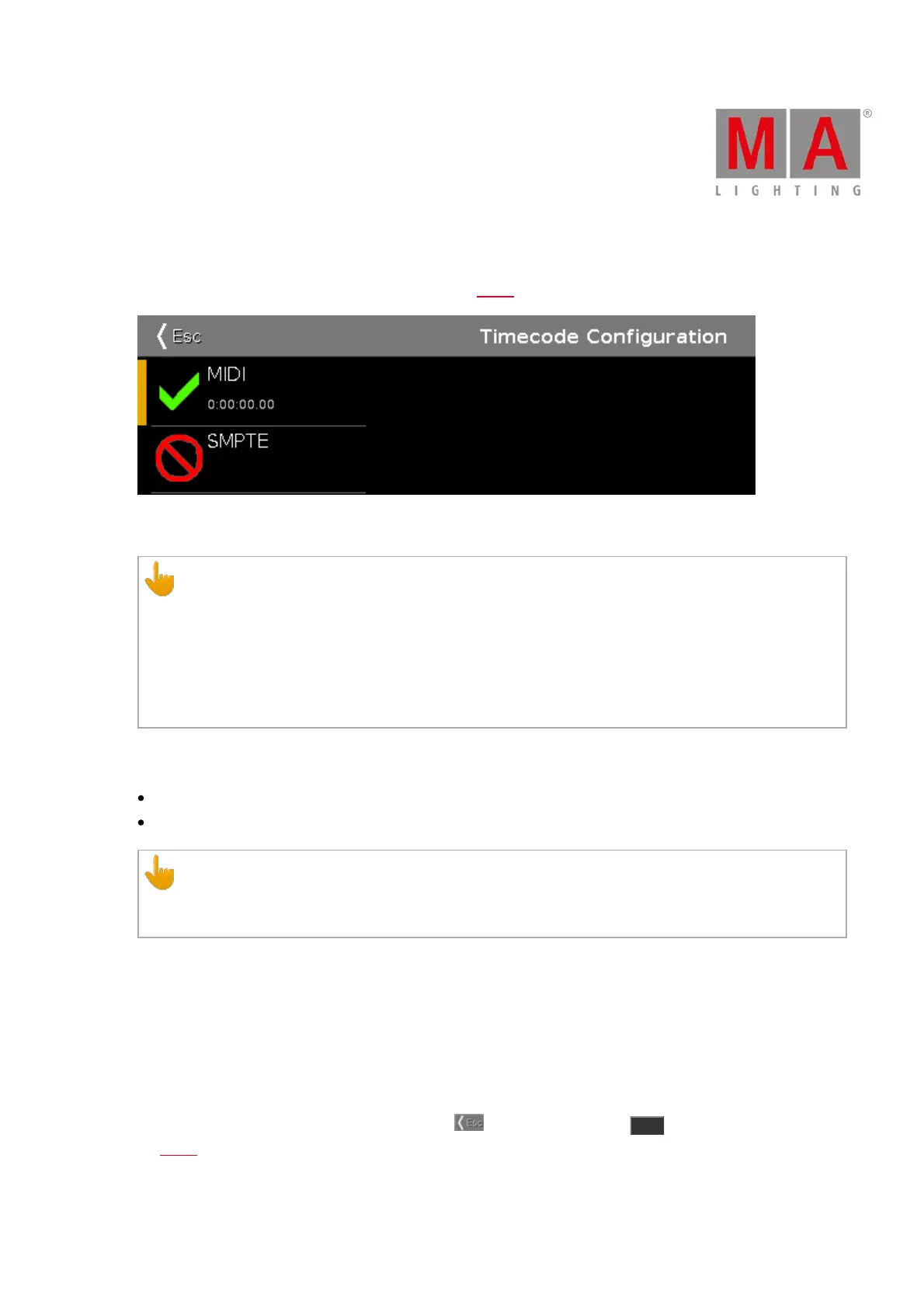
6.80. Timecode Configuration Window
The Timecode Configuration Window is located in the Setup, column Show, Timecode.
In this window, you can enable and disable incoming MIDI and SMPTE.
Information:
To receive timecode signals, a network session is not necessary.
If the console is part of a network session, the timecode signal can be connected to any session
member.
If more than one timecode signal is connected to the different consoles in a session, the first connected
timecode signal will be used. If the first connected timecode signal has failed, the second connected
timecode signal will be used.
The two timecodes are displayed on the left of the screen.
MIDI
SMPTE
Important:
dot2 receives 24, 25, or 30 frames per second and automatically adapts itself to them whenever it is
in SMPTE.
The green tick displays that this timecode type is enabled.
The red prohibition sign displays that this timecode type is disabled.
To enable or disable a timecode type, tap the icon.
If timecode is connected, the timecode received is displayed below the timecode type.
If you have connected an external screen, the timecode is displayed in the view bar below the time and date.
To leave the Timecode Configuration Window, tap in the title bar or press Esc . You have now returned to
the Setup.



 To Next Page