© 2018 MA Lighting Technology GmbH - Dachdeckerstr. 16 - 97297 Waldbüttelbrunn - Germany
Phone +49 5251 688865-27 - support@ma-dot2.com - www.malighting.com
6.17. Configure Slot Window
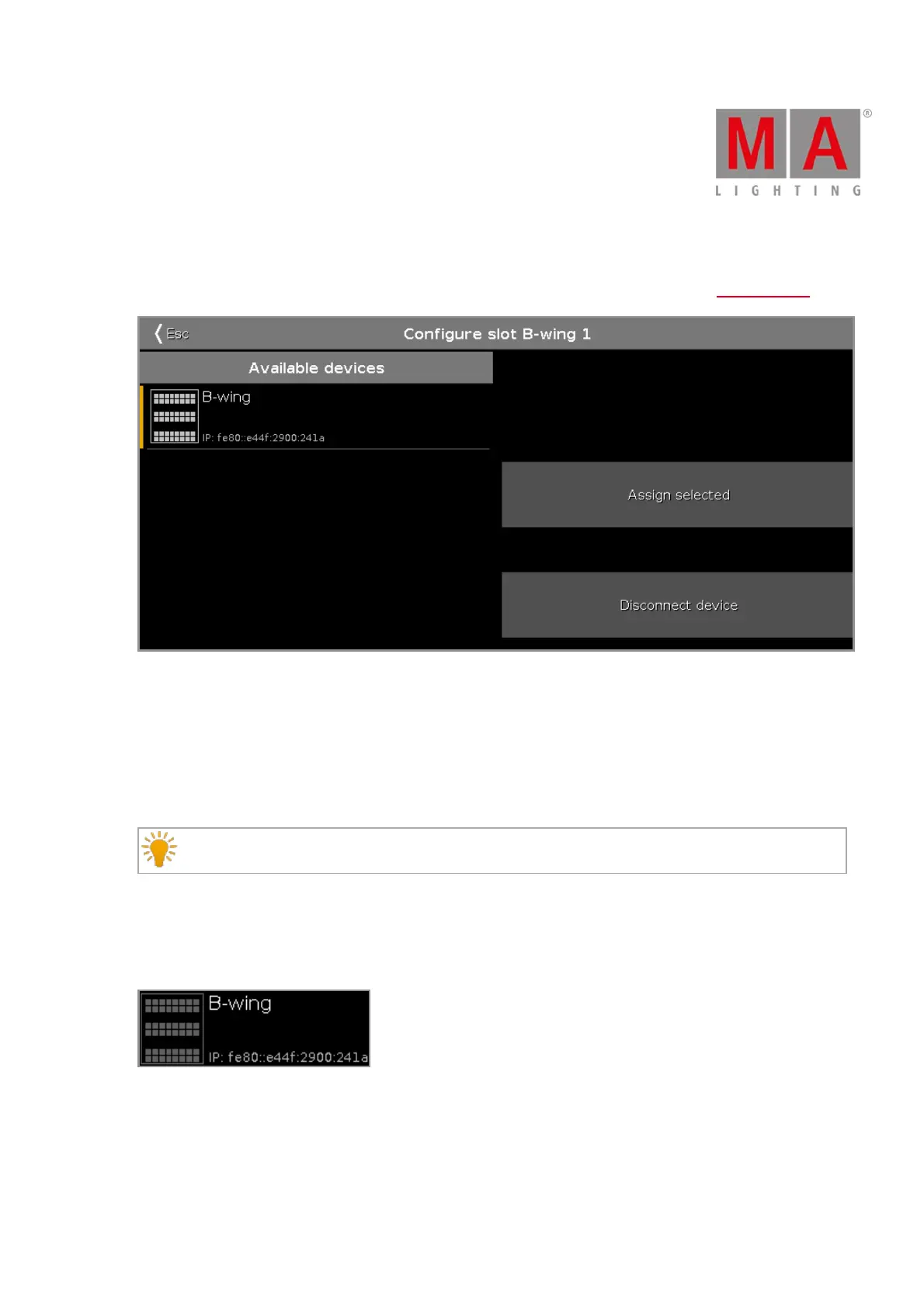
To open the configure slot window, tap at the slot you want to configure, e.g. B-wing 1, in the Wings window.
In this window, you can assign wings to a slot or clear the assignment.
The title bar displays the selected slot.
Available devices:
Displays all available wings, depending on the selected slot.
A selected device is displayed with an orange bar on the left side of the device.
If a wing is selected in the configure slots window, the buttons on the wing starts to flash.
A button wing or fader wing can have three different status:
1. The wing is displayed without any additional sign.
The wing is connected to the console and is free to assign.
2. The wing is displayed with a green tickmark.
The wing is connected to the console and assigned to a slot.
The assigned slot is written in brackets.



 To Next Page