© 2018 MA Lighting Technology GmbH - Dachdeckerstr. 16 - 97297 Waldbüttelbrunn - Germany
Phone +49 5251 688865-27 - support@ma-dot2.com - www.malighting.com
4.5. How to use the command line
The dot2 is technically a command line console. Everything that happens is also a command that's executed in
the command line.
To learn more about the actual commands you can write, please have a look at the commands section in this
manual (also link below).
This is what the command line looks like:
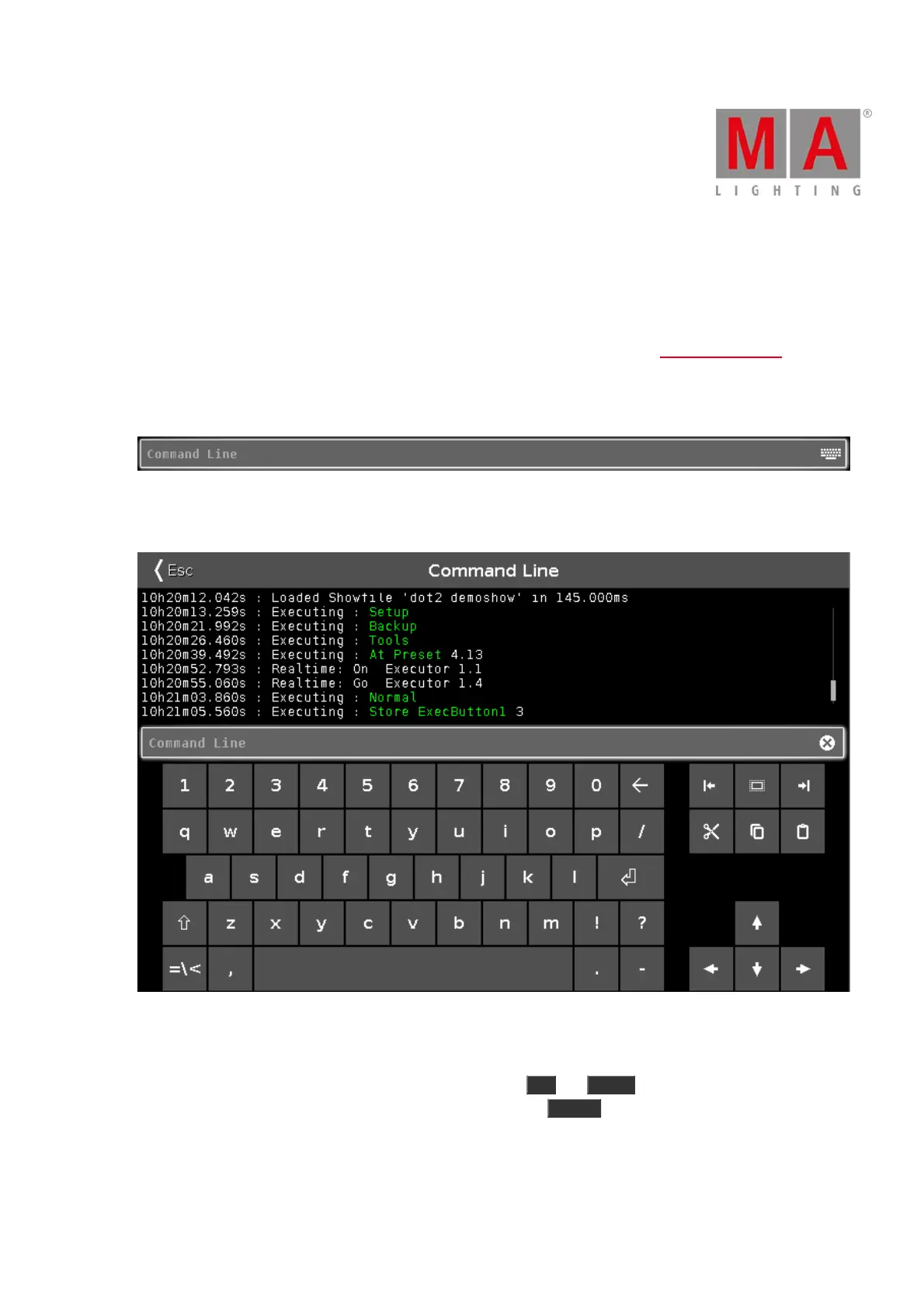
It's almost always visible on the right screen. If you tap this then you open the Command Line view. It could look
like this:
Here you can use the onscreen keyboard to type in the commands and you can see the command history and
the response from the console. You can also use an external keyboard in the command line.
When the command line have the focus, then you can use the Up and Down keys to select previously used
commands - then you can execute the command by pressing the Please key. You can also use the up and
down arrows on an external keyboard.
The command history is also a view you can have visible on one of the internal screens or on the external screen.



 To Next Page