© 2018 MA Lighting Technology GmbH - Dachdeckerstr. 16 - 97297 Waldbüttelbrunn - Germany
Phone +49 5251 688865-27 - support@ma-dot2.com - www.malighting.com
6.8. Change Functions of Executor Window
To go to the Change Functions of Executor Window, open the Executor Bar Window and tap the tool in the
Title Bar.
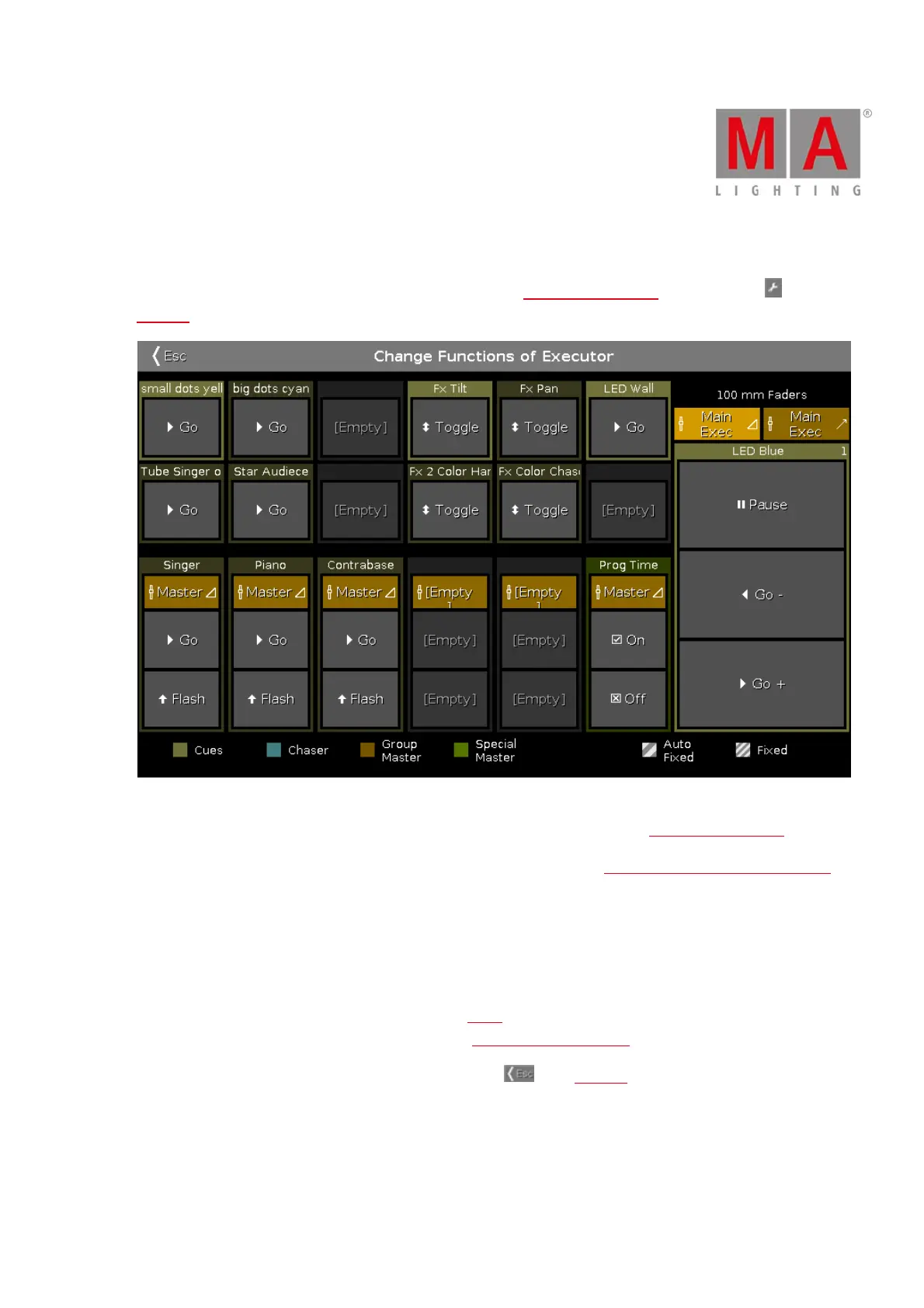
Figure 1: Change Functions of Executor Window
In this window, you change the functions of executor from the current page of the Executor Bar Window.
To change a function, tap on the virtual button in the window. It opens the Select Function of Executor Window.
The functions of the main executor buttons are fixed and not changeable.
You can only change functions of taken executor.
If an executor button is free, it is displayed as [Empty].
For more information about the displayed icons, see Icons.
For more information about the displayed colors, see System Colors - Executor.
To leave the Change Functions of Executor Window, press in the Title Bar. You are back in the Executor Bar
Window.



 To Next Page