6.4. Backup Window
To open the Backup Window, press Backup on the console.
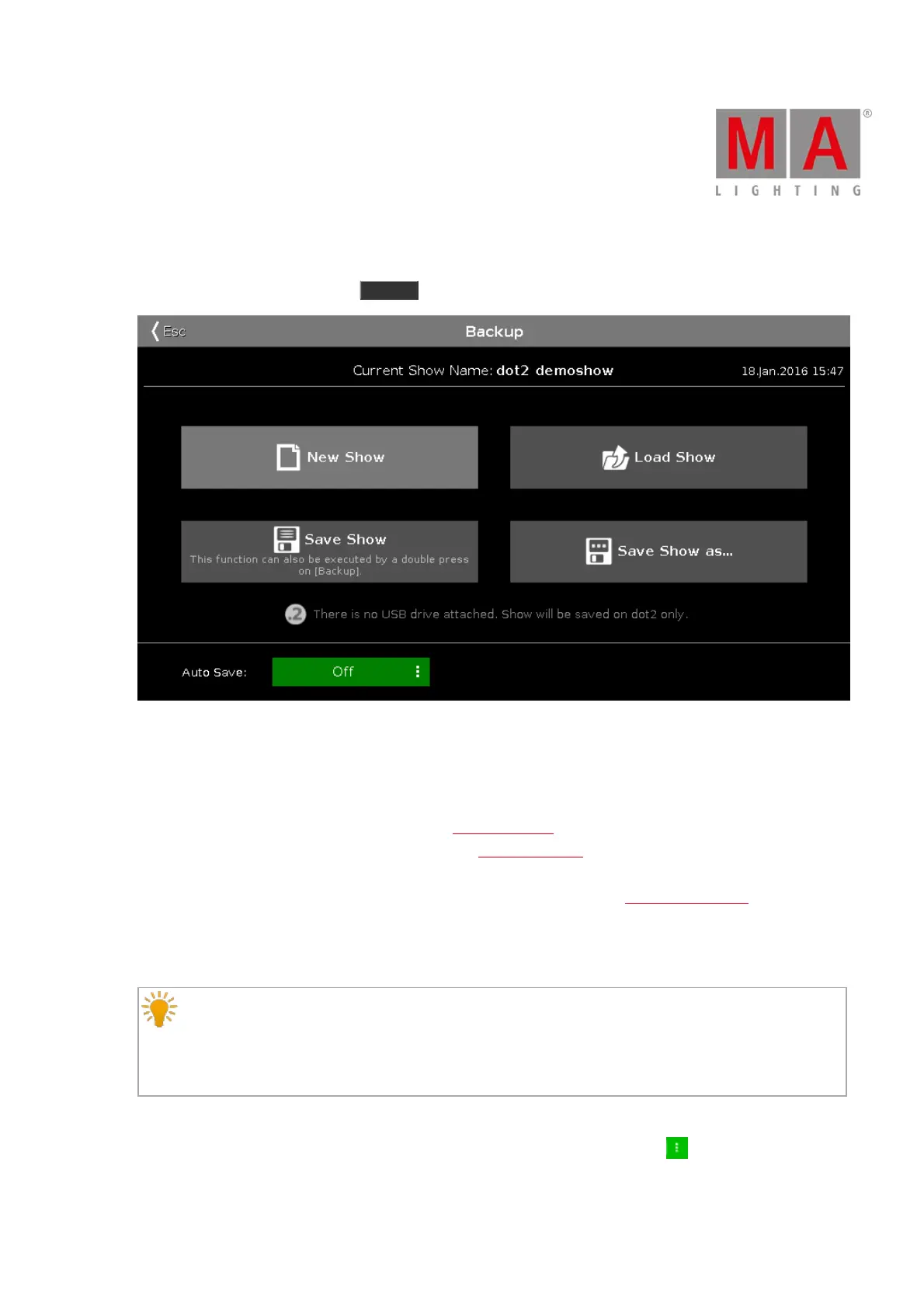
Figure 1: Backup window
In this window, you can create a new show, load a show, save the current show, and save the current show as.
Below the title bar is the name of the current show file along with the last save date and time displayed.
To create a new show, tap New Show. It opens the New Show View.
To load an existing show, tap Load Show. It opens the Load Show View.
To save the current show, tap Save Show. It saves the show and close the Backup Window.
To save the current show as a new filename, tap Save Show as... . It opens the Save Show As View.
If a USB drive is attached, it is displayed below the four functions.
If you save a show and a USB drive is attached, the show will be saved on the USB drive as well.
Hint:
If a show was preprogramed in a previous version and saved, it can be loaded in a later version. If you
save this show in a later version, you can no longer load it in a previous version. If you would like to
keep using the show in a previous version, load the show and save it using a different name.
Furthermore, you can enable the auto save option. By default, auto save is disabled.
To select how often the console should auto save the show file, tap at the three dots .
You can choose between:



 To Next Page