4.10. How to work with chasers
Chasers are cue lists that run in a special mode.
So you'll need a cue list with some cues. If you don't know how to make this please have a look at How to work
with cues.
Setting the executor in Chaser mode
Once you got some cues on an executor, you can put it into chaser mode. This is done by first opening the cue
view for the executor you want to change. Press the key and then one of the keys associated with the
executor with the cue list you want to change.
This opens the Cues view. In the upper right corner of this view there's a Tool icon - tap it. This opens the
Settings of Executor window. The first setting is the "Is Chaser" setting. Tap the green area next to this until you
don't have the stop sign but the checkmark.
Now you have changed the mode of the executor.
A cue list running as a chaser ignores the cues timings and triggers stored in the cue list. So the timing columns
are grayed out when the Chaser mode is selected.
In the settings for the executor, you can also set the off time (or tap it in the cue view title bar). If you set this time,
then this will be used for fading the chaser off if you use the Off key or Off command.
The Off time also works as an On time for chasers. This means that it will fade the stored parameters in using the
time you have set when you start the chaser.
Changing the settings of the chaser
There are different settings that adjust how the chaser is running. These settings can be changed when we again
look at the Cues on the executor. So if you close the Settings window by tapping the Esc button in the upper left
corner, then you return to the Cues view - if you don't, then press the key and then one of the keys
associated with the executor.
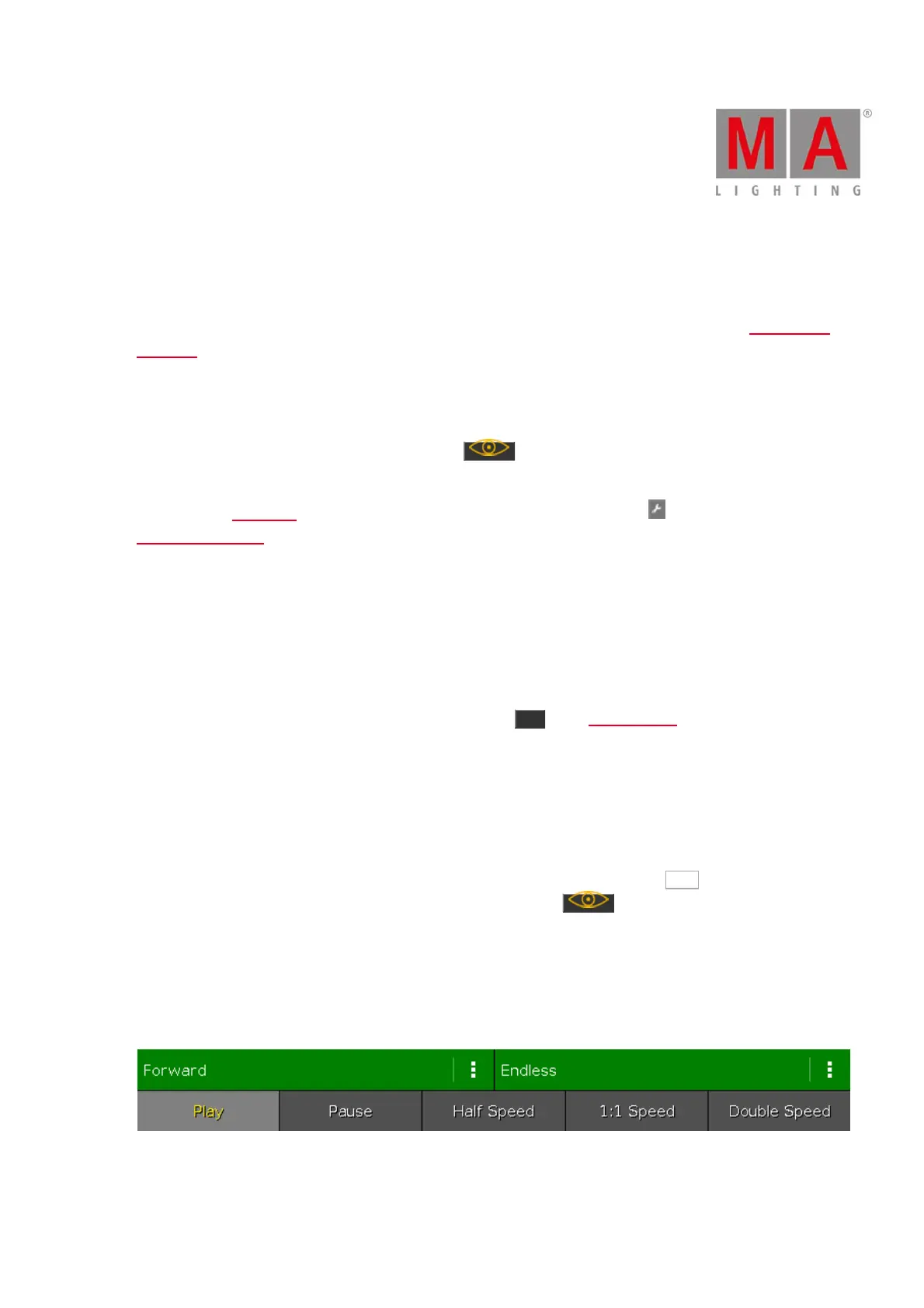
In the cues view you can now see a different bar at the bottom of the screen and your encoders have some
different parameters.
This is the bar at the bottom of the Cues view:



 To Next Page