6.26. Executor Bar Window
To go to the Executor Bar Window, swipe up or tap in the Executor Bar.
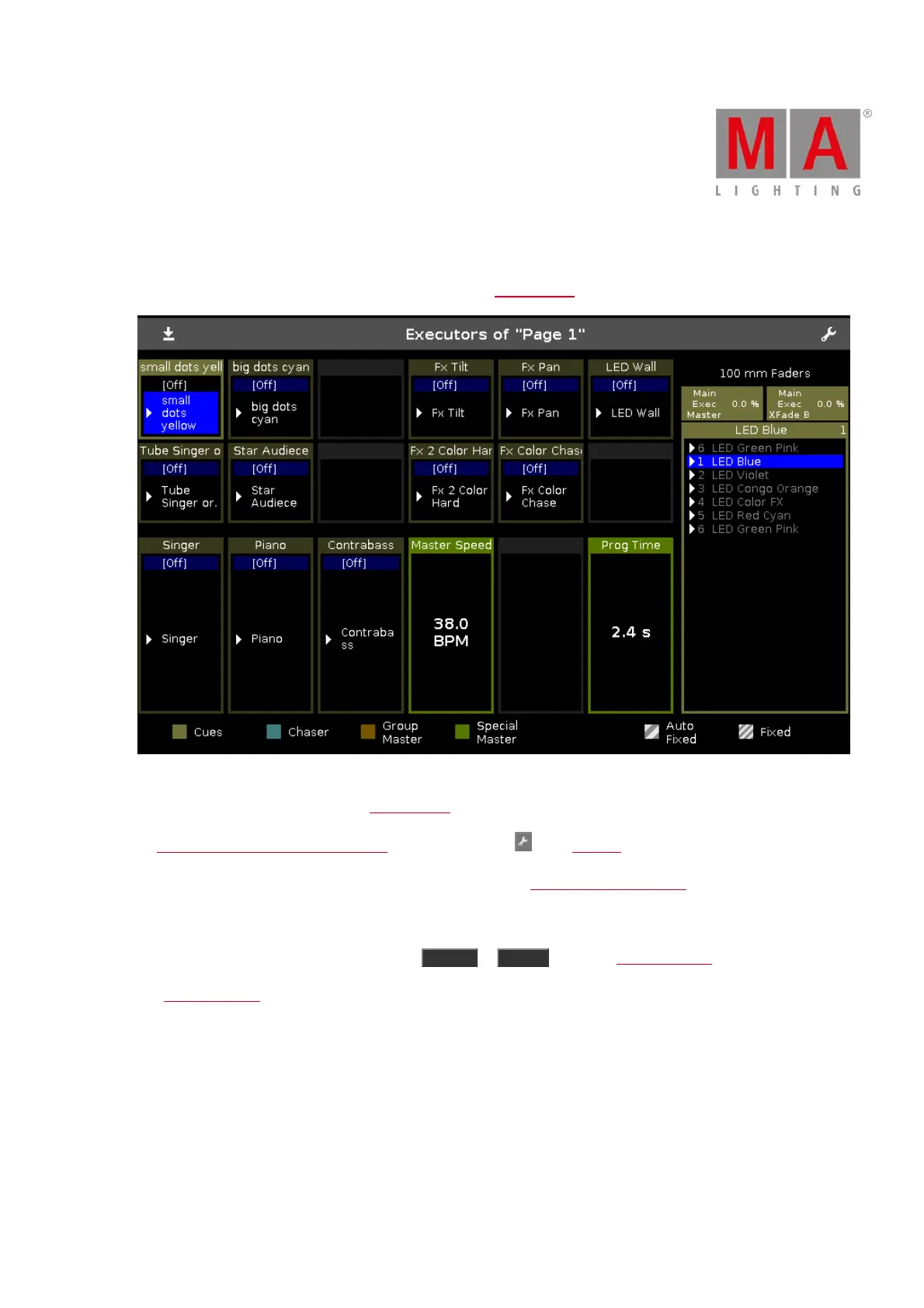
Figure 1: Executor Bar Window
This window is a detailed view of the Executor Bar.
To change the functions of the executor, tap at the tool icon in the title bar.
To change the settings of an executor, tap at the executor. The settings of executor view opens.
The title bar displays the current page.
To switch between the executor pages: Press Page + or Page - or use the page pool view.
The executor colors displays which kind of executor it is.
The executor window on screen 2, is fragmented in the main executor (right), 12 normal executor buttons (first
two lines) and 6 fader executor buttons (bottom line).
If you use a dot2 F-wing or dot2 B-wing, the executor bar looks like the corresponding wing.
If you store a cue on a executor, the console asks to label the first cue and the executor.
If you don´t tap the label pop-up, the executor is called Exec.
The blue bar displays the fade time of the cue from 0 % to 100 %.



 To Next Page