© 2018 MA Lighting Technology GmbH - Dachdeckerstr. 16 - 97297 Waldbüttelbrunn - Germany
Phone +49 5251 688865-27 - support@ma-dot2.com - www.malighting.com
6.19. Cues View
To go to the Cues View for the main executor on screen 1: Press Cue on the console.
To go to the cues view for the main executor on screen 2: Tap Cues on the view bar.
To go to the cues view for any other executors: Press and then the respective executor button on the
console.
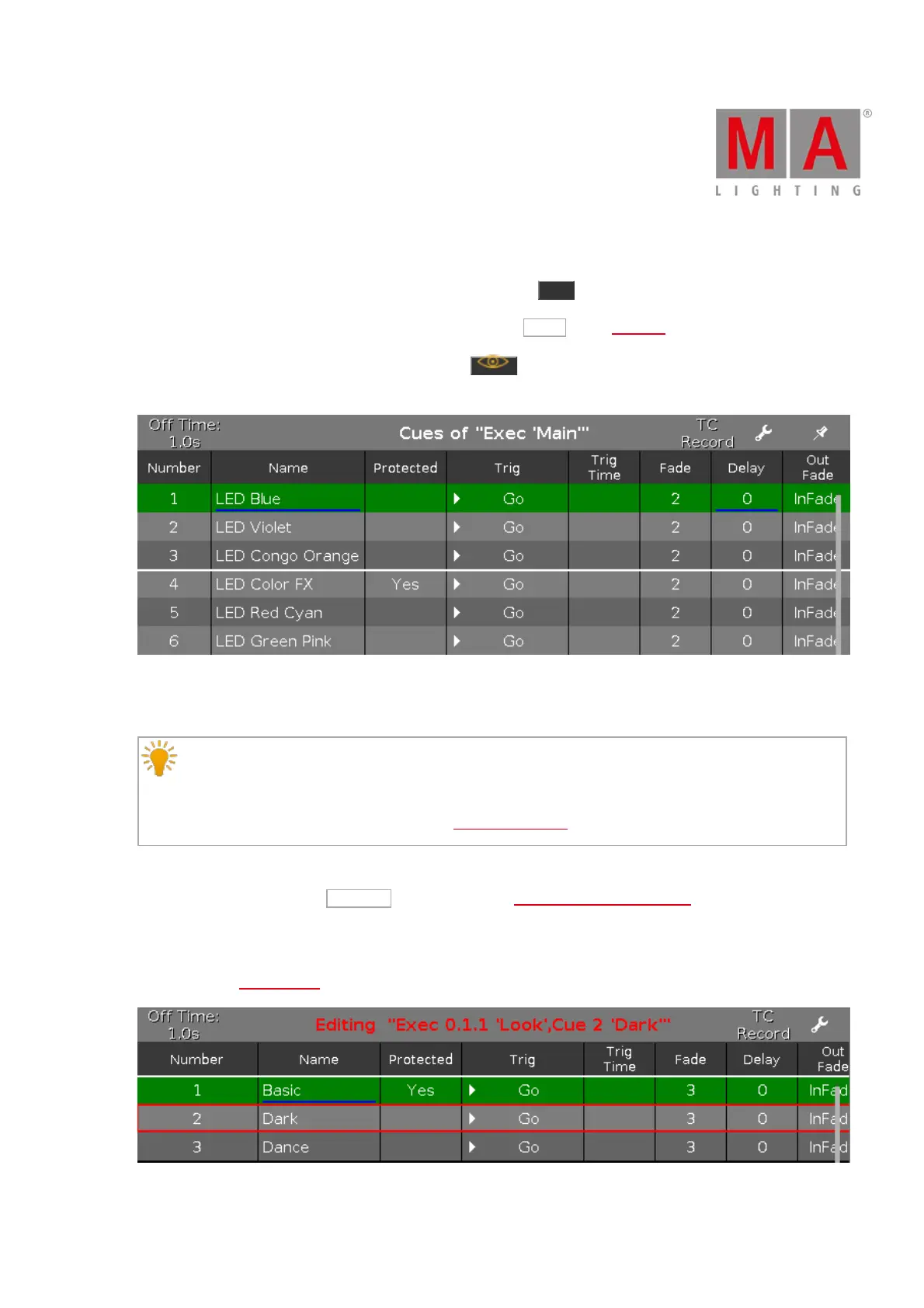
Figure 1: Cues View
In this view, you see all cues of the respective executors and their settings.
Information:
Every store, update, or copy function makes an automatically unblock for the cue list. The values being
identical with the value of the previous cue will not be stored again in the cue list. This provides a clean
tracking list. For more information, refer to What is Tracking?.
If an off time is set for this executor, it is displayed in the title bar.
To change the off time, tap at Off Time in the title bar. The settings of executor window opens.
If a certain cue is edited, it is displayed in a red frame in the view. Furthermore, the title bar of the view is
displayed in a red and bold font. The corresponding executor is also displayed in a red frame. For more
information see Executor Bar.
Figure 2: Cue In Edit Mode



 To Next Page