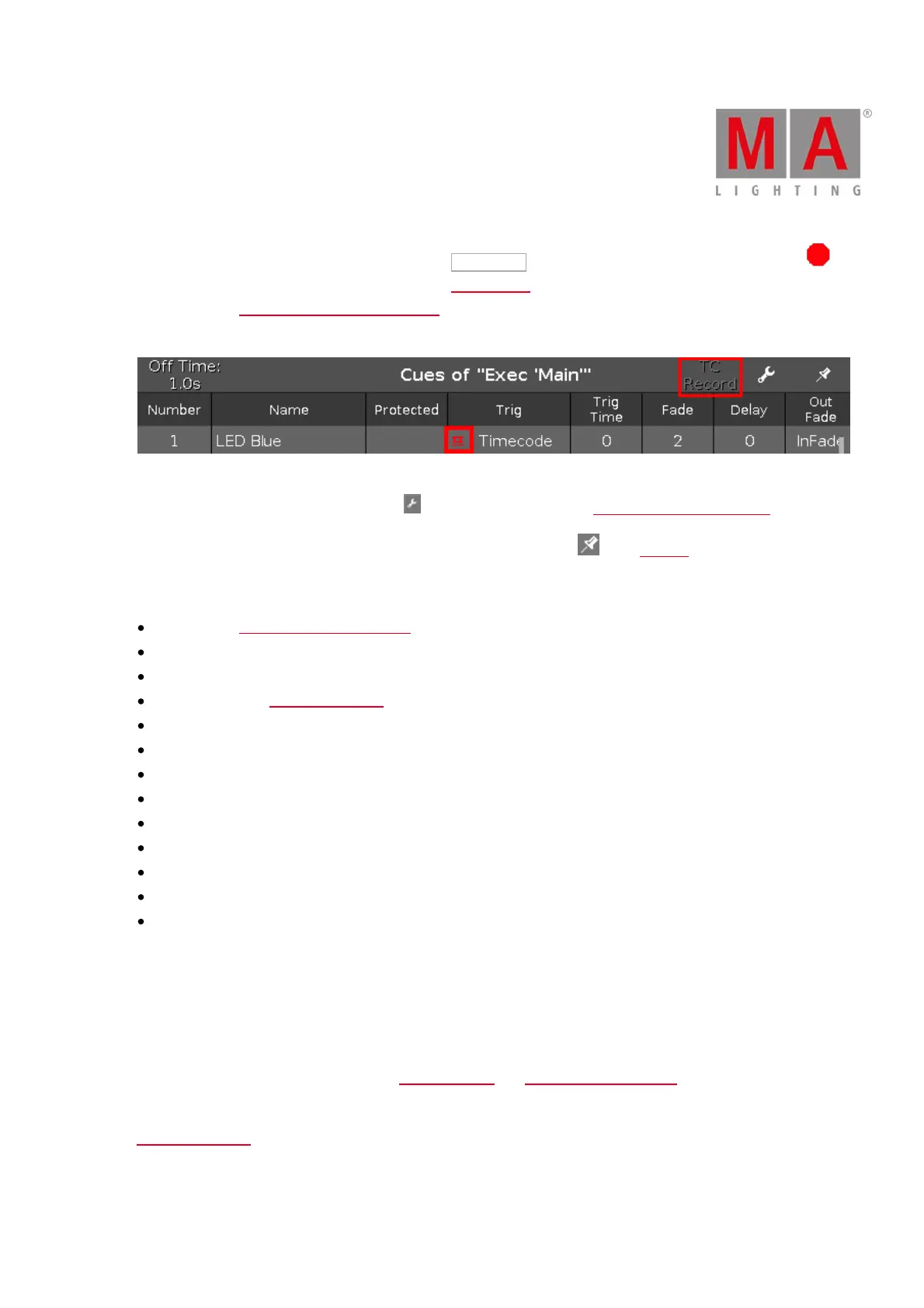
To start a timecode record for the executor, tap at TC Record (= timecode) in the title bar. The record icon is
flashing in the title bar of the cues view and in the executor bar. Only available if at least one timecode source is
turned on in the timecode configuration window. If no timecode source is turned on, the TC Record button is
showed grayed out and the timecode trigger icon is displayed in red.
Figure 3: Cues View - No timecode source is turned on in the Timecode Configuration Window
To open the executor settings, tap the tool in the title bar. It opens the settings of executor window.
To pin the view and deactivate the dynamic view mode, tap on the pin in the title bar.
Below the title bar is the cue table. In this table you can edit the
Number. The edit cue number(s) window opens.
Cue Name
Protected
Trig (Trigger). The select trig window opens.
Trigger Time
Fade
Delay
Out Fade
Out Delay
Preset Type Timings
Cmd (Command)
Snap Percent
Info
To edit the cells of the cue table, press and hold the cell. The corresponding edit window opens.
A selected cell in the cue table has blue background with a white frame around.
The current executed cue in the cue table has a green background.
The blue bar in the name column of a running cue displays the fade time from 0% to 100%.
For more information about cues, refer to What is a Cue? and How to work with Cues?.
If a cue is set to protected, a white line is displayed to see where the tracking stops. For more information, refer to
What is Tracking?



 To Next Page