© 2018 MA Lighting Technology GmbH - Dachdeckerstr. 16 - 97297 Waldbüttelbrunn - Germany
Phone +49 5251 688865-27 - support@ma-dot2.com - www.malighting.com
6.21. DMX View
To go to the DMX View on screen 1: Press DMX on the console.
To go to the DMX View on screen 2: Tap More... in the view bar and then DMX .
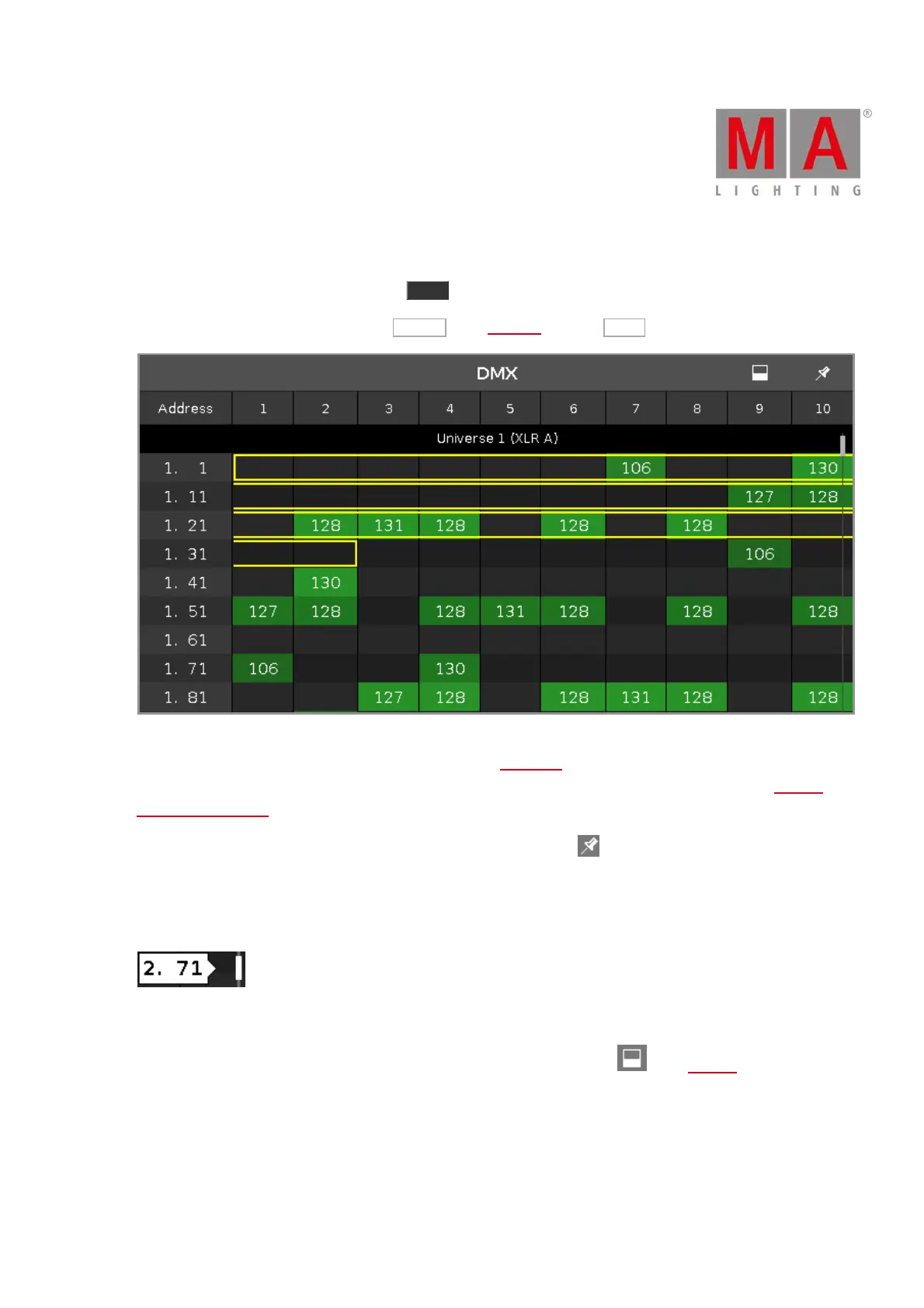
Figure 1: DMX View
This view shows the current output of the fixtures and the attributes. in the universes 1-8.
The universe 9 displays the DMX input and works only for DMX remote. For more information, refer to Remote
Inputs Configuration.
To pin the view and deactivate the dynamic view mode, tap on the pin in the title bar.
To scroll in the DMX view, slide the vertical scroll bar.
During scrolling on the scroll bar, it is a bubble displayed which displays the address in the view.
You can also slide up and down in the view screen to scroll.
To show the DMX attributes the respective DMX address, press the view icon in the title bar.



 To Next Page