5.1. Align key
The Align key is used to spread out the values on multiple selected fixtures.
The Align function has five different modes:
Align Off: All values are the same. This is the default mode.
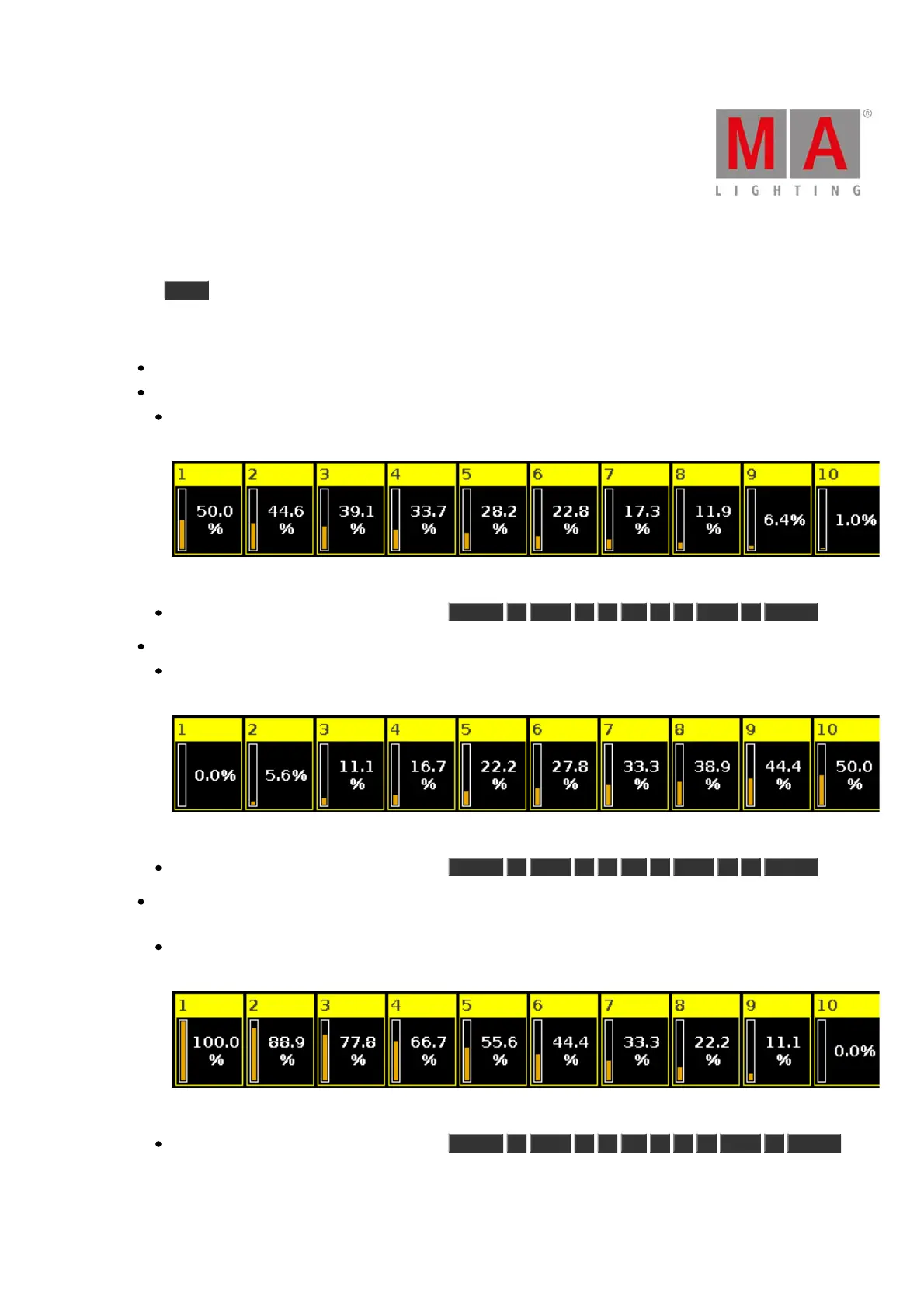
Align <: This will keep the value of the first selected fixture and spread the value to the last selected fixture.
In this example the ten fixtures (selected from 1 to 10) are set to 50% and then the align function is applied
and the encoder turned (down). This is the result:
Figure 1: Align < example.
This result can also be done using the keys: Fixture 1 Thru 1 0 At 5 0 Thru 1 Please .
Align >: This will keep the value of the last selected fixture and spread the value to the first selected fixture.
In this example the ten fixtures (selected from 1 to 10) are set to 50% and then the align function is applied
and the encoder turned(down). This is the result:
Figure 2: Align > example.
This result can also be done using the keys: Fixture 1 Thru 1 0 At 0 Thru 5 0 Please .
Align ><: This will keep the value of the middle of your selection and spread out the value to the first and last.
Like a seesaw or center pivot point.
In this example the ten fixtures (selected from 1 to 10) are set to 50% and then the align function is applied
and the encoder turned (down). This is the result:
Figure 3: Align >< example.
This result can also be done using the keys: Fixture 1 Thru 1 0 At 1 0 0 Thru 0 Please .



 To Next Page