4.13. How to use external input triggers
The remote inputs are external inputs that you can connect and use to trigger events in the dot2 console. There's
currently three different input types that you can use: Analog (contact closure), MIDI and DMX.
You can setup the remote inputs by pressing the Setup key and then the Remote Input button. This gives you
the Remote Inputs Configuration view.
On the left side you can see the three different input types and you can see if they are enabled (green checkmark)
or disabled (red stop sign). You can change this by using the left encoder to select the input type you want and
then tap the encoder. This will toggle the current status. You can also toggle this by tapping the input type. For
each input type there's also a small gray box. This will flash green when there's an active input.
On the right side of each of the inputs you can choose what should happen when the input is triggered.
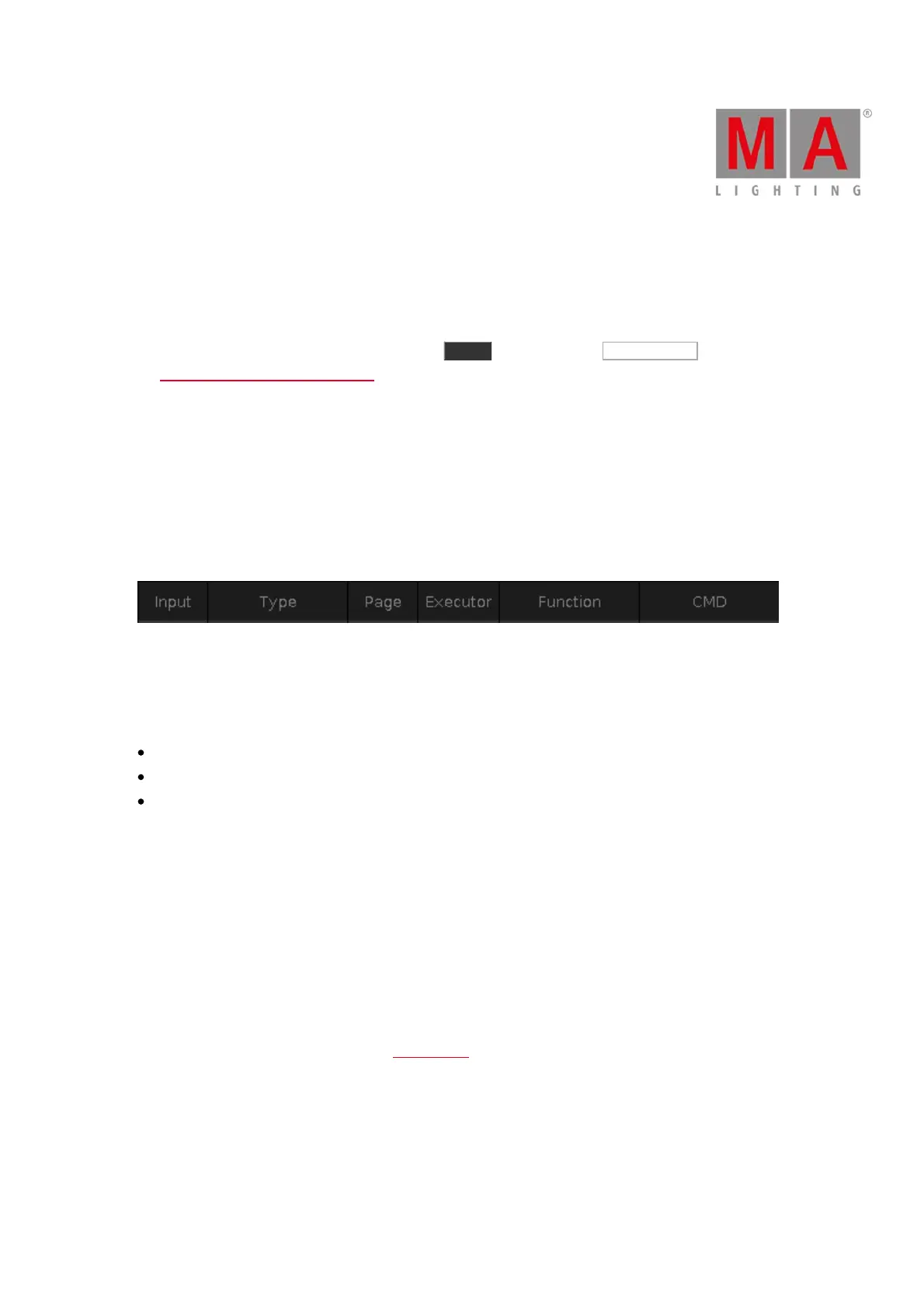
This table have 6 columns.
Figure 1: Remote Input table columns.
The first column is the remote input number. This changes name depending on the selected input.
Type can be three different things:
None - If the type is None then the remote input isn't used.
Exec - If you choose Executor then your remote input will trigger some executor.
CMD - If you choose Command then you can write a command the trigger should execute.
The four other columns become relevant depending on the type you have selected.
If you have chosen Exec, then you get access to the Page, Executor and Function columns. You need to specify a
specific page number or select "Current" in the Page column, then select the Executor number of the executor you
want to trigger. The Function column allows you to select one of three different things: Button 2, Fader and
Button 1 - if you choose an executor that only have one key, then you can only select Button 1. Depending on the
input type then your keys and faders react different in the input. But this is basically the physical keys and faders
for the selected executor.
If you have chosen CMD type, then you can access the CMD column. Here you can type a command you want
the trigger to execute. Have a look at the Commands section of this manual to learn more about the commands.
The following is a description of the three different input types.



 To Next Page