© 2018 MA Lighting Technology GmbH - Dachdeckerstr. 16 - 97297 Waldbüttelbrunn - Germany
Phone +49 5251 688865-27 - support@ma-dot2.com - www.malighting.com
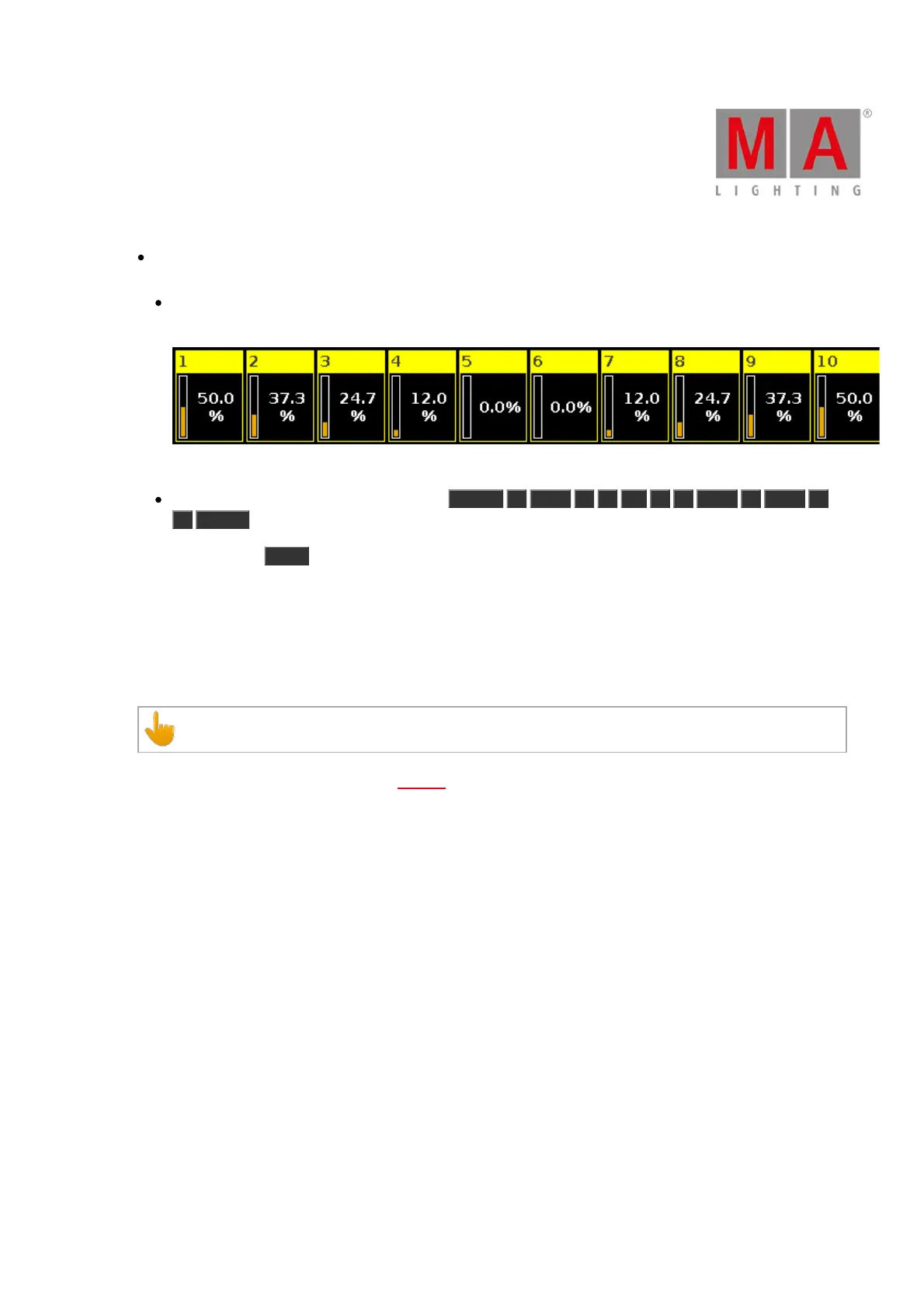
Align <>: This will keep the values on the first and last fixtures in your selection and spread out the value
towards the middle of your selection. Like an arrow.
In this example the ten fixtures (selected from 1 to 10) are set to 50% and then the align function is applied
and the encoder turned (down). This is the result:
Figure 4: Align <> example.
This result can also be done using the keys: Fixture 1 Thru 1 0 At 5 0 Thru 0 Thru 5
0 Please .
When you press the Align key, you will toggle through these five modes. A small information balloon appears
on screen 1 telling you the selected mode.
If you have selected something other than "Align Off" then you'll now align the next attribute you change when
you turn the encoders or use the Preset Type views.
As soon as you begin to change a new thing, then the Align function jumps back to "Align Off".
This key doesn't interact with your command line entry.
The different Align's are also available as Macros.



 To Next Page