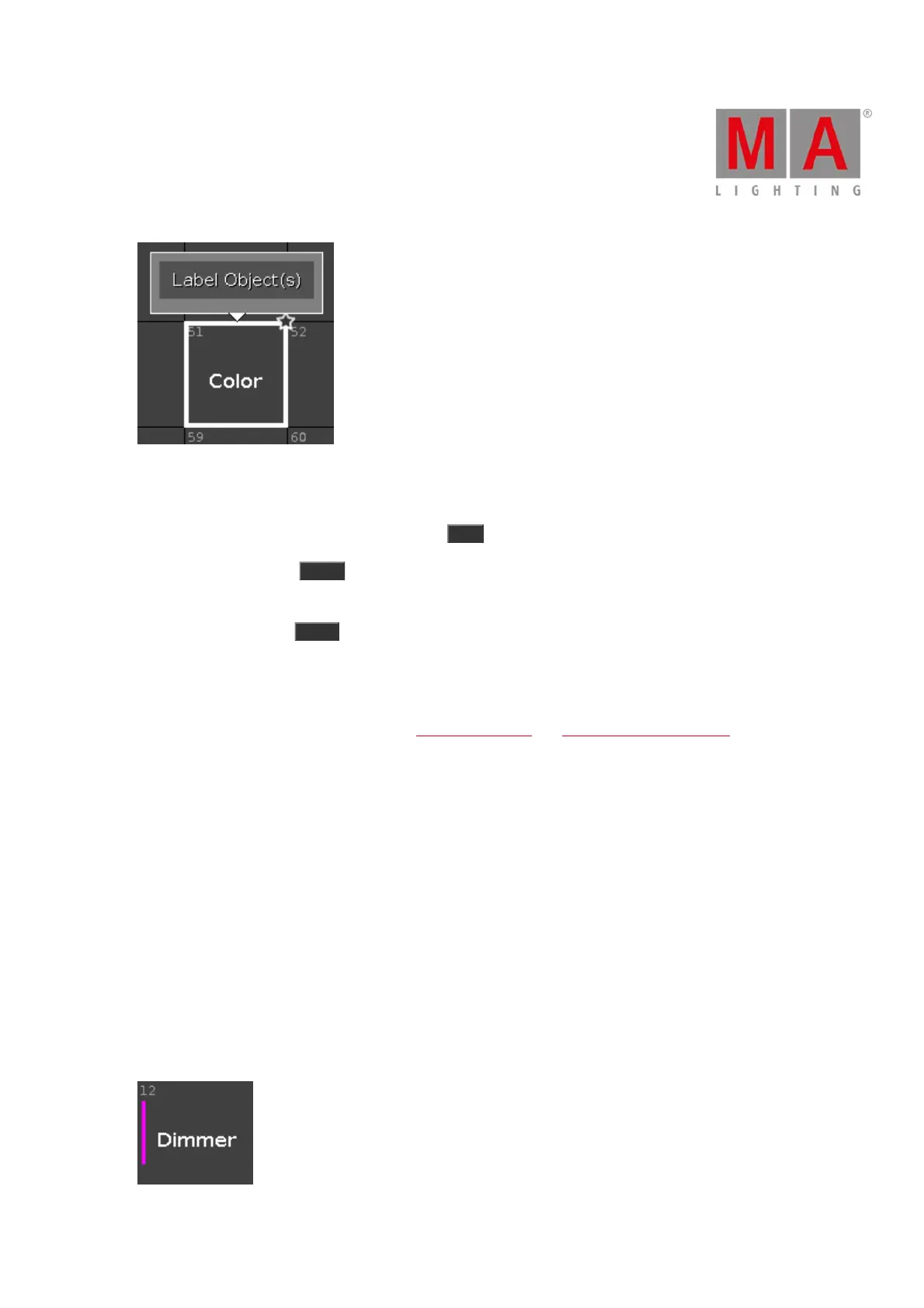
Figure 2: Label Preset Object
To edit a stored preset object with the screen, press and hold the preset object tile.
To edit a stored preset object with the keys, press Edit and then tap the object which you like to edit.
To move an object: Press Move , tap the object which should move and then tap in an empty field where the
object should go.
To copy an object: Press Copy , tap the object which should be copied and then tap in an empty field where the
object copy should go to.
A copied object get a consecutively number after the object name, to see the difference.
For more information about Presets, refer to What are Presets? and How to work with Presets?
Preset Pool Objects
The last selected preset pool objects has a white frame around the object tile.
A preset without a function is displayed with a gray font.
Example: The fixtures used in this preset are removed from the Patch & Fixture Schedule.
Every preset pool object has a number in the upper left corner. This is the object number.
Example Preset 3.1 = Preset Pool 3. Gobo, Object 1.
Here are examples of a few preset pool objects.
Effects in Presets
A stored effect in a preset is indicated by a purple marker.



 To Next Page