To delete exported fixture types from the internal desk, a software update or factory reset is necessary. Refer to,
How to update the console? and How to reset the console?.
To switch between the symbol view and the sheet view , tap on the respective icon in the title bar.
To delete unused fixture types from the show file, tap the trash can .
To confirm the changes tap OK .
To leave the Select Fixture Type... Window, tap .
For more information about add and patch fixtures, see how to add and patch fixtures?
Symbol View
To go to the symbol view, tap the symbol view icon in the title bar.
The fixture types are fielded in tiles.
A selected fixture type has a white frame around the tile.
The number in the upper left corner of the tile, displays the fixture type number in the current show file.
In bold white font is the fixture type displayed.
Below the fixture type is the manufacturer displayed.
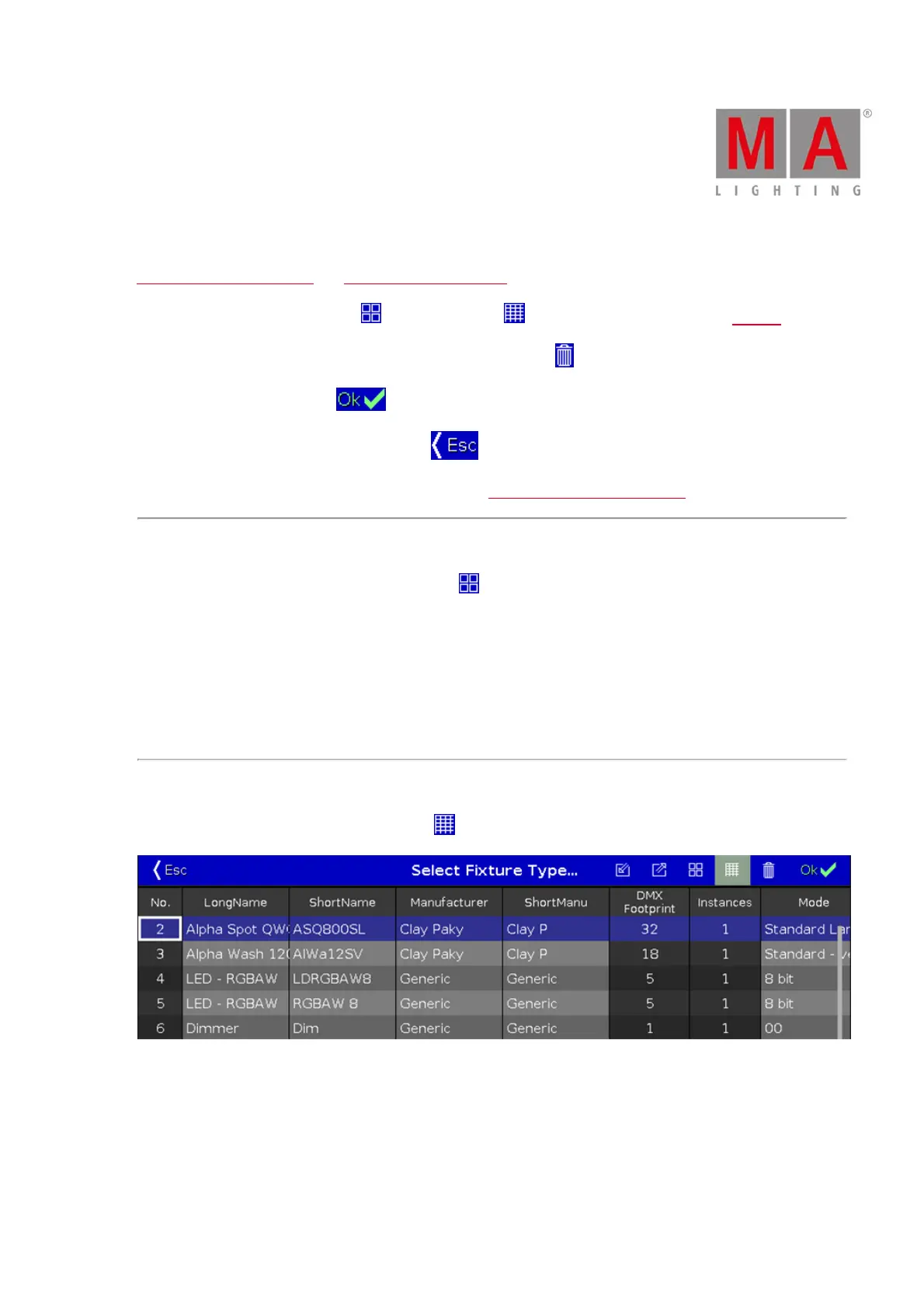
Sheet View
To go to the sheet view, tap the sheet view icon in the title bar.
Figure 2: Select Fixture Type... Window - Sheet View
The table has nine columns with information to the fixture type.
Cells with a bright gray background are editable.
Cells with a dark gray background are read only.
1. No



 To Next Page