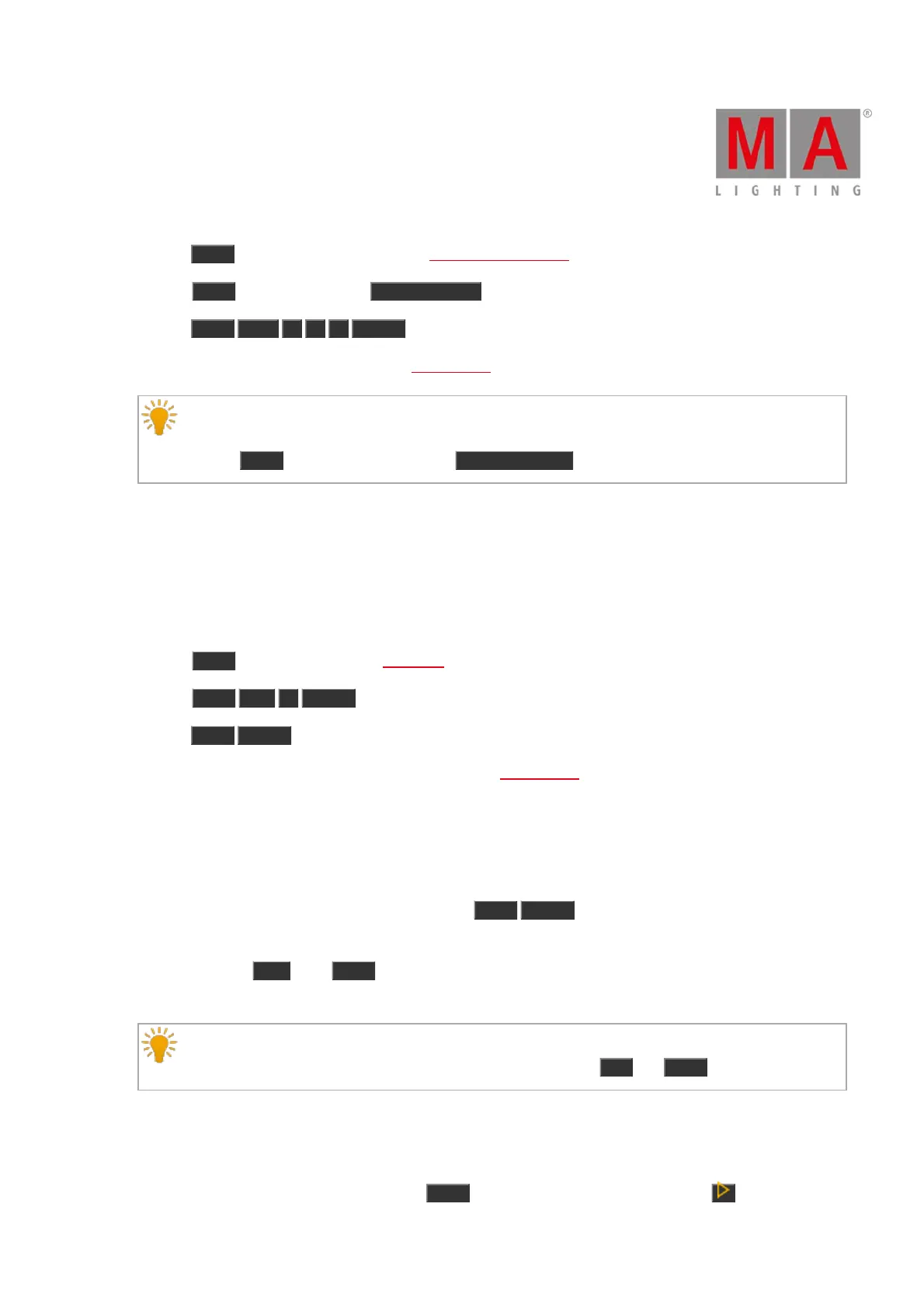
c) Press Prvw and tap at executor 102 in the virtual playbacks view.
d) Press Prvw and press the actual executor button of executor 102 on the console.
e) Press Prvw Exec 1 0 2 Please .
The preview of executor 102 is visible in the fixtures view without having a DMX output.
Hint:
To have a quick overview in the preview mode about different executors at the same time, press and
hold the Prvw key and press the different executor buttons on the console.
Example 2
Let´s assume you will have a preview of cue 1 on the main executor without having an actual DMX output.
Requirement: The main executor is off.
There are three ways to do this:
a) Press Prvw and tap at cue 1 in the cues view of the main executor.
b) Press Prvw Cue 1 Please .
c) Press Prvw Please .
The preview of cue 1 on the main executor is visible in the fixtures view without having a DMX output.
Example 3
Let´s assume you will step thru the cue list on the main executor with cue timing and without having an actual
DMX output.
1. Open the main executor in the preview mode, press Prvw Please .
Cue 1 on the main executor is in preview.
2. Press the small Go+ (=Go) Prvw .
Cue 2 on the main executor is in preview with cue timing, e.g. fade.
Hint:
To go back from cue 2 to cue 1 in the preview mode use the small Go- and Prvw on the console.
Example 4
Let´s assume you will step thru the cue list stored on executor 2 without having actual DMX output.
1. Open executor 2 in the preview mode, press Prvw and the executor button of executor 2



 To Next Page