© 2018 MA Lighting Technology GmbH - Dachdeckerstr. 16 - 97297 Waldbüttelbrunn - Germany
Phone +49 5251 688865-27 - support@ma-dot2.com - www.malighting.com
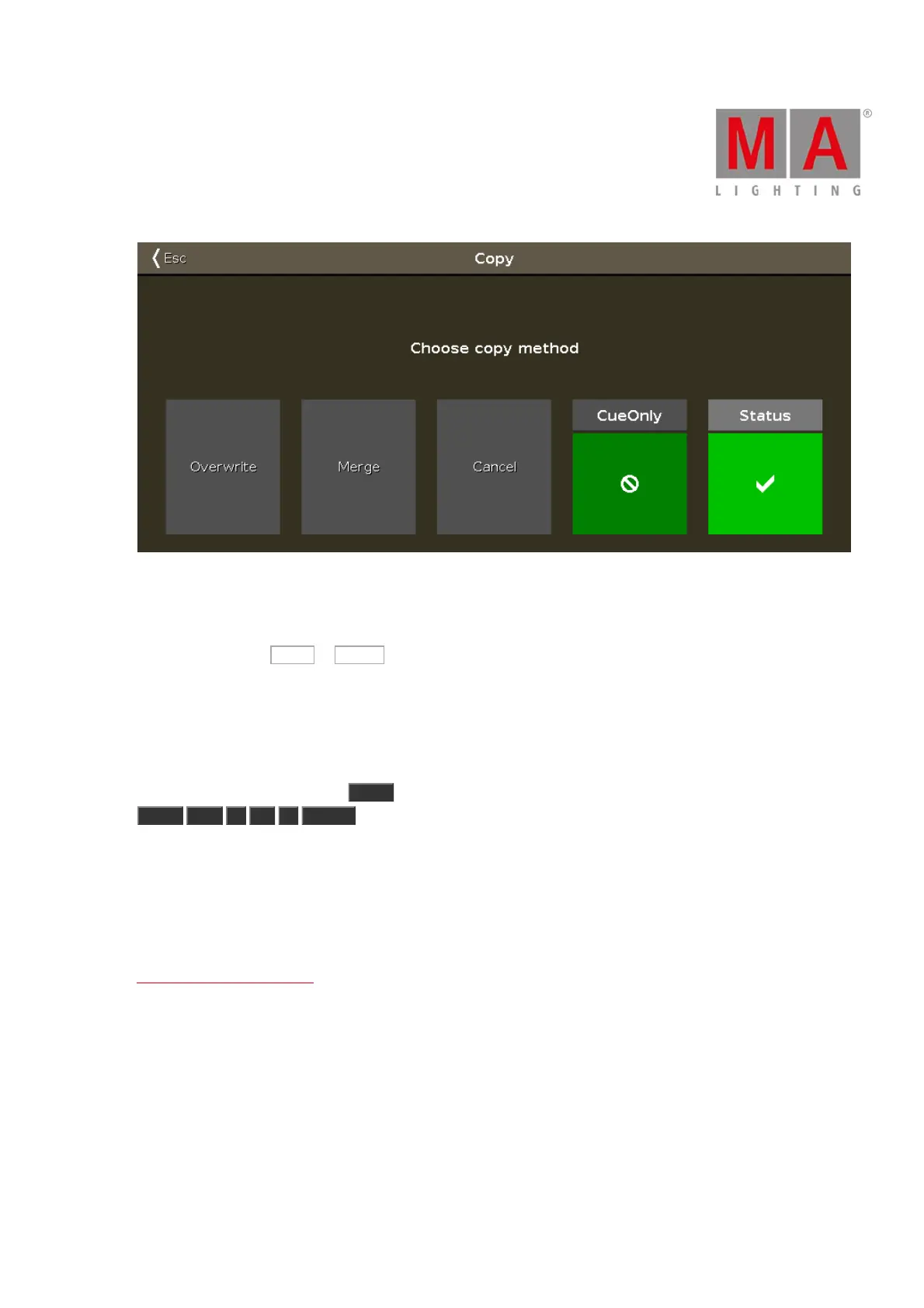
Figure 3: Choose copy method.
This might look a little different depending on if you already got a cue 3.5 or if its a new cue we are creating.
Make sure status have a checkmark, and if you can see the "CueOnly" option, then make sure it also have a
checkmark. Now tap Copy or Merge depending on your options.
Coping a cue will do an Auto Unblock. This means that after the copy all unchanged values are removed. Please
use the Protect function (read above) if you want to "block" a cue.
Move a cue
You can move a cue by using the Move key. E.g. you want to move cue 2 at cue 6 (doesn't exist right now):
Move Cue 2 At 6 Please . This will move the cue without asking any question.
If you move a cue to an already existing cue then you are asked if you really want to. The existing values in the
destination cue will be overwritten.
Renumber the cue list
You can renumber a single cue or a range of cues. Press and hold a cue number in the Cues view. This opens the
Edit Cue Number(s) window. It could look like this:



 To Next Page