Networking Reference
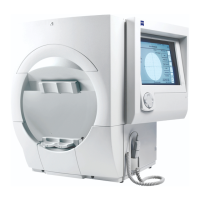
Humphrey Field Analyzer II-
i
series User Manual 2660021145640 A
I-12
4 Enter the USER NAME for the file server.
5 Enter the PASSWORD for the file server.
6 Select either ENTER SHARED FOLDER, to enter the folder name and location manually, or
BROWSE FOR SHARED FOLDER, to search the directories of the network computer for the
shared folder that you wish to use.
• To Enter a Shared Folder Manually:
1. When you select ENTER SHARED FOLDER, a pop-up ke
yboard will appear. Use it to enter the
name of the Workgroup/Domain to use. Then, select ENTER.
2. A second keyboard will open to allow you to specify the Computer to use and to specify the
path to t
he Shared Folder that you wish to use. Key in the needed information and press
ENTER.
7 When you select the BROWSE FOR SHARED FOLDER button, a “Select Shared Folder” screen
will open, listing Windows Workgroups/Domains. Select a Workgroup/Domain (such as
PATIENT RECORDS, shown in Figure I.13). Then, select PROCEED.
Figure I.13 Shared-folder Browser for Workgroups
8 The next browsing screen lists available computers/servers in the selected Workgroup/Domain.
Select your desired computer/server and press PROCEED.
9 A screen will appear listing the possible Shared Folder selections for the computer you
specified in the previous step. You have two options:
• You can select an existing shared folder.
• You can select the CREATE FOLDER button toward th
e upper right-hand corner of the screen
(provided the user has permission to create folders on the selected server).
10Once you have selected either an existing shared folder or created a new one, select
PROCEED.


 To Next Page
 Loading...