106 Dolby
®
IMS2000 Installation and User’s Manual
IMS.OM.004730.DRM Issue 3
If you already have a projector configured through
Device Manager
display subtitles, meaning that the enable subtitle file was set to yes,
adding the subtitle engine device causes a warning window to appear
asking you to disable all projector subtitle display. The subtitle engine will
generate the subtitle inside the picture before exporting the resulting
pictures to the projector. If you plan to use the subtitle engine, click the
Yes
button in the warning window to disable all projector subtitles.
3. Select the subtitle engine device.
4. The device will be visible on the main
Device Manager GUI.
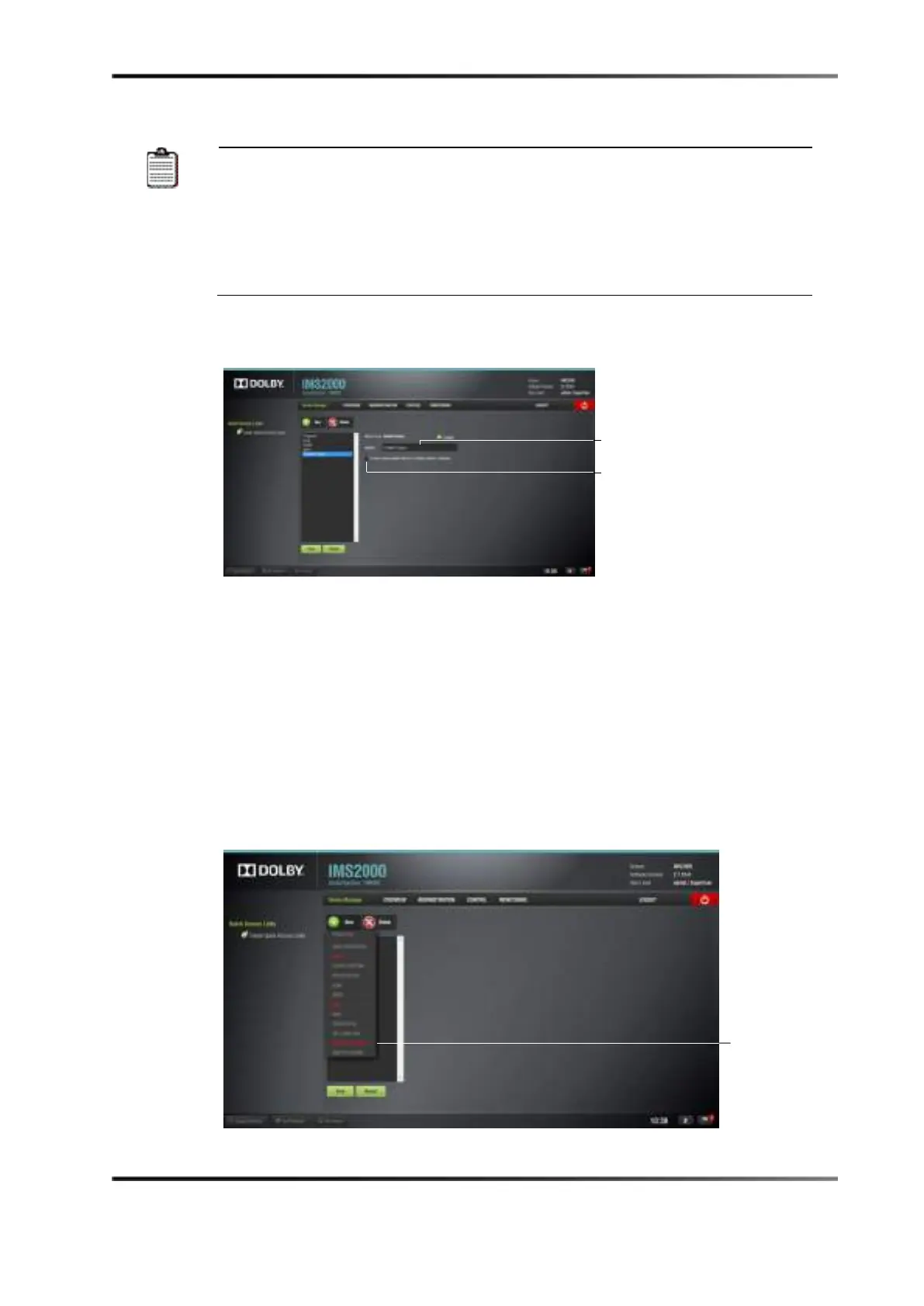
Figure 13-24 Subtitle Engine
3. Click on the Save button.
You will be asked for a password.
4. Enter the appropriate password and click on the
Ok button.
Clicking on the
Revert button prior to saving will delete the unsaved information.
The
closed caption check box, when checked, uses closed caption data (instead of
subtitles) when subtitles are not detected.
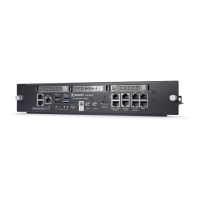
13.3.12 Missing License
If a license is missing, it appears in red in the New Device drop-down menu.
Figure 13-25 Missing License
check box



 To Next Page