Dolby
®
IMS2000 Installation and User’s Manual
IMS.OM.004730.DRM Issue 3 109
13.5.2 Editing a Macro Automation Cue
To edit the name of an existing macro automation cue:
1. Click on the macro.
2. Click on the
Settings button, or double-click on the macro itself.
3. Edit the name of the macro.
4. You can use the up and down arrows to rearrange the automation cues.
5. Click the
Save button when finished.
Selecting the
Revert button will close a document without saving the changes.
Use this with caution.
6. To delete a
Macro Automation Cue, select the automation cue in the Macro Editor
window and click on the Delete Macro button.
13.5.3 Inserting Actions into Macro Cues
To insert actions into a macro cue:
1. Select the
Macro Editor window, select Administration > Macro Editor.
2. Highlight the macro to be modified.
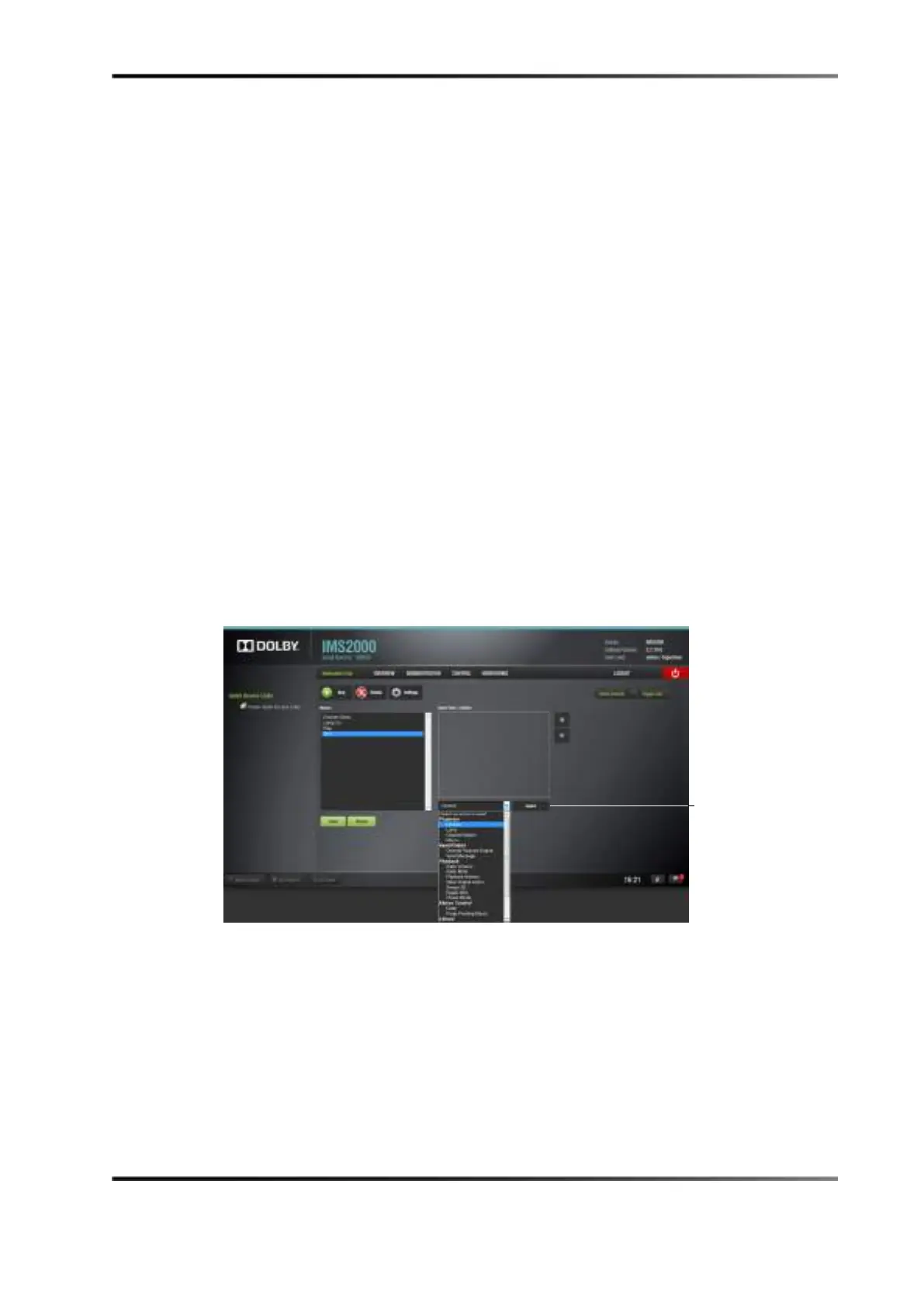
3. Click on the drop-down arrow next to the
Select an Action to Insert field.
Figure 13-30 Automation Cue Window
4. Click on the action.
5. Click on the
Insert button.



 To Next Page