Chapter 3 ’Web User Graphical Interface’ — GUI Description
186 Electra VS
-
Version 05.10
User Manual - Rev. A
Disk
: number and capacity.
Description
: serial number, vendor, type.
Profile
: Network Interface profile linked to the Node. Refer to section
section
’Network interface profiles’
on page 168.
From the
Nodes
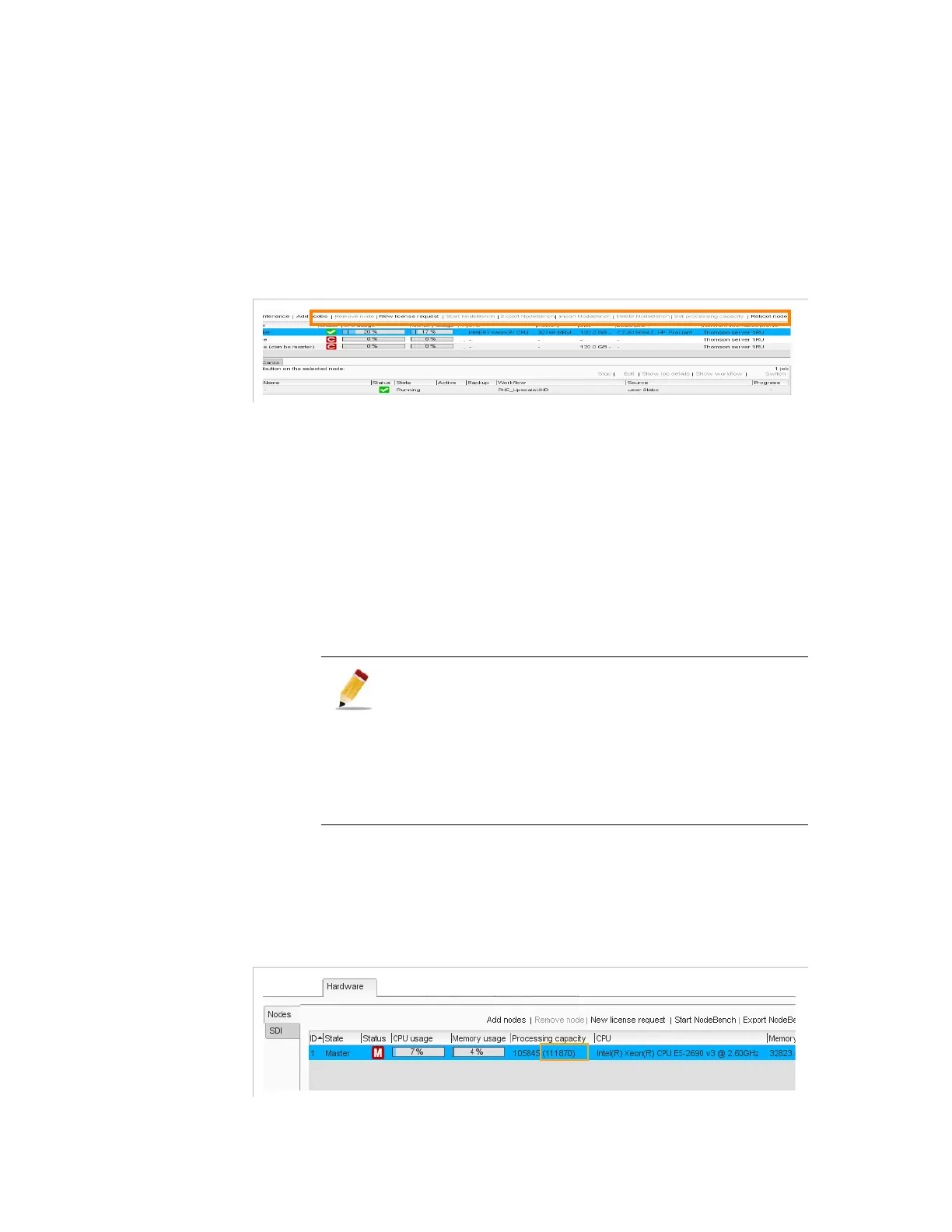
panel, you can perform the following actions:
Figure 3-144. Commands available in the Nodes panel
Requesting a new license: click the
New license request
button. To
find out how to request a license for a new node, refer to Chapter
‘
Servicing
’, section
’Requesting a new license File’
on page 411.
Searching for the nodes available on the internal system network. If
you want to obtain a list of available nodes click the
Add nodes
button. Refer to Chapter ‘
Servicing
’.
Modifying the Processing capacity of a node:
Click the
Start NodeBench
button to launch the processing
capacity analyze on the selected node if you don’t know its
value.
When the NodeBench analyse is complete, the resulting
processing capacity is indicated between brackets in the
interface.
Figure 3-145. Processing capability
.
You can perform the analyze only if the NodeBench
files are present on the node. If the NodeBench files are
missing, a popup request to download files. The files
are delivered with the product in the DVD-ROM
directory
VOS Flex - NodeBench
.
The analyze cannot be launched on a node with
running jobs.
The analyze may take up to five hours.


 To Next Page