Chapter 3 ’Web User Graphical Interface’ — GUI Description
Electra VS
-
Version 05.10 193
User Manual - Rev. A
For more information on how to use these tools, refer to section
’Selector and Choice Tools’
on page 380.
Description
The description helps you understand the workflow. It indicates what the
workflow does. Be sure to fill in the field carefully when creating a new
workflow, as this information is very useful to people who create jobs
and to people who create other workflows based on the one you created.
Right Area
The right-area is used to build a workflow as explained in section
’Building your Own Workflows’
on page 83.
Buttons
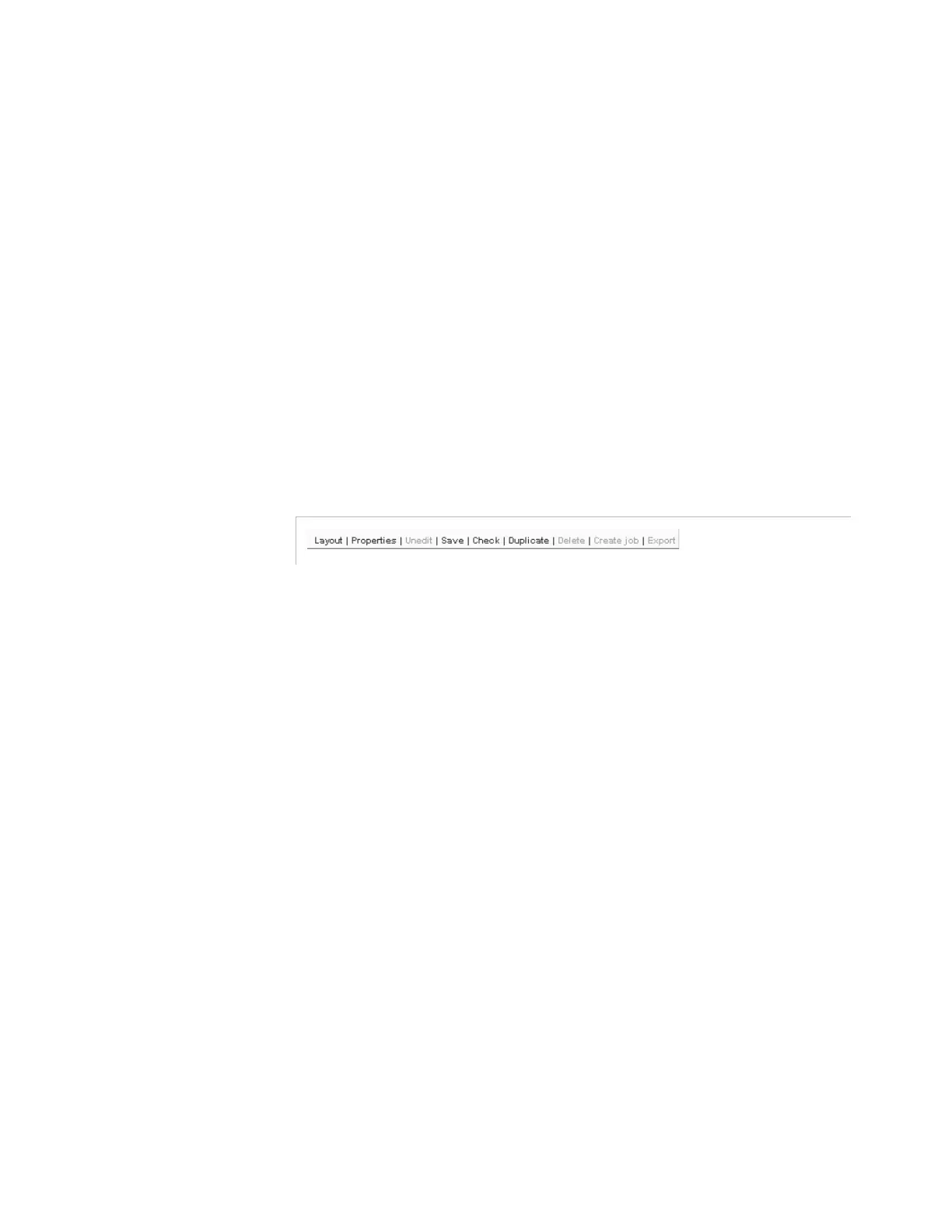
Figure 3-153. Buttons on the top-right area of the Workflows tab
The following buttons are available in this area to edit a workflow:
Layout
: displays the list of public and protected parameters in a
separate panel on the right, i.e. the parameters that are visible
(
protected
) and editable (
public
) by job authors. In this panel, you will
organize the visible parameters into sections and groups to facilitate
job editing.
Properties
: lets you set the properties of the workflow. You can also
double-click the box of a workflow, located on the top-left corner of the
right area to open this dialog.
Edit/Unedit
: switches to the edit mode / cancels the changes applied
to the workflow.
Save
: saves the changes applied to the workflow.
If there is at least one error message, the configuration is not applied.
If there is at least one warning message, a confirmation is required. Be
aware that all running jobs based on this workflows will apply the new
parameters.
Check
: checks the coherence of the workflow. If there are errors, a
summary is displayed. You can click the links to open the processing
component where the problem is located.
Duplicate
: duplicates the workflow.
Delete
: removes the workflow from the list.
Create job
: creates a job based on the workflow.


 To Next Page