Chapter 2 ’Installation and Startup’ — Hardware Delivery
Electra VS
-
Version 05.10 51
User Manual - Rev. A
2.
Connect a PC in DHCP on the GigE switch.
3.
To ensure a proper multicast management in the system private LAN,
it must contain an IGMP Querier. The switch must act as such. The IP
source of the IGMP querier shall exist in the system private LAN.
4.
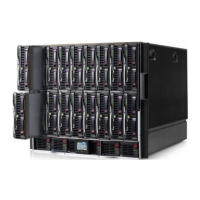
If the Electra VS includes at least one 10RU HP blade center and others
hardware platforms, to ensure a proper multicast management in the
System Private LAN, it must contain an IGMP Querier. The switch
must act as such. The IP source of the IGMP querier shall exist in the
system private LAN.
Accessing the Web Interface for the First Time
To access the Web interface, proceed as follows:
1.
Open a Web browser.
2.
Type the
192.168.250.9
IP address in the address bar and press
Enter
.
3.
Use the following account information:
Login:
admin
Password:
admin
If you cannot connect to the
192.168.250.9
IP address, which might
happen if the factory-set IP address has been modified, use the Discover
feature of the equipment set-up tool. See
Chapter 7 ’Tools’
on page 465.
Checking Node Status
1.
Select the
Hardware
tab.
The GigE switch should be isolated from the network as the
presence of a DHCP server could cause conflicts.
Only the Electra VS node of the current system shall be linked to
the internal system network. Do not connect any additional
equipment on the network.
If you install two Electra VS systems, each system should have
its own system private LAN.
Before launching the signed GUI application, the client station checks
through Java (starting in version 1.7.xx) that the related certificate has
not been revoked by the issuing authority.
If the Java setting does not allow internet access, the certificate
revocation check attempt will fail after about 1 minute. The starting
applet will be run but only after this time.
Solutions to reduce this startup time exist. They are given in the
section
’It takes a long time to launch the GUI. Why?’
on page 455
in the '
’Troubleshooting’
' chapter. Please refer to this section.


 To Next Page