Chapter 3 ’Web User Graphical Interface’ — GUI Description
Electra VS
-
Version 05.10 223
User Manual - Rev. A
2.
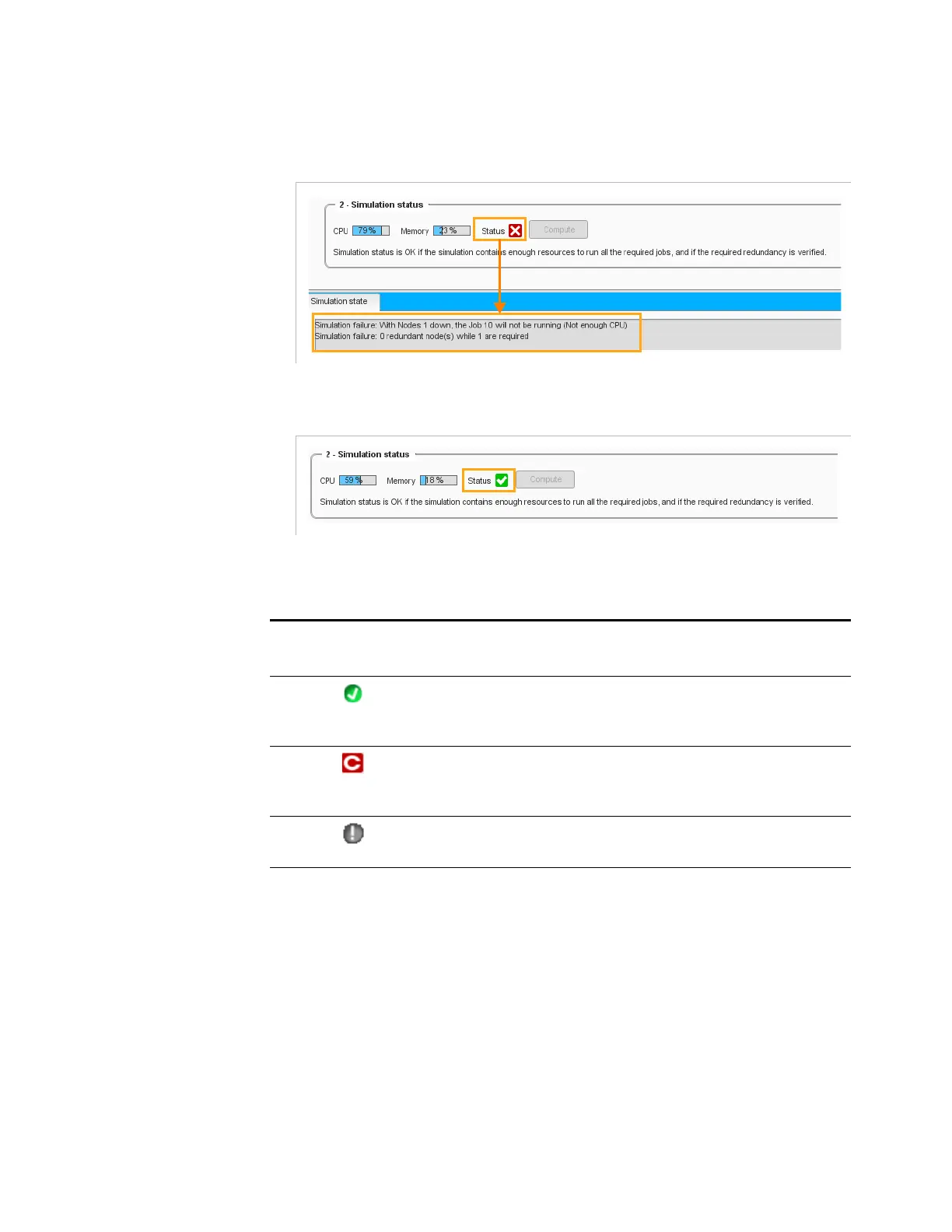
Check the simulation status.
Figure 3-192. Simulation Status - Simulation view (failed)
Figure 3-193. Simulation Status - Simulation view (OK)
3.
Modify the hardware resource (Nodes to enable jobs processing, as
required.
According to the simulation status (too many or too few Nodes), you can
add blade centers, blades and servers (or remove if too many), as
described in the previous step.
Step 6: Export/Import Simulation
A simulation can be exported to or imported from the same or a different
device. The simulation is stored in a zip file. A
Summary.xml
file gives the
list of the hardware and licenses needed to run the simulation.
Table 3-9. Simulation Status icon meanings
Simulation Status
icons
Meanings
The simulation is valid, all jobs can run on the Electra
VS defined, in accordance with the number of nodes
redundancy required.
The simulation is not valid. Either all jobs requested
could not be instantiated or we do not have the number
of redundancy nodes required.
The simulation status is undefined. Click
Compute
to
determine it and read the simulation status icon.


 To Next Page