Chapter 7 ’Tools’ — NodeBench
468 Electra VS
-
Version 05.10
User Manual - Rev. A
4.
Click the
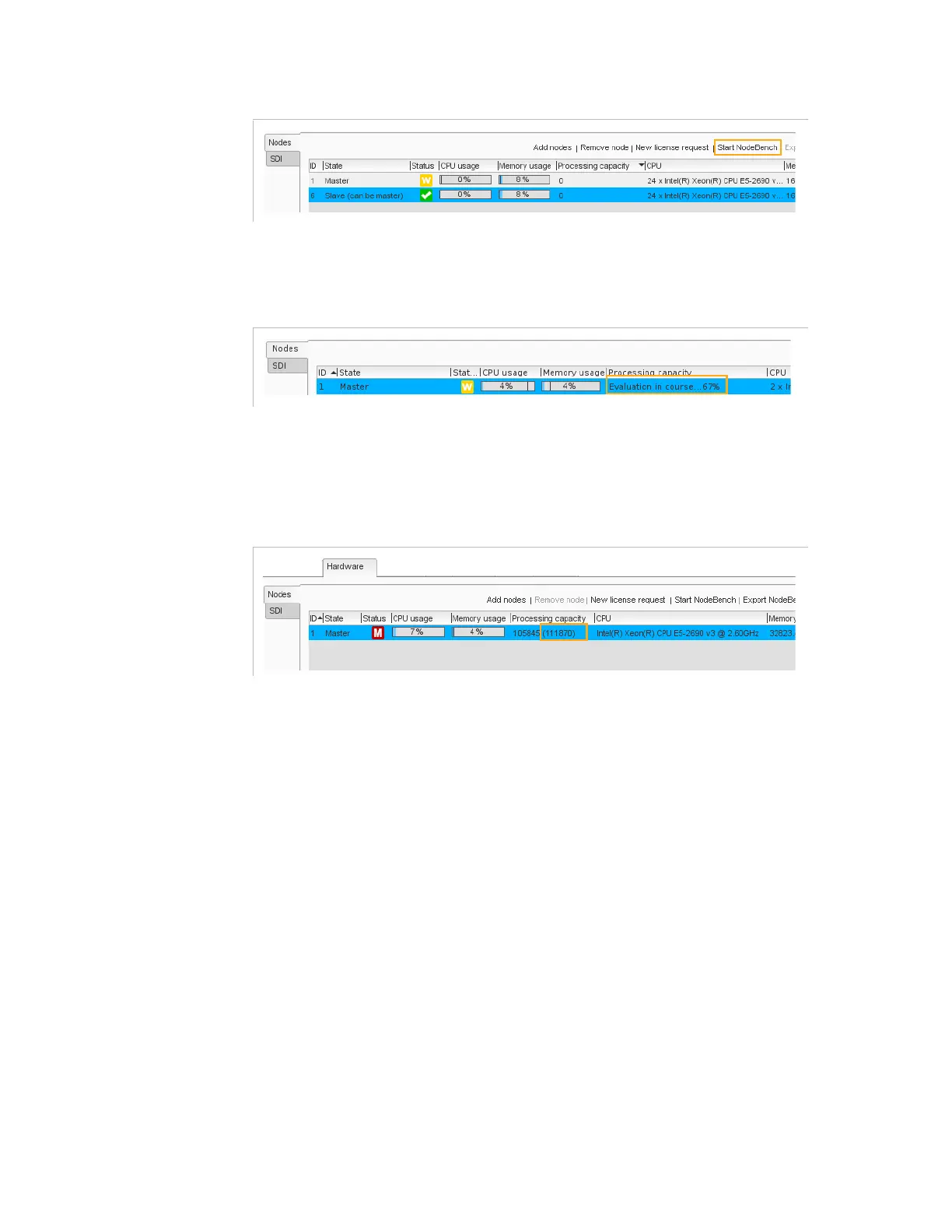
Start NodeBench
button to launch the analyze.
5.
Import the NodeBench zipped files if requested. The files are stored in
the DVD-ROM in the
Software / VOS Flex-Nodebench
files directory.
The analyze may take up to five hours.
When the NodeBench analyze is complete, the resulting processing
capacity is indicated between brackets in the interface.
Figure 7-1. Processing capability
.
6.
Click the
Export NodeBench result
button to upload the result file
on your PC.
You can download it on another node with the same
characteristics (exactly the same hardware and exactly the same
configuration of the BIOS parameters) or send it to Harmonic is
requested.
You can apply it on the current node by clicking the
Set
Processing Capacity
button.
If you reduce a capacity and if jobs are running on the node they may
be stopped and may be restarted on another nodes. If the capacity is
higher than the real capacity of the node the jobs may not work
correctly.


 To Next Page