© 2018 MA Lighting Technology GmbH - Dachdeckerstr. 16 - 97297 Waldbüttelbrunn - Germany
Phone +49 5251 688865-27 - support@ma-dot2.com - www.malighting.com
Buttons in the Schedule
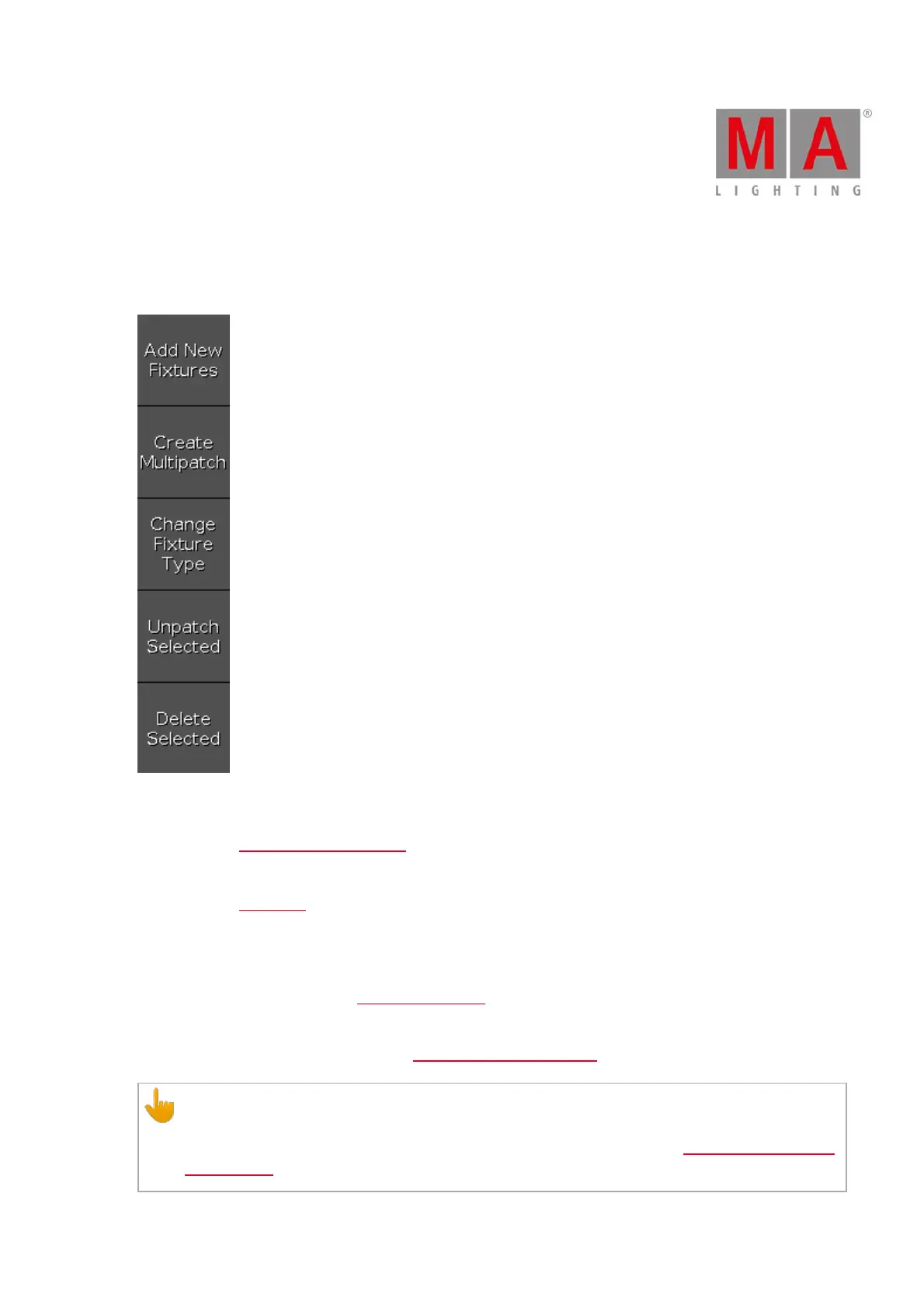
Rightmost of the window are five buttons.
Figure 3: Patch and Fixture Schedule buttons
Add New Fixture Window:
Tap to open the Add New Fixtures Window.
Create Multipatch:
Tap to open the Calculator. Enter the amount of multipatch fixtures.
Multipatch create additional row to patch several DMX addresses for the selected fixture in the Patch and Fixture
Schedule. It is used to control several DMX addresses by using one fixture ID in the console. The multipatch
fixtures are doing all the same, indicated by the same fixture ID. The multipatched fixtures are visualized in the
dot2 3D. For more information see dot2 3D - 3D objects.
Change Fixture Type:
Tap to change the selected fixture type. The Select Fixture Type... Window opens.
Important:
Changing fixture types to fixture types that have more DMX channels does not delete the old patch,
instead it displays the invalid patch addresses in red. For more information see Add, patch, change, and
delete fixtures.



 To Next Page