HIGH DATA RATE RECEIVER
HDR-4G+ USER’S MANUAL
Ref. DTU 100782
Is.Rev 3.5
Date: June 1, 2021
© Safran Data Systems – IMP000074 e14r1
This document is the property of Safran Data Systems.
It cannot be duplicated or distributed without expressed written consent.
Graphical User Interface 4.3.5
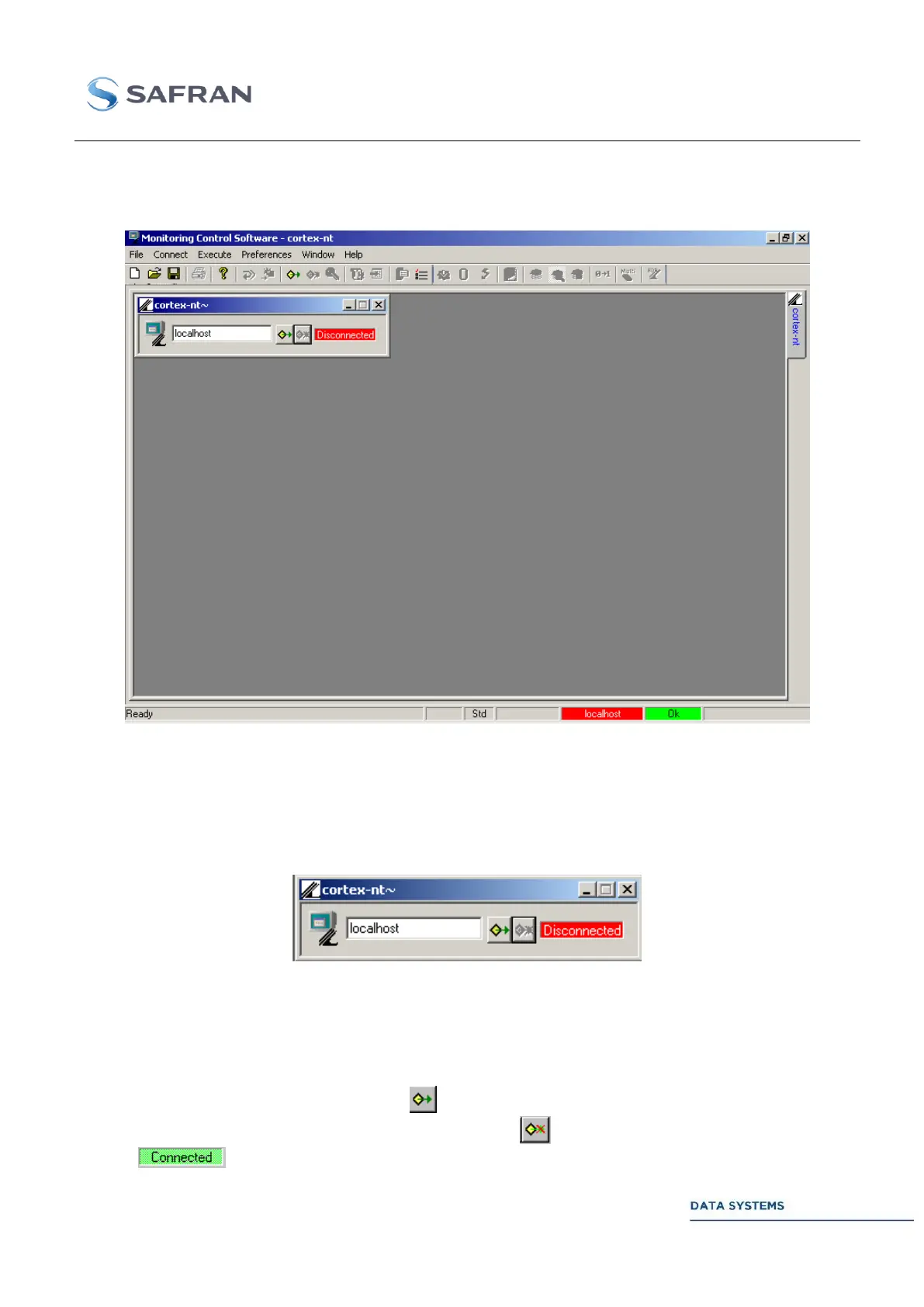
The following window appears on the screen when the MCS is started:
Figure 81: MCS Top-Level Window
The window name (Monitoring Control Software) is followed by the name of the MCS
Document opened by the Monitoring & Control Software.
MCS Login Window 4.3.5.1
Figure 82: MCS Login Window
The MCS login window enables to connect or disconnect to the Cortex SPS and check the connection
status. The connection buttons are disabled if no machine name or IP address is provided in the host
identification zone. Start entering the machine name or IP address and the connection button will
automatically be enabled.
Connect the MCS to the SPS by clicking on or by pressing the RETURN or ENTER key. If the host
machine accepts the connection, the disconnection button is enabled and the connection status
turns to . Otherwise, a connection error message appears on the screen.


 To Next Page