HIGH DATA RATE RECEIVER
HDR-4G+ USER’S MANUAL
Ref. DTU 100782
Is.Rev 3.5
Date: June 1, 2021
© Safran Data Systems – IMP000074 e14r1
This document is the property of Safran Data Systems.
It cannot be duplicated or distributed without expressed written consent.
The last loaded or saved CTX Document is identified in the upper part of the window by its ID number
and name. A configuration status indicates whether the current configuration of the unit matches the
contents of the last loaded or saved CTX Document ( ) or not ( ).
The CTX Document name can be modified only with the Save Command or by editing the
NameTable.TXT file before starting the Signal Processing Software (SPS). If a CTX Document is not
available (not created or damaged), the assigned name is blank. The Configuration Names table is
transmitted over the LAN on reception of a monitoring request with Component code 200
H
. This table is
not part of the tables that can be monitored under an All components tables monitoring cycle.
MCS Interface for User MCS files loading 4.3.10
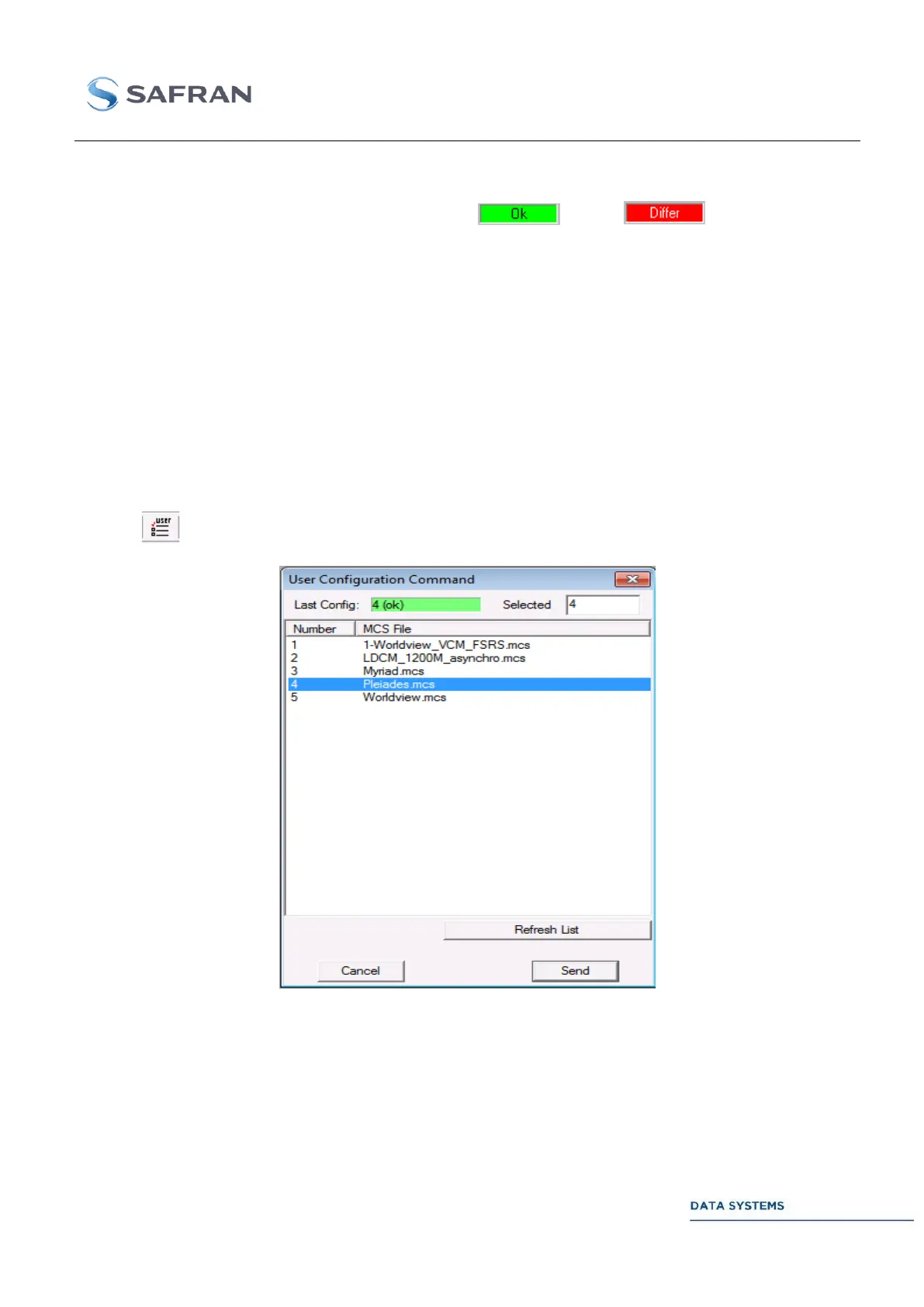
This window enables to display and to load a configuration file (MCS file) previously recorded inside the
directory: c:\Program File\In-Snec\CrtxMcs\UserConfig or d:\ZDS\Data\HDR\CrtxMcs\UserConfig (for
Windows 7) by the user.
Note that these MCS configuration files can be also remotely loaded using a special TCP/IP command.
Click on (Upper toolbar of the GUI) to access the User Configuration Command window:
Click on “Refresh List” to refresh the list of the available MCS files previously recorded by the
user inside the directory: …\CrtxMcs\UserConfig.
Click on the desired line to select the configuration file,
Click on” Send” to load the configuration inside the HDR.


 To Next Page