HIGH DATA RATE RECEIVER
HDR-4G+ USER’S MANUAL
Ref. DTU 100782
Is.Rev 3.5
Date: June 1, 2021
© Safran Data Systems – IMP000074 e14r1
This document is the property of Safran Data Systems.
It cannot be duplicated or distributed without expressed written consent.
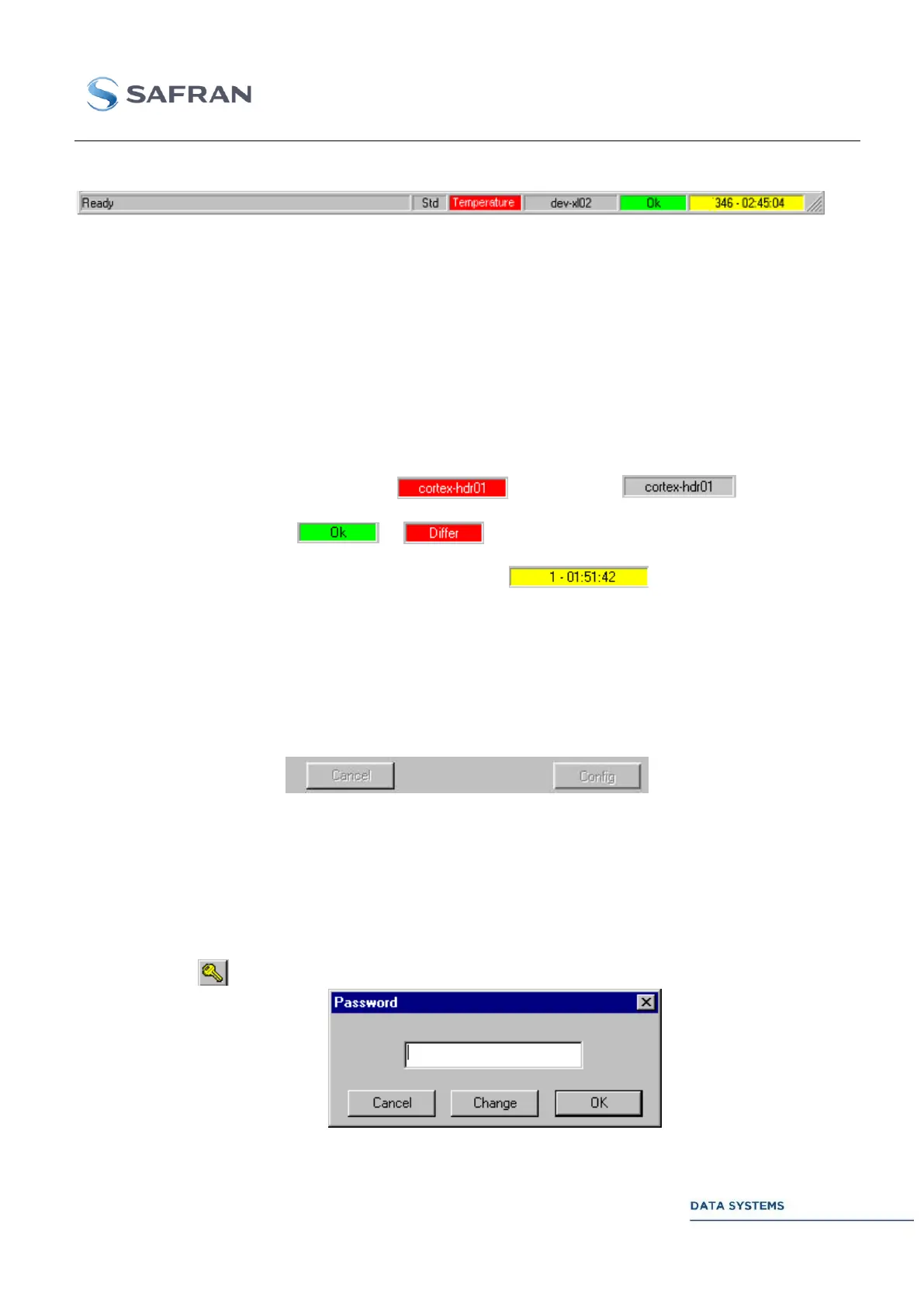
Bottom Status Toolbar 4.3.5.5
From left to right:
OK/DIFFER mode: Standard (Std), Protected (Prot) or Automatic (Auto). See section 4.3.6.4
)
Alarm status:
OK (gray background).
Alarm (red background) if any CORTEX component is in alarm. Detailed information on the
alarm is available at the GUI.
Temperature (red background) if any temperature monitored by the IPMIMonitor tool exceeds
the alarm threshold (see section 5.3.2 ).
Host name & connection status: (connected) or (disconnected)
MCS control status: or (see section 4.3.3 ).
Date and time from the built-in time code reader: . Yellow background if the
time decoder is unlocked or in flywheel mode; gray background if the decoder is locked.
CORTEX Monitoring & Configuration
4.3.6
Default Operating Mode 4.3.6.1
At start up, the default CORTEX MCS operating mode is Monitoring only. In all configuration
windows, control pushbuttons are inhibited:
Configuration changes (by the MCS Operator or by any remote Control client), status and alarms are
refreshed in real time on the GUI.
CORTEX Configuration 4.3.6.2
To reconfigure the CORTEX in a single-operator environment (no configuration conflict due to
simultaneous access of several Control clients to the machine):
Click on in the lower toolbar:


 To Next Page