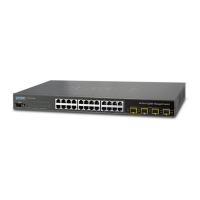
Command Guide of WGSW-28040
16
Chapter 2 CONSOLE CLI MANAGEMENT
2.1 Terminal Setup
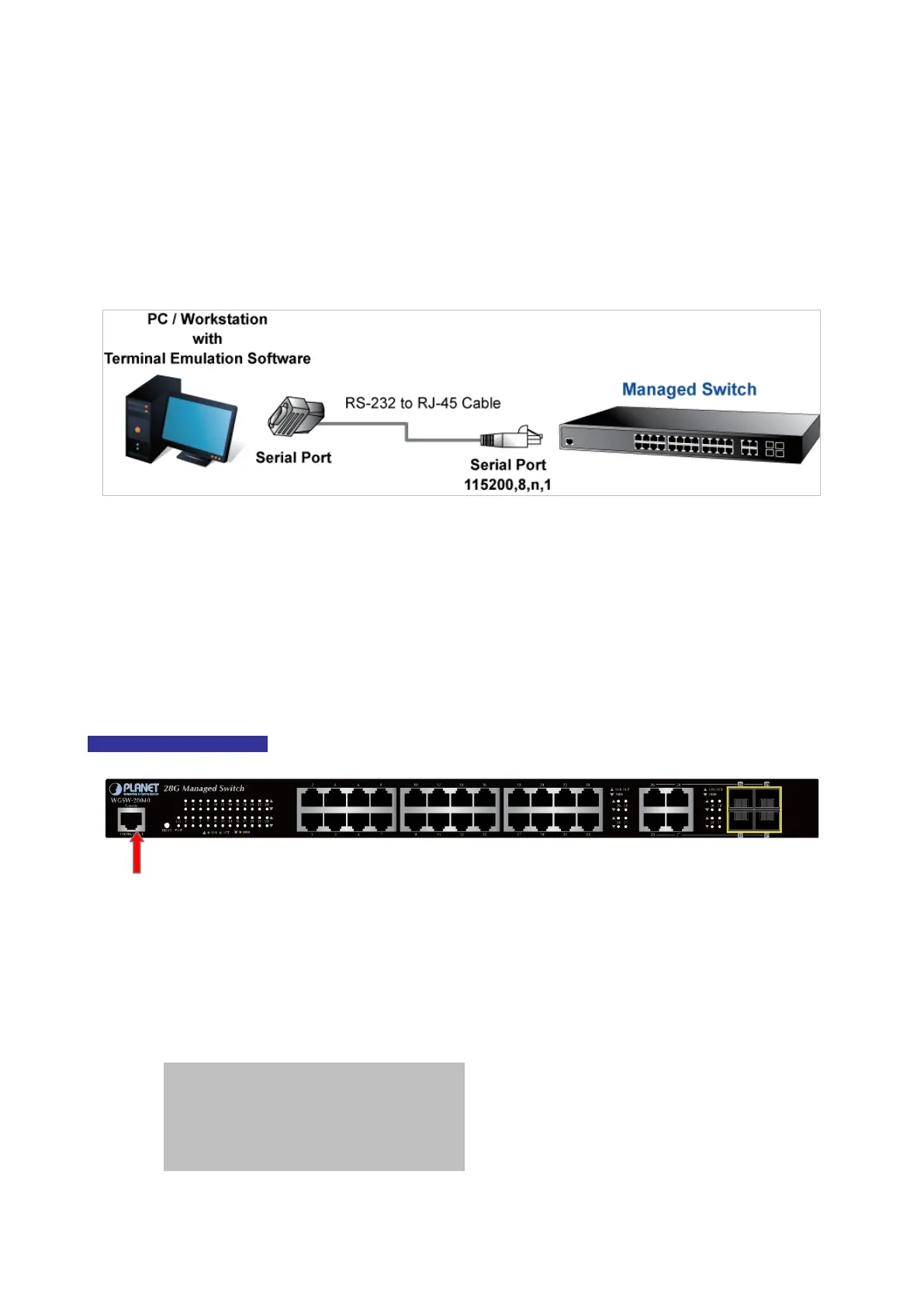
To configure the system, connect a serial cable to a COM port on a PC or notebook computer and to RJ-45 type of serial
(console) port of the Managed Switch.
Figure 2-1 Managed Switch Console Connectivity
The console port of the Managed Switch is a RJ-45 type, RS-232 serial port connector. It is an interface for connecting a
terminal directly. Through the console port, it provides rich diagnostic information including IP Address setting, factory
reset, port management, link status and system setting. Users can use the attached RS-232 cable in the package and
connect to the console port on the device. After the connection, users can run any terminal emulation program (Hyper
Terminal, ProComm Plus, Telix, Winterm and so on) to enter the startup screen of the device.
WGSW-28040 Rear Panel
Figure 2-2: Rear Panel of WGSW-28040
A terminal program is required to make the software connection to the Managed Switch. Windows' Hyper Terminal
program may be a good choice. The Hyper Terminal can be accessed from the Start menu.
1. Click START, then Programs, Accessories and then Hyper Terminal.
2. When the following screen appears, make sure that the COM port should be configured as:



 To Next Page
 Loading...