156
AVO Control
Auto: Enables automatic level adjustment.
Hold: Stops auto level adjustment. When MODE
selection is changed from AUTO to HOLD, the
signal levels stop and remain as they are.
Off: Disables automatic level adjustment. When
MODE selection is changed from AUTO to Off,
the signal levels return to their state before auto
level adjustment is applied. When set to Off, the
signal levels can be manually adjusted. See
section 9-2-7 “Color Corrector” for details.
* AVO Control Mode cannot be changed from Off
when LINK setting mode is enabled in the
FA-9520 or a connected FA-95RU. To set to Auto
or Hold, disable LINK setting mode. See
sec. 4-2-8. “Switching Between 2-Channel Frame
Synchronizers” for details on LINK settings.
Darker
Dark
Standard
Bright
Brighter
User1
User2
User3
User4
User5
Selects a type of signal level adjustment.
10 options are available: Five fixed options and
five custom options.
Darker < Dark < Standard < Bright < Brighter
User1 - User5 : Customizable
Clicking Set User opens the USER1 - 5 LEVE
SET dialog box. See section9-2-2-2 “User 1 - 5
LEVEL SET” for details.
Full
Screen,
-
Bottom
Right
User Area1
User Area2
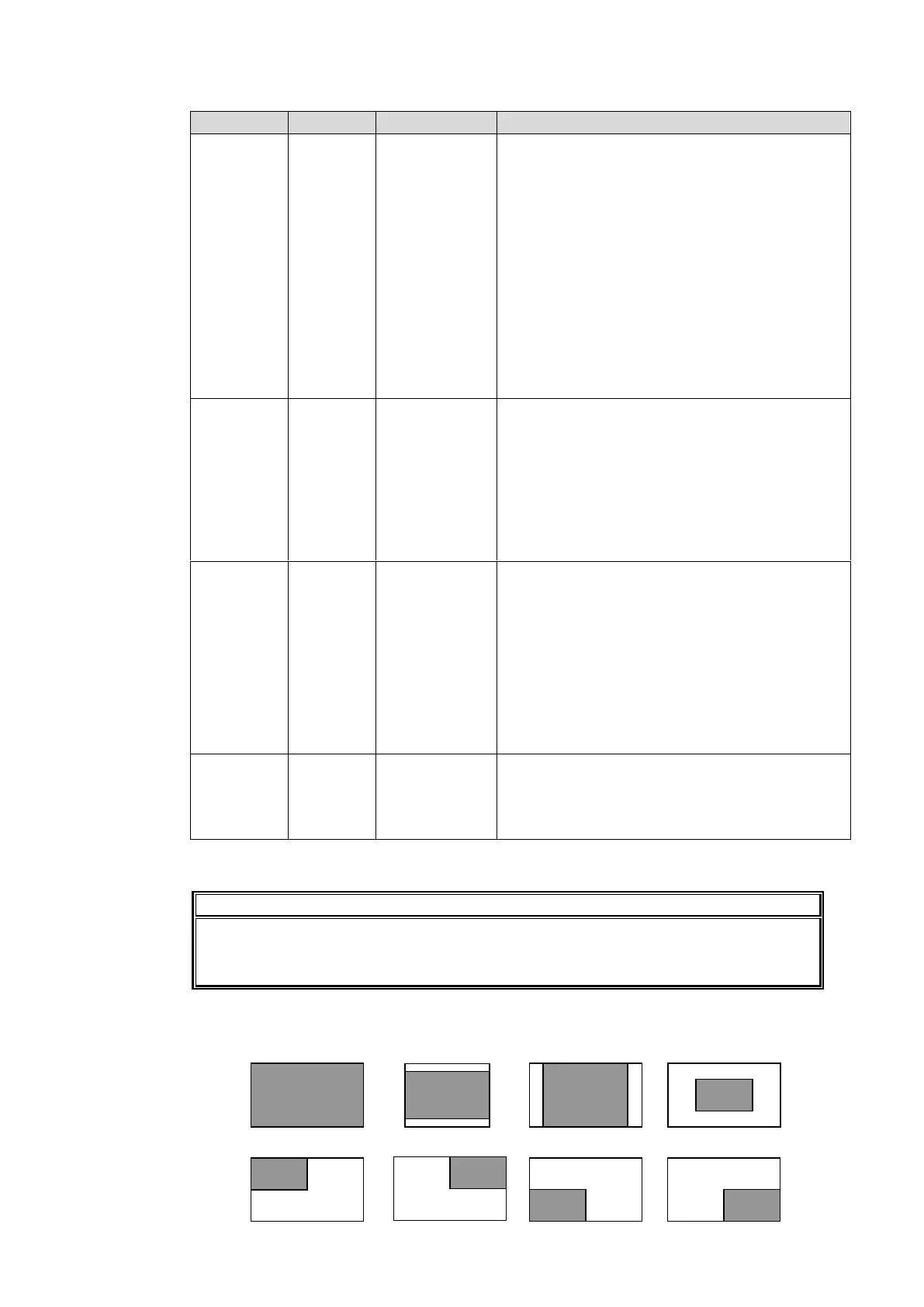
Sets the sample area to calculate the adjustment.
10 options are available: Eight fixed areas and
tow custom areas.
<Fixed areas>
Full Screen, Letter Box, Pillar Box, Center,
Top-Left, Top-Right,
Bottom Left, Bottom Right
<Custom areas>
Clicking Set Area opens the User Area1, 2 setting
dialog box.
See section 9-2-2-3 “User Area 1, 2” for details.
Area
Display
(Marker
display)
Sets sample area display On/Off. If set to On, the
sample area appears as a semi-transparent white
rectangle on all output videos. It is set to Off at
startup. Also, if Mode is set to Off, Area Display is
automatically set to Off.
*1 The FS1/FS2 LINKed setting will be disabled if AVO setting is changed to Auto or Hold
while it is enabled.
Auto Level Adjustment will provide optimal results in many cases, but not always.
Sample Area determines the area where the data is sampled and the level
adjustments are applied to whole images.
Sample Area (Fixed area)
Eight available sample areas are as shown below. Data is continuously sampled within each
area. (See section 9-2-2-3 “User Area 1, 2” for USERA REA 1, and 2.)



 To Next Page