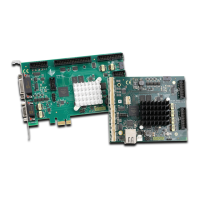
RTC6 boards
Doc. Rev. 1.0.21 en-US
5 Installation and Start-Up
92
5.7 Functionality Test
The HPGL conversion program
Hpgl.exe
is supplied
for testing control of the scan head, see also Section
”Folder HPGL”, page 32. This program lets you load
graphics files in Hewlett Packard HPGL format (vector
graphic plotter files
*.plt
) for transfer to the
RTC6 PCIe Board.
(1) Copy
Hpgl.exe
and the supplied
*.plt
files to the
same folder as the
RTC6DLL.dll
, the RTC6 files and
correction file(s).
(2) Start
Hpgl.exe
.
(3) Choose Options > Correction, and then select a
correction file.
(4) Choose File > Load HPGL-File, and then select a
*.plt
.
(5) To start output, choose Mark > Start Marking.
5.8 User Programs and
Demo Programs
The DLLs for RTC6 user programs (
RTC6DLL.dll
,
RTC6DLLx64.dll
) support the RTC6 PCIe Board under
32-bit and 64-bit Microsoft operating systems
Windows 10, 8, 7. The DLLs provide all necessary
functions for operating the RTC6 PCIe Board.
Programming of user programs is described in detail
in Chapter 6 ”Developing RTC6-User Programs”,
page 93. Chapter 6.2 ”Initialization and Program
Start-Up”, page 95 shows how to import the
functions of the RTC6 DLL into user programs, if they
are written in Pascal, C, C++ or C#.
On a 64-bit operating system, the 64-bit variant of
the RTC6 board driver supports function calls from
Win64 user programs as well as from
Win32 user programs.
Therefore, existing Win32 user programs for the
RTC6 PCIe Board are able to execute even on 64-bit
systems, if the included Win32-based file
RTC6DLL.dll
is used.
For Win64 user program, the Win64-based file
RTC6DLLx64.dll
is included in the software package.
In case a user program utilizes implicit linking to the
RTC6DLLx64.dll
, it must be linked with the Win64-
based import library
RTC6DLLx64.lib
.
To help software developers get started, some
example codes are shown in:
• Chapter 6.2.5 ”Example Code (C)”, page 100
• Chapter 6.8.3 ”Example Code (C)”, page 133
• Chapter 7.1.4 ”Example Code (C)”, page 142
Caution!
• Always turn on the PC and the power supply for
the scan head first before turning on the laser.
Otherwise, there is the danger of uncontrolled
deflection of the laser beam.
SCANLAB recommends the use of a shutter to
prevent uncontrolled emission of
laser radiation.
Notice!
• Carefully check your user program before
running it. Programming errors can cause a
system breakdown. In this case, neither the laser
nor the scan head can be controlled.


 To Next Page