Group 7 Data entry/Programming Page 111
JET2 neo Release R1.12 en
Confirm the input by pressing the button <Set> (9) or cancel the process with the button
<Cancel> (10).
The set print stop value is now displayed in the status field <Product counter> (11) of
the basic menu. For better visualization that a pre-defined print stop has been defined,
the field is displayed with a red frame.
With the macro generator, pre-defined functions can be assigned to the two freely
assignable buttons in the menu bar of the basic menu.
(Example: The button <Macro 1> should be assigned the function “StartExplorer”.)
Press the button <Macro generator> (1).
The menu <Macro generator> (2) is faded in. As standard the register card <Macro
1> (3) is activated.
Press on the arrow button of the pop-up window <Shortcut on …> (4). The op-up will
be opened for selection.
Now select the desired function link (5), in this case „Explorer“.
Finally press the button <OK ()> (6) to save the link and exit the menu. In the basic
menu the original button <Macro 1> is now activated and shown with the name
<Explorer> (7). This button offers a direct access to the Explorer.
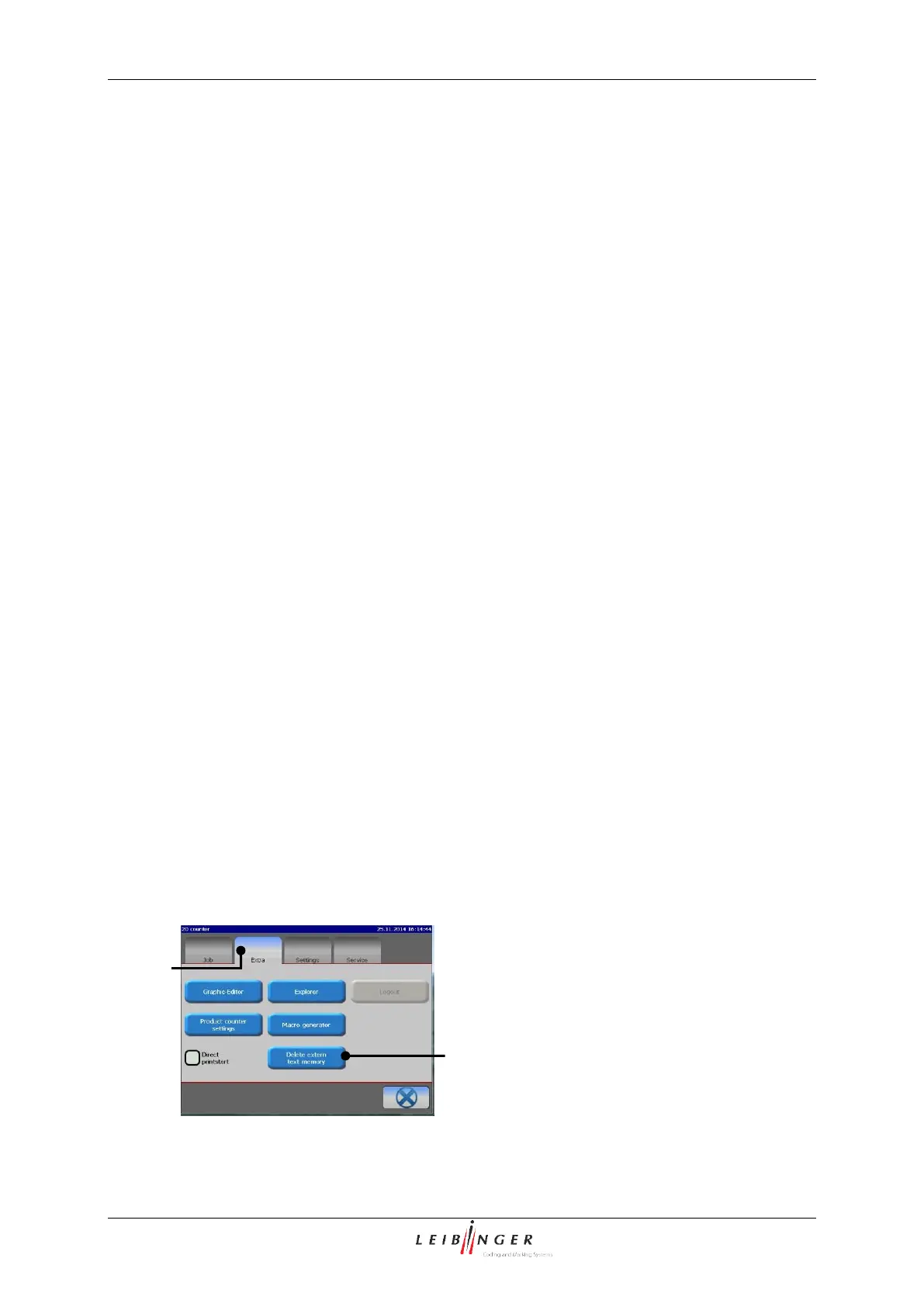
7.2.2.6 Delete ExternText
This function is used in order to delete the content of the ExternText memory.
The memory is deleted by a click on the button (2).
2 – Button <Delete ExternText memory>



 To Next Page