9 - 10
IPN 074-397-P1G
HAPSITE Smart Operating Manual
9.5 The TIC/RIC Display Functions
There are tools available to assist in the Data Review process.
9.5.1 How to Access the Scan Cursor
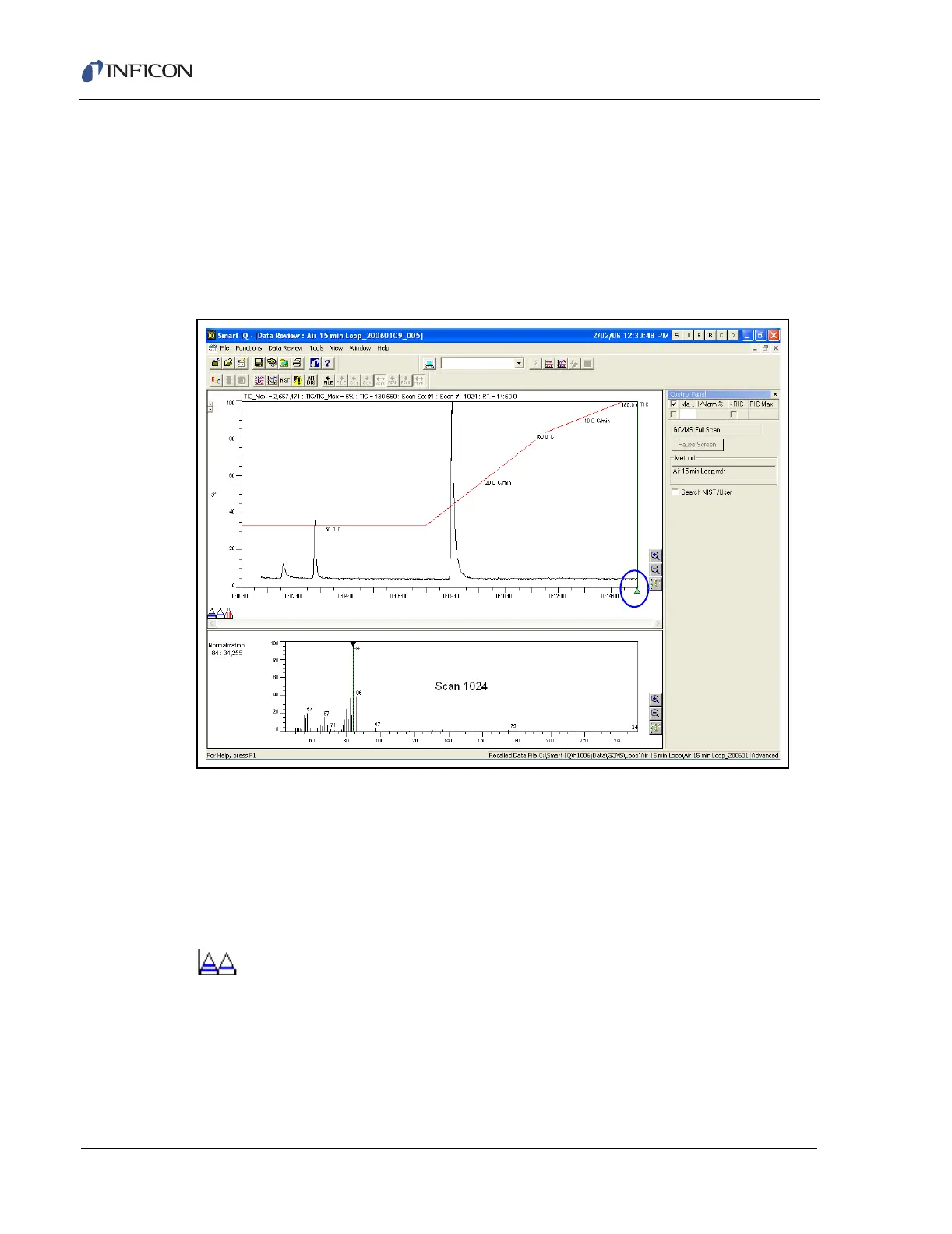
The specific scan displayed in the Spectrum window is accessed using the Scan
Cursor in the TIC window. See Figure 9-9.
Figure 9-9 Location of the Scan Cursor
The Scan Cursor can be moved to the desired location by:
Placing the mouse cursor over the Green Triangle, click and hold the LMB, then
drag the cursor to the peak/area of interest, or
Double-click the left mouse button over the peak/area of interest.
9.5.2 How to Use Background Subtraction
Background subtraction is a key component in "cleaning up" spectra before
attempting to search against a database such as NIST. In order to obtain
background spectra, there are two triangles ("cursors"), one with one blue line -
designated as Background 1 (B1), the other with two blue lines designated as
Background 2 (B2), located at the bottom left of the TIC window.
NOTE: All background subtractions are indicated in the Spectrum window by
the designation Scan Number - B1(range) - B2(range).



 To Next Page