10 - 13
IPN 074-397-P1G
HAPSITE Smart Operating Manual
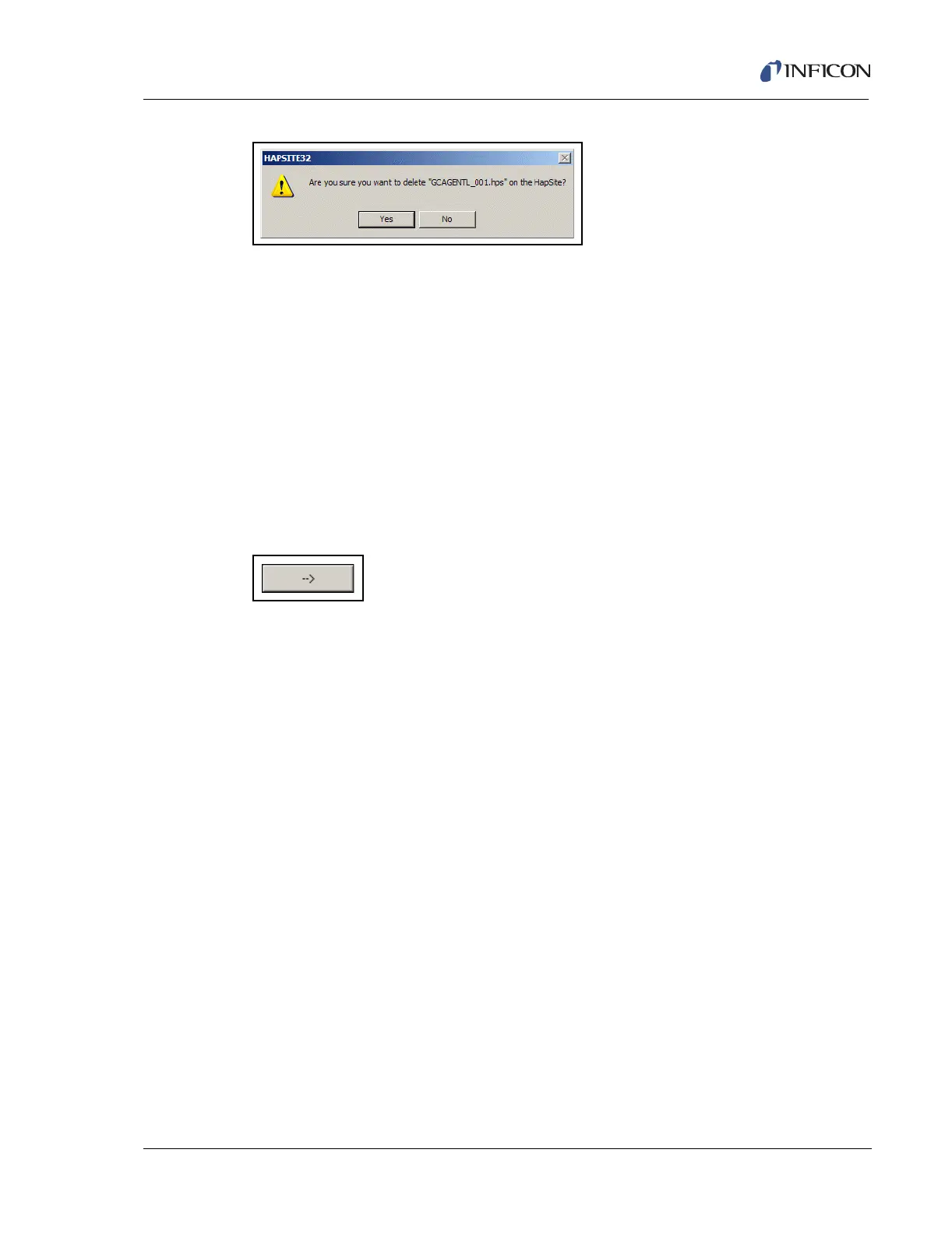
Figure 10-18 Manage Files - Delete Confirm Window
Folders or individual files or groups of files within a folder may be moved between
the PC and HAPSITE. To move a single file, make sure the desired destination
directory is already opened, then click on the file and press the arrow button to
move the file to the selected directory. A section of files may be moved by clicking
on the first file in the section, then holding the shift key, then clicking on the last file
in the section to move. Individual files may also be added to the list by holding down
the Ctrl key and clicking on files. To complete the transfer, press the arrow button.
HINT: To move files from the PC to the HAPSITE, use the right pointed arrow (see
Figure 10-19). To move files from the HAPSITE to the PC, use the left
pointed arrow.
NOTE: Only method files may be moved to the HAPSITE.
Figure 10-19 Right Pointed Arrow, For Moving Files From The PC To The HAPSITE
HINT: New folders may be created using the Create Folder button.
NOTE: Information about a selected file is listed in the bottom box of the window.
The information will vary based on the type of file selected and the
description information entered for that file.
When finished, click the Done button to close the Manage Files window.
10.4 Saving, Retrieving and Reviewing Files Using the USB Drive
Refer to section 4.8, Saving Files to the USB, on page 4-13, section 4.9, Retrieving
Files from the USB Drive, on page 4-15, and section 4.10, Reviewing the Data
Retrieved from the USB, on page 4-17 for information on using the USB Drive.



 To Next Page