10 - 12
IPN 074-397-P1G
HAPSITE Smart Operating Manual
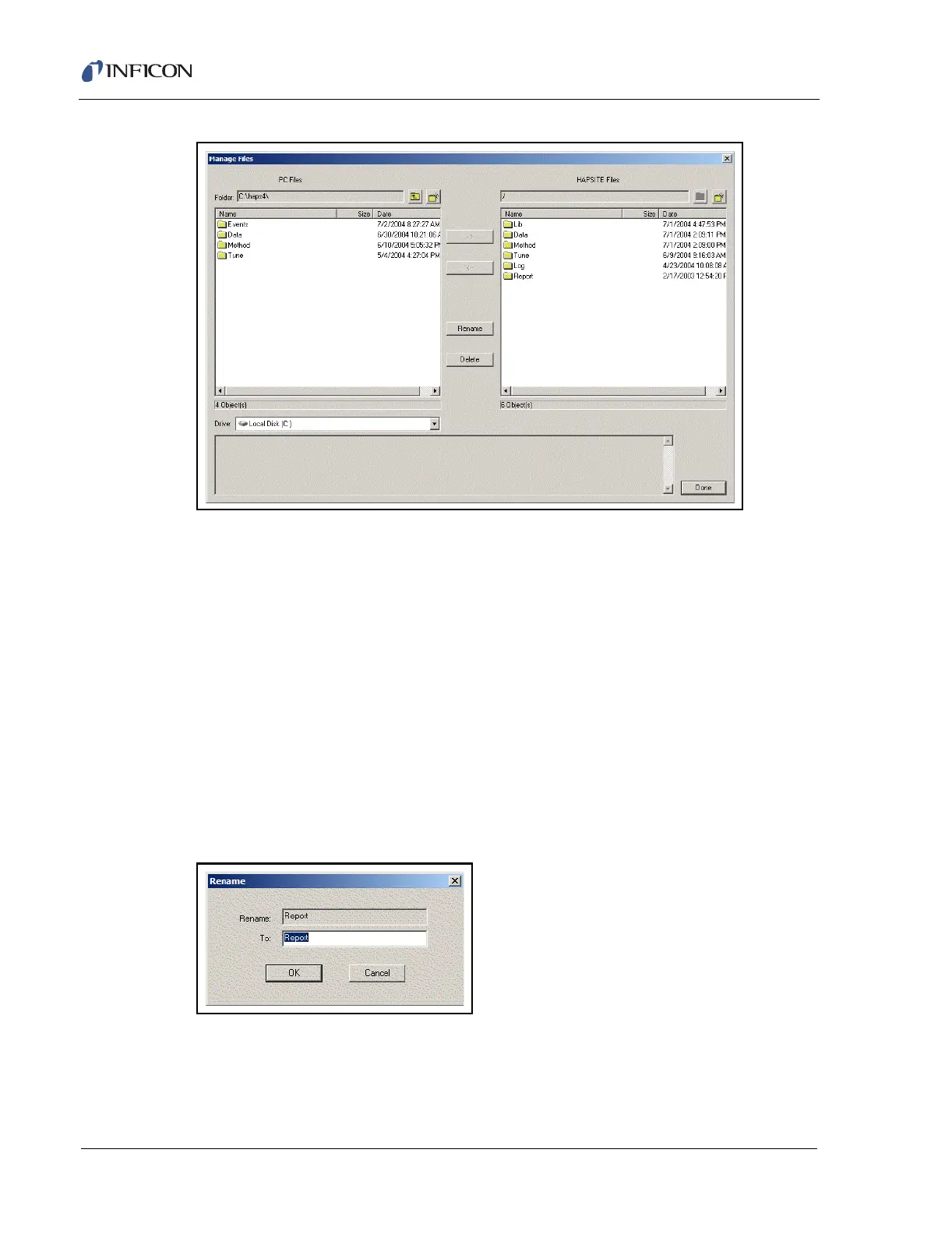
Figure 10-16 Manage Files Dialog Window
In the Manage Files window, the left side displays PC files while the right side
displays HAPSITE files. The current folder directory is listed for both the PC and
HAPSITE at the top of the window. The PC drive can be changed by clicking on the
Drive pull-down list and selecting another available drive. Pressing the Up One
Level button will move the directory back to the parent directory. Double-clicking
on a folder will open the folder.
HINT: The Name, Size, and Date columns can be resized by clicking and holding
the left mouse button on the line at the right edge of the field, then dragging
it to resize. Double clicking on the right edge of any field will size the field
to fit the data.Single clicking on a column heading will sort the list based on
that column.
Folders or files may be renamed by selecting the appropriate file or folder, then
pressing the Rename button. The rename dialog is shown in Figure 10-17.
Figure 10-17 Manage Files - Rename Window
Files or folders may be deleted using the Delete button. Select the desired file or
folder to delete, then press the Delete button. A window will appear asking for
confirmation to delete the file or folder. Select Yes to perform the delete, otherwise
select No. The delete confirm window is shown in Figure 10-18.



 To Next Page